
What is World Guild Battle?
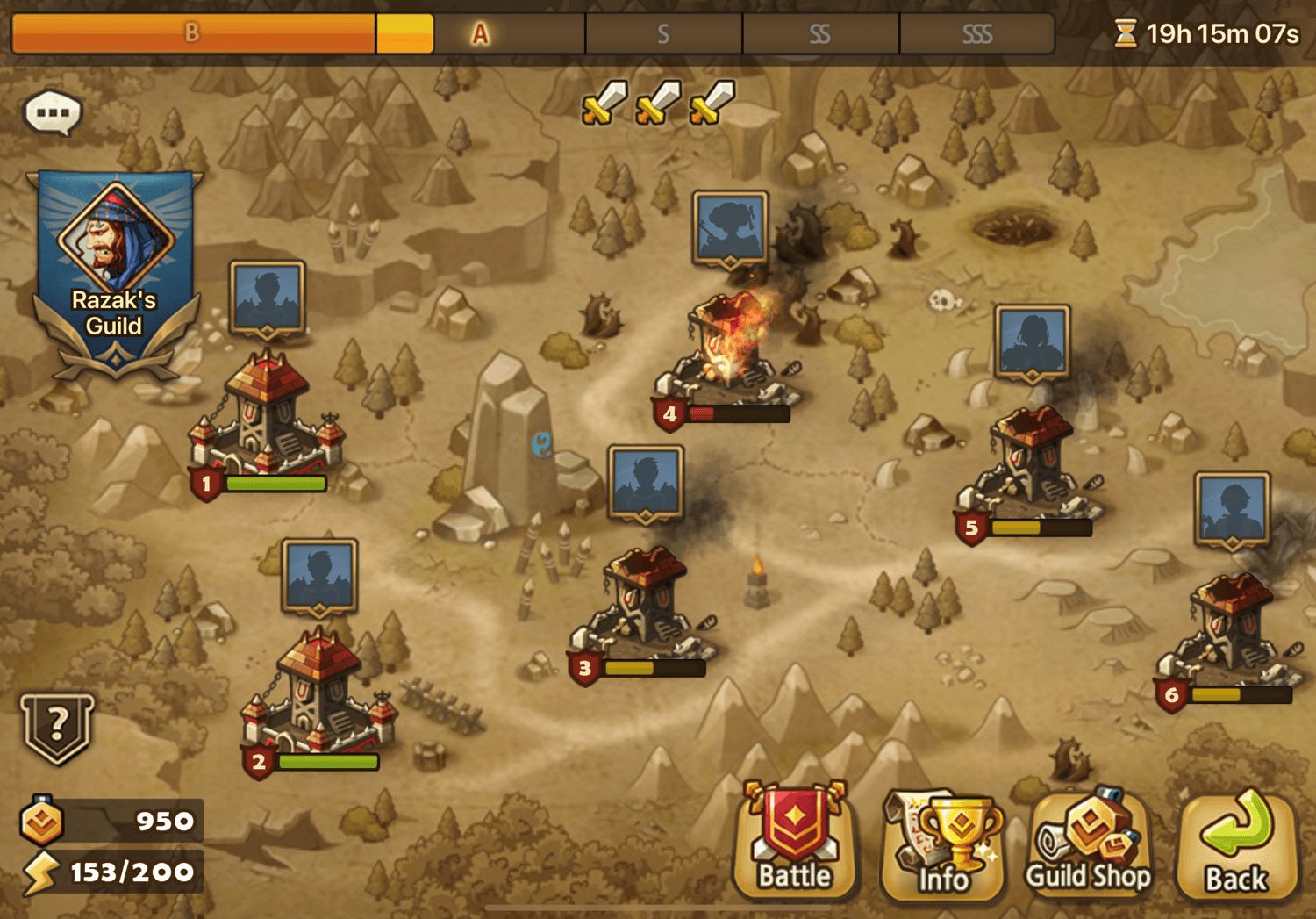
World Guild Battle (WGB) is Summoners War's large-scale guild vs guild PvP mode. Unlike Guild Siege where three guilds fight simultaneously on a tower-based map, WGB is a direct 1v1 battle between two guilds. Each guild fields defense teams across the battlefield, and members take turns attacking the opposing guild's defenses. All monsters are allowed — there are no Nat4 tower restrictions like in Siege, meaning every team can use your strongest Nat5 units.
The key strategic difference from Siege is the dual equipment pool system. In WGB, your attack teams and defense teams use completely separate rune sets. Your WGB attack runes are shared with your Arena equipment, while your WGB defense runes have their own dedicated pool. This means you need to manage two distinct rune inventories — one for offense and one for defense — which the SWLens WGB Builder handles automatically.
Why SWLens WGB Builder?
Attack & Defense Modes
Separate workflows for WGB offense and defense. Build up to 5 attack or 5 defense teams simultaneously with shared rune pool optimization.
Dual Equipment Pools
WGB ATK runes are shared with Arena. WGB DEF runes have their own isolated pool. The builder automatically manages both pools so runes are never incorrectly assigned.
Trending Compositions
Browse team compositions ranked with flame tiers (S, SS, SSS) based on a proprietary algorithm that considers optimization frequency and player rank.
Speed Tuning & Tick Brackets
Advanced speed tuning calculates optimal follower speeds to prevent over-investment. Tick bracket mode targets specific combat speed ranges.
Grind Simulation
Simulate Hero or Legend max grinds on your runes before optimizing. See your builds' full potential without spending grindstones.
Cloud Saves & Guild Sync
Save builds to the cloud, lock units, view guildmates' defenses, and re-optimize with preserved configurations.
Understanding WGB Equipment Pools
This is the most important concept to understand about WGB building. Unlike Siege (which has one unified equipment pool), WGB splits your runes into two separate pools:
Shared with Arena, Dungeons, and all other content. The runes you equip on your WGB attack monsters are the same runes available to your Arena teams, dungeon teams, and everything else. Optimizing WGB attack may affect your other builds and vice versa.
WGB-exclusive. Your WGB defense runes are completely separate from everything else. These runes cannot be used by Arena, Siege, or WGB attack monsters — they're dedicated to your WGB defenses only.
Step-by-Step Walkthrough
Import Your Account
Upload your SWEX JSON file to load your full monster collection, runes, and artifacts. If you don't have a JSON file yet, follow our SWEX JSON setup guide to export your game data in minutes. The builder instantly displays your wizard info, monster count, and rune inventory.
Choose Attack or Defense
Select your WGB mode. Both modes support building up to 5 teams simultaneously. WGB Attack uses the ATK rune pool (shared with Arena). WGB Defense uses the dedicated DEF rune pool (WGB-exclusive). The optimizer automatically selects the correct pool based on your choice.

WGB Attack
ATK pool (shared with Arena)

WGB Defense
Dedicated DEF pool (WGB-exclusive)
Select Team Compositions
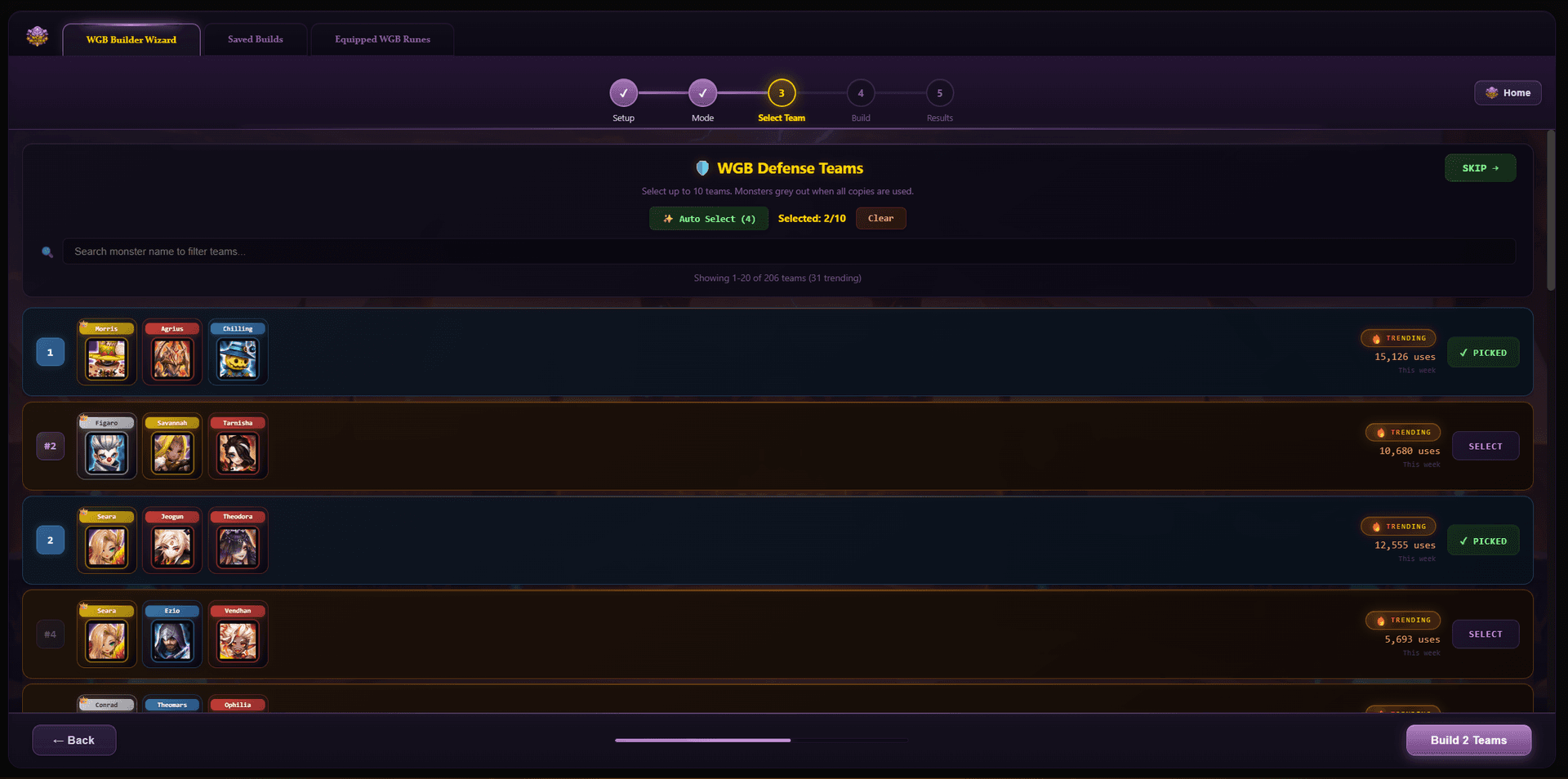
Browse trending WGB team compositions ranked by flame tier (S, SS, SSS) based on how frequently top-level players optimize with them. Use the search bar to find teams with specific monsters, or click “Auto Select” to let the system pick the best teams based on your monster box and rune quality. You can also skip this step and manually pick any 3 monsters per team.
Since WGB has no Nat4 restrictions (unlike Siege), all compositions use your full monster pool including Nat5s. WGB trending data is completely separate from Siege — the meta is different because the format, rune pools, and strategic considerations are different. Teams that dominate in Siege may not be optimal in WGB, and vice versa, so the builder maintains independent trending databases for each mode.
Configure Your Builds
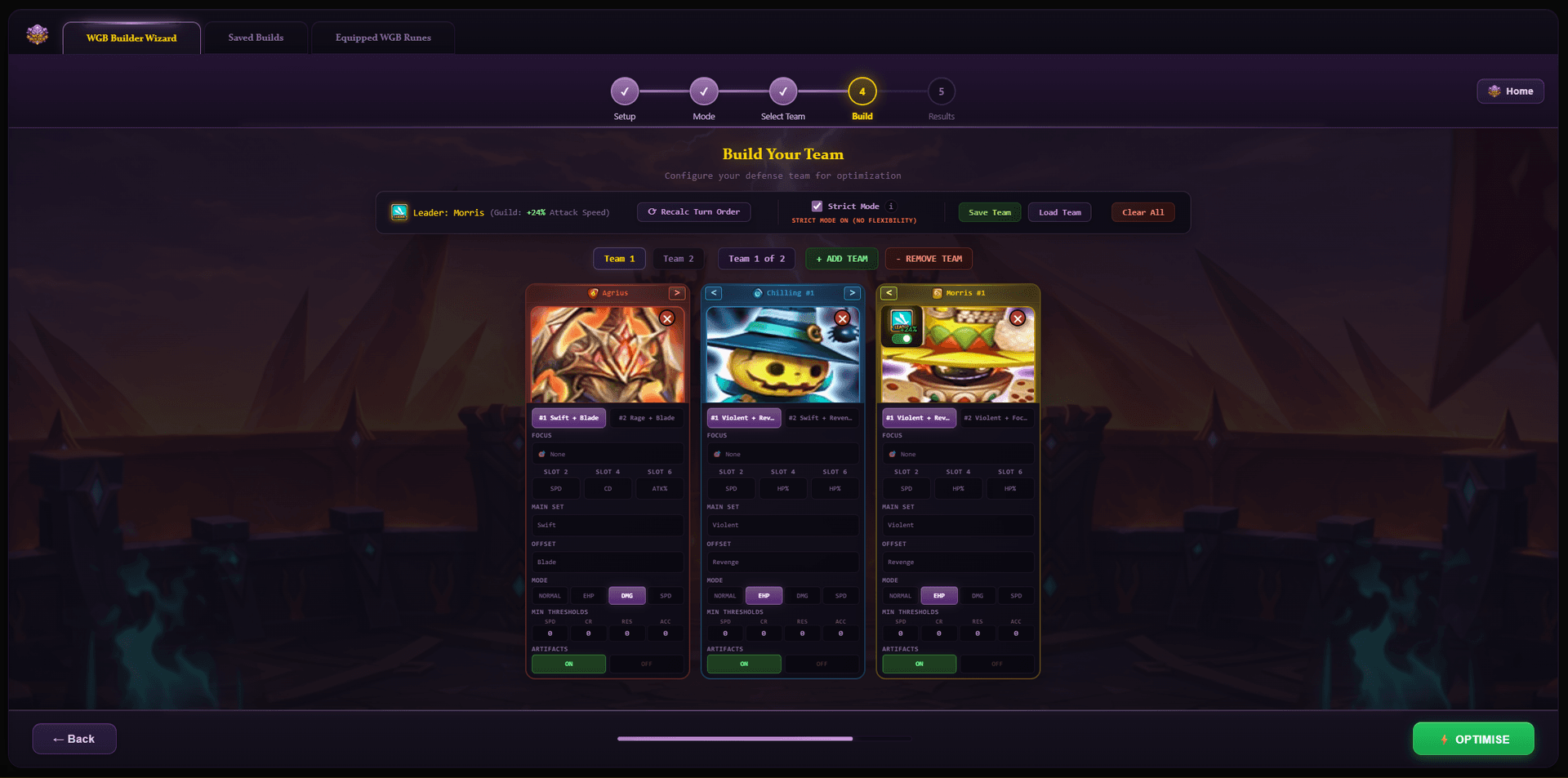
The SWLens optimizer evaluates billions of rune permutations for each monster, testing every valid combination of rune sets, main stats, and sub-stats to find the absolute best configuration based on your parameters. Unlike traditional optimizers that run on your own PC and consume your CPU resources, SWLens runs the entire computation on our dedicated GPU-accelerated servers — delivering results in seconds rather than the minutes or hours a local optimizer would take. This also means you can optimize from any device including tablets and mobile phones, since the heavy processing happens server-side, not on your hardware (though the UI is best experienced on desktop). Configure every aspect of your rune optimization for each monster. The card order from left to right defines turn order — the leftmost monster moves first. You can reorder monsters using the arrow buttons, swap them out by clicking their portrait, or toggle leader skills on/off.
For each monster, select your preferred rune sets (main 4-piece + offset 2-piece, with multiple selections allowed), choose slot 2/4/6 main stats, and pick a build mode: NORMAL (balanced), EHP (survivability), DMG (damage), or SPD (pure speed). Set minimum stat thresholds (e.g., min 200 SPD, min 85% CR) and maximum caps to prevent over-investment. Toggle artifacts on/off, and use strict mode to control whether the optimizer must follow your exact specs or can be flexible. For a detailed breakdown of every configuration option, see the Siege Builder build config guide.
Build Modes
Balanced — considers all stats equally
Maximizes survivability
HP × (1140 + DEF × 3.5) / 1000Maximizes damage output
ATK × (1 + CD) × CR + ATK × (1 - CR)Prioritizes pure speed above all else
Strict Mode
The optimizer must follow your exact rune set selections, main stats, and thresholds. Reports detailed failures showing which thresholds couldn't be met.
The optimizer is flexible and may try alternative rune sets or stat distributions for stronger builds. Ideal when exploring options.
Use Locked Runes Toggle
OFF (default): Runes belonging to locked/saved-build monsters are excluded — protects your existing builds. ON: All runes are available, giving the optimizer maximum flexibility but may move runes from existing builds.
Minimum & Maximum Thresholds
Set minimum stat requirements (e.g., minimum 200 SPD, minimum 85% CR) — the optimizer will discard any build that doesn't meet ALL minimums. Set maximum caps (e.g., max 100% CR, max 250 SPD) to prevent over-investment in stats that have diminishing returns. This is especially important for speed tuning — capping speed ensures the optimizer invests remaining stat rolls into damage or survivability instead.
Artifacts Toggle
When enabled, the optimizer finds and assigns the best artifacts for each monster from your inventory, factoring in element-specific bonuses, type bonuses, and all sub-properties. When disabled, only runes are optimized and artifact stats are excluded entirely.
Grind Simulation
Simulate Hero or Legend max grinds on all +12 or higher runes before optimizing. See your builds' full potential without spending grindstones. Simulated grinds are marked with an asterisk (*) in the results.
Smart Error Handling
The optimizer doesn't just fail silently — it gives you detailed, actionable feedback when something goes wrong. Here are the types of errors you might encounter and what they mean:
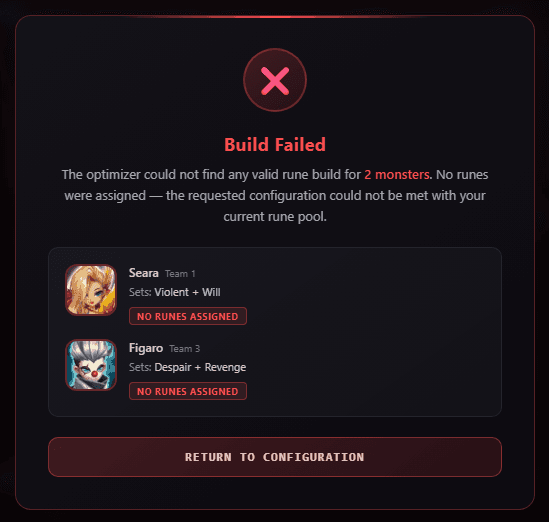
Build Failed
If the optimizer can't find a valid rune build for one or more monsters, it shows a Build Failed screen listing exactly which monsters failed and what rune sets were requested. This typically means your rune pool doesn't have enough quality runes matching the requested sets and stat thresholds. The fix: lower your minimum thresholds, add more allowed rune sets, or turn off Strict Mode.
Strict Mode Threshold Failures
When Strict Mode is ON and the optimizer can't meet your stat requirements, it shows a detailed breakdown of which specific thresholds failed — for example, “minimum 200 SPD not achievable with available Swift runes” or “85% CR requirement exceeds what your rune pool can provide with the selected sets.” This lets you know exactly which threshold to relax.
Speed Tune Failures
If the speed tuner determines that a follower cannot reach the minimum speed required to move after the booster with the available runes, it will alert you before optimization. The error will tell you which followers are affected so you can adjust the ATB boost %, change the booster, or free up speed runes.
Turn Order Violations
When loading a saved build that was locked, the optimizer checks if the intended turn order is still achievable. If a locked monster's speed conflicts with the current team configuration, you'll see a Turn Order Violation warning with options to proceed, re-lock, or cancel.
Rune Pool Shortage
In multi-team mode, if the optimizer determines there aren't enough quality runes to equip all monsters across all teams, it warns you about the rune pool shortage. This is most common when building 5 defense teams that all want Violent/Will runes — you might not have enough sets available. Consider mixing in other rune sets or reducing the number of teams.
Speed Tuning
Speed tuning prevents your optimizer from over-investing in speed. Configure your booster's ATB boost percentage, toggle speed buff mode, and set per-monster speed caps. The system calculates the exact minimum speed each follower needs to move after the booster, then sets SPD caps so the optimizer maximizes damage, HP, and other stats instead of wasting rolls on unnecessary speed. Tick bracket mode is also available for cleave teams that need to move within the same speed tier. For an in-depth walkthrough, see the detailed speed tuning guide.
Results & Saved Builds
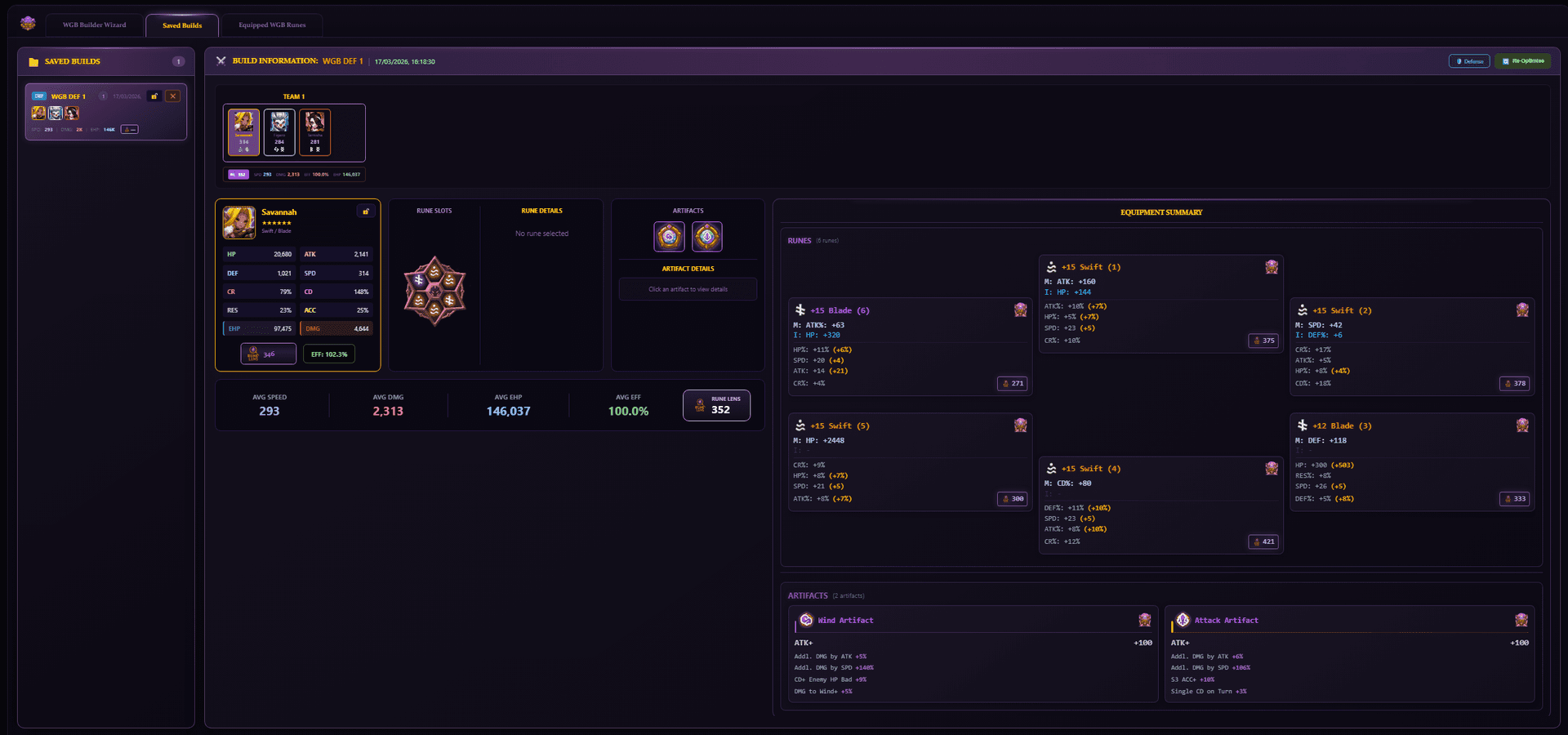
After optimization, the builder displays the best rune and artifact assignments for every monster across all your teams. Each monster shows final stats (HP, ATK, DEF, SPD, CR, CD, RES, ACC), efficiency %, EHP/DMG scores, and rune locations using the correct WGB equipment boxes (ATK or DEF pool depending on your mode).
From here you can save your builds to local storage and cloud, lock specific units to preserve their runes, lock entire teams, re-optimize specific teams while keeping others locked, use “Try to Improve” to re-run with preserved configs, or view guildmates' WGB defenses. When you re-optimize a saved build, the system remembers your exact configuration so you don't have to re-input anything.
Built-in Interactive Tutorial
New to the WGB Builder? Click the “?” button in the top bar to launch the interactive guided tour. The tutorial highlights each UI element with detailed tooltips, walking you through the entire build process step by step.
Siege vs WGB: Key Differences
| Feature | Guild Siege | World Guild Battle |
|---|---|---|
| Format | 3 guilds on shared map | 2 guilds head-to-head |
| Towers | Regular + Nat4-restricted | No restrictions (all monsters) |
| Equipment Pools | 1 dedicated pool | 2 pools (ATK shared with Arena, DEF exclusive) |
| Team Size | 3 monsters | 3 monsters |
| Teams per Build | Up to 5 | Up to 5 |
| Nat4 Filter | Yes (for restricted towers) | Not needed (no restrictions) |
Frequently Asked Questions
What is the difference between WGB and Siege equipment pools?
WGB has two separate pools: ATK (shared with Arena) and DEF (WGB-exclusive). Siege has one dedicated pool. The builder automatically uses the correct pool based on whether you select Attack or Defense mode.
How many WGB teams can I optimize at once?
Up to 5 attack or 5 defense teams simultaneously. The optimizer distributes runes across all teams ensuring no duplicates.
Will optimizing WGB Attack affect my other builds?
Yes — WGB ATK shares the same rune pool as Arena, Dungeons, and all other content. If you reassign runes for WGB attack, those runes may no longer be available for your other teams. Plan accordingly or lock your important builds first.
Is WGB Defense separate from everything else?
Yes. WGB DEF runes are completely isolated. Optimizing WGB defense will never touch your Arena, Siege, or WGB attack runes.
Does WGB have Nat4 tower restrictions?
No. Unlike Siege, WGB allows all monsters on all positions. There is no Nat4-only filter needed.
Why can’t the builder see my current WGB defense runes on first import?
The game’s JSON export doesn’t include WGB defense equipment data. Once you optimize and save builds through SWLens, the system tracks all rune assignments going forward. Subsequent optimizations will know exactly where every rune is.
Are speed tuning and other features the same as Siege?
Yes. Speed tuning, tick brackets, strict mode, grind simulation, artifacts, saved builds, locked units, and guild features all work identically.
Ready to Dominate WGB?
Import your SWEX JSON file and start building optimized WGB teams in minutes.
 Try for Free
About the SWLens WGB Builder
The SWLens WGB Builder is a comprehensive Summoners War rune optimizer and World Guild Battle team builder. Whether you need WGB attack teams or WGB defense compositions, SWLens handles the dual equipment pool system automatically. Features include trending WGB team compositions from top guilds, speed tuning with tick bracket calculations, multi-team rune optimization, artifact optimization, and grind simulation. As a complete Summoners War tool and SW optimizer, it also includes saved builds with cloud sync, guild defense sharing, and an interactive tutorial.
 Download