
What is Guild Siege?
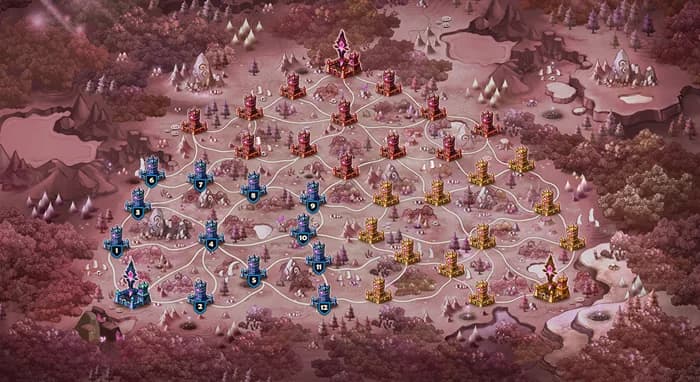
Guild Siege is Summoners War's strategic 3-guild battle mode where three guilds compete simultaneously on a shared battlefield. Each guild has a headquarters and a network of towers connected by paths. The goal is to capture enemy towers by defeating all defense teams placed on them, while defending your own. Each tower holds multiple 3-monster defense teams, and attackers must defeat every defense to capture the tower. The guild that controls the most towers and accumulates the highest score wins.
What makes Siege unique is the tower restriction system. Some towers are open to all monsters, while others are restricted to Nat4 and below only, creating two distinct metas. Players set up defense teams on their guild's towers and use attack teams to assault enemy positions. Siege uses a dedicated equipment pool separate from Arena and World Guild Battle, so you can rune your siege monsters independently. Battles run over a set period, and strategic coordination between guild members is key to victory.
Why SWLens Siege Builder?
Attack & Defense Modes
Separate workflows for siege offense and defense. Build up to 5 attack or 5 defense teams simultaneously — the optimizer handles shared rune pools across all teams.
Trending Team Compositions
Browse community-sourced team compositions used by top-tier guilds. Teams are ranked with flame tiers (S, SS, SSS) based on a proprietary algorithm so you know what’s dominating the current meta.
Speed Tuning & Tick Brackets
Advanced speed tuning ensures your booster moves first and followers act in the correct order. Tick bracket mode lets you target specific combat speed ranges for precise turn control.
Multi-Team Rune Optimization
Optimize all your defense teams at once. The system ensures no rune is assigned to two monsters across different teams — a true multi-team simultaneous optimizer.
Grind Simulation
Simulate Hero or Legend max grinds on your runes before optimizing. See what your builds could look like with fully grinded runes — without actually spending your grinds.
Cloud Saves & Guild Sync
Save your builds to the cloud and load them anytime. View your guildmates’ current siege defenses, or lock your best builds so the optimizer preserves them.
Step-by-Step Walkthrough
Import Your Account
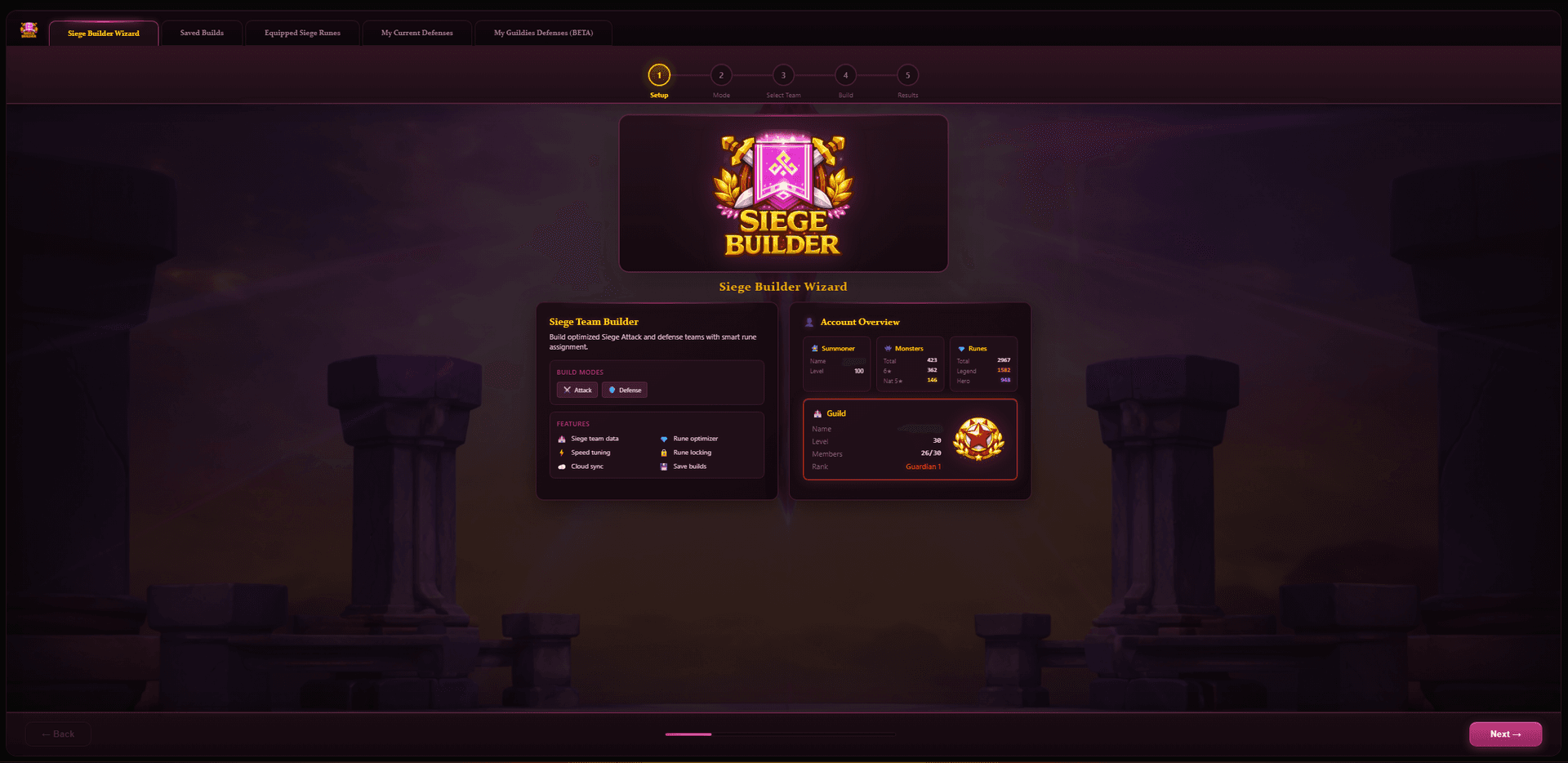
Upload your SWEX JSON file to load your full monster collection, runes, and artifacts. If you don't have a JSON file yet, follow our SWEX JSON setup guide to export your game data in minutes. The builder instantly displays your wizard name, level, guild info, monster count, and rune inventory. Your account data stays private and is never shared.
Choose Attack or Defense
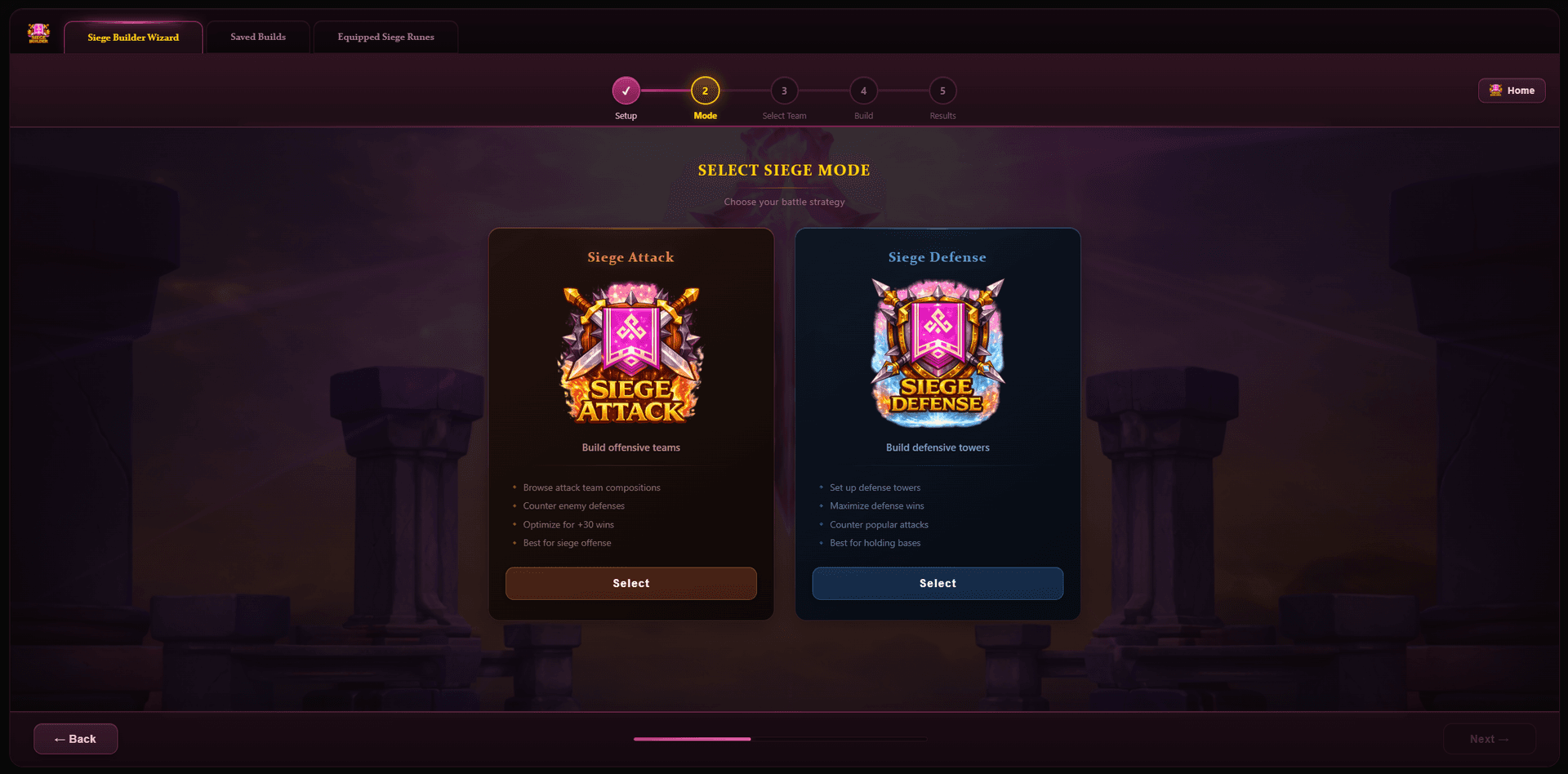
Select your siege mode. Both modes support building up to 5 teams simultaneously.Siege Attack mode focuses on offensive teams to break through enemy defenses.Siege Defense mode focuses on defensive teams to protect your base — the optimizer will share your rune pool across all teams, ensuring no duplicate rune assignments.

Siege Attack
Build up to 5 optimized attack teams to counter specific defenses

Siege Defense
Build up to 5 defense teams with shared rune pool optimization
Select Your Team Compositions
Browse the community team database to find proven 3-monster siege compositions. Teams are sourced from the SWLens Bestiary and ranked by popularity and effectiveness at the highest levels of guild siege.
Trending Teams
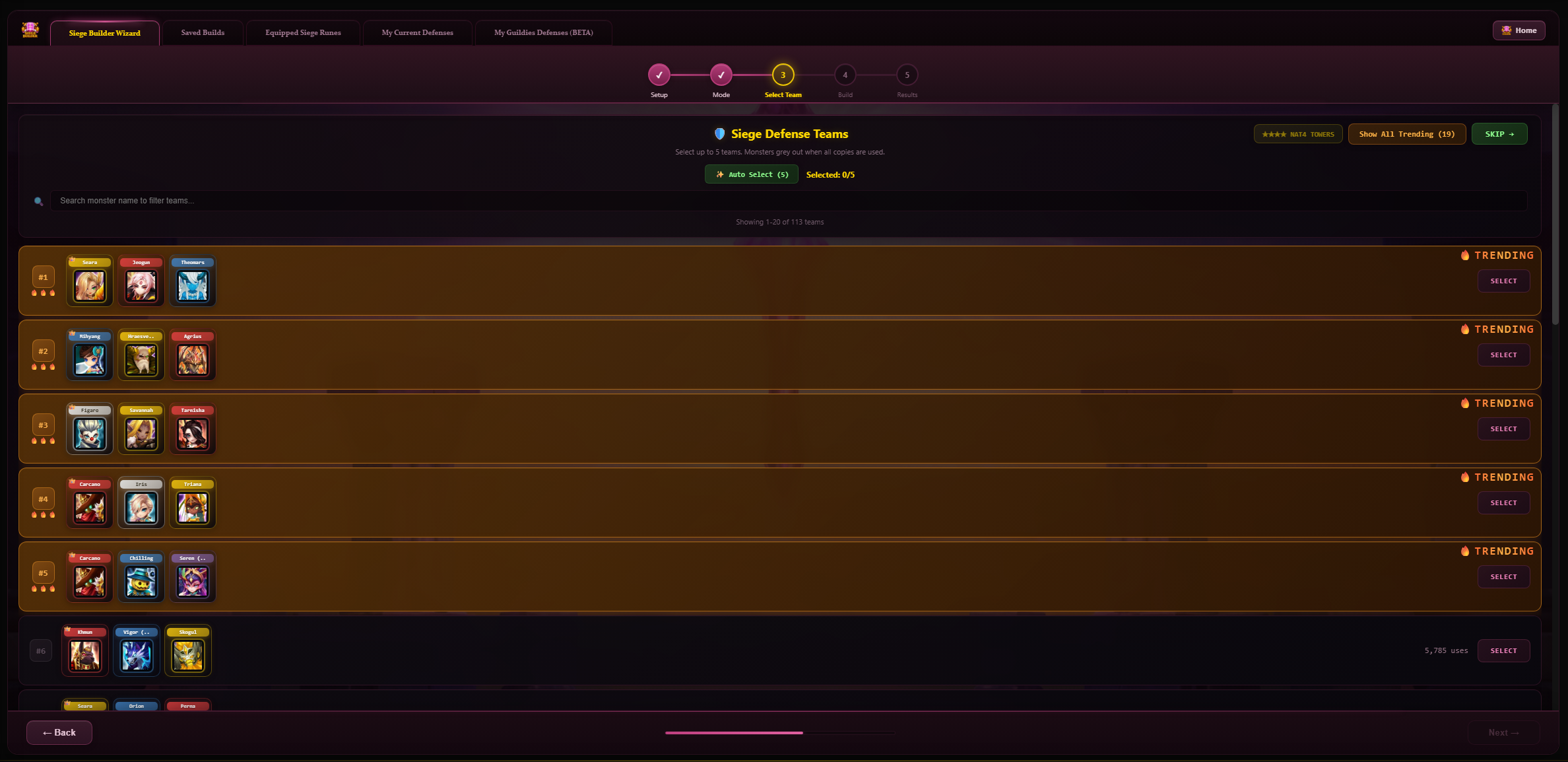
The Trending Teams section highlights compositions currently dominating the siege meta. Each team is assigned a flame tier based on our proprietary ranking algorithm that considers multiple factors — including how frequently the team is optimized, the rank and experience level of players using it, overall win rate data, and community adoption rates among high-level guilds.
Flame tiers indicate how hot a composition is in the current meta:
- 🔥🔥🔥 SSS Tier — the most dominant compositions, widely used by top-tier guilds with proven results
- 🔥🔥 SS Tier — highly effective teams seeing strong adoption across competitive play
- 🔥 S Tier — solid meta picks with consistent performance and growing usage
By default, the top 5 trending teams are shown. Click the “Show All Trending” button to expand and see every ranked composition in the database. You can also use the search bar to find teams containing specific monsters.
Nat4 Tower Teams
In Summoners War Guild Siege, each guild's base consists of multiple towers and a headquarters. There are two types of towers: regular towers that allow any monster, and Nat4-restricted towers that only permit natural 4-star and below monsters (including 2A awakened Nat3s and Nat2s, but excluding all Nat5s). Each tower holds multiple 3-monster defense teams, and attackers must defeat all defenses on a tower to capture it.
The Nat4 tower restriction creates a completely different meta — without Nat5 powerhouses, teams rely on strong Nat4 synergies. Click the “Nat4 Only” button to instantly filter the entire team database to show only Nat4-eligible compositions. This makes it easy to find proven teams for your restricted tower slots without scrolling through Nat5 compositions. Combined with the search bar, you can quickly find Nat4 teams featuring specific units like  Khmun,
  Vigor,
  Skogul,
  Triana,
  Susano, or any other popular Nat4 siege monster.
Auto Select — Let the System Pick Your Best Teams
Not sure which teams to build? Click the “Auto Select” button and let SWLens do the work for you. The system analyzes your entire monster box and rune inventory, cross-references it against the trending team database, and automatically selects the best 5 teams you can actually build based on what you own.
The auto-selection considers which monsters you have, which trending compositions those monsters fit into, your rune quality and depth, and the stat requirements each monster in a composition typically needs. It prioritizes higher-tier teams where your rune inventory can actually meet the demands — so you won't end up with a top-tier team your runes can't support. It's the fastest way to go from importing your JSON to having a full set of optimized siege teams — perfect for players who want a quick, data-driven setup without manually browsing through hundreds of compositions.
Skip Team Selection Entirely
Don't want to use a preset composition? Click the “Skip” button to bypass team selection entirely and go straight to the build configuration step. From there you can manually pick any 3 monsters from your collection into each team slot. The optimizer works identically with custom compositions — you have full control over every monster slot, rune set, and stat threshold. This is ideal for players who already know exactly what team they want to build or want to experiment with unconventional compositions.
Monster Ownership Indicators
Each team in the browser shows which monsters you actually own. Greyed-out portraits indicate monsters missing from your collection, so you can quickly identify teams you can actually build.
Configure Your Builds
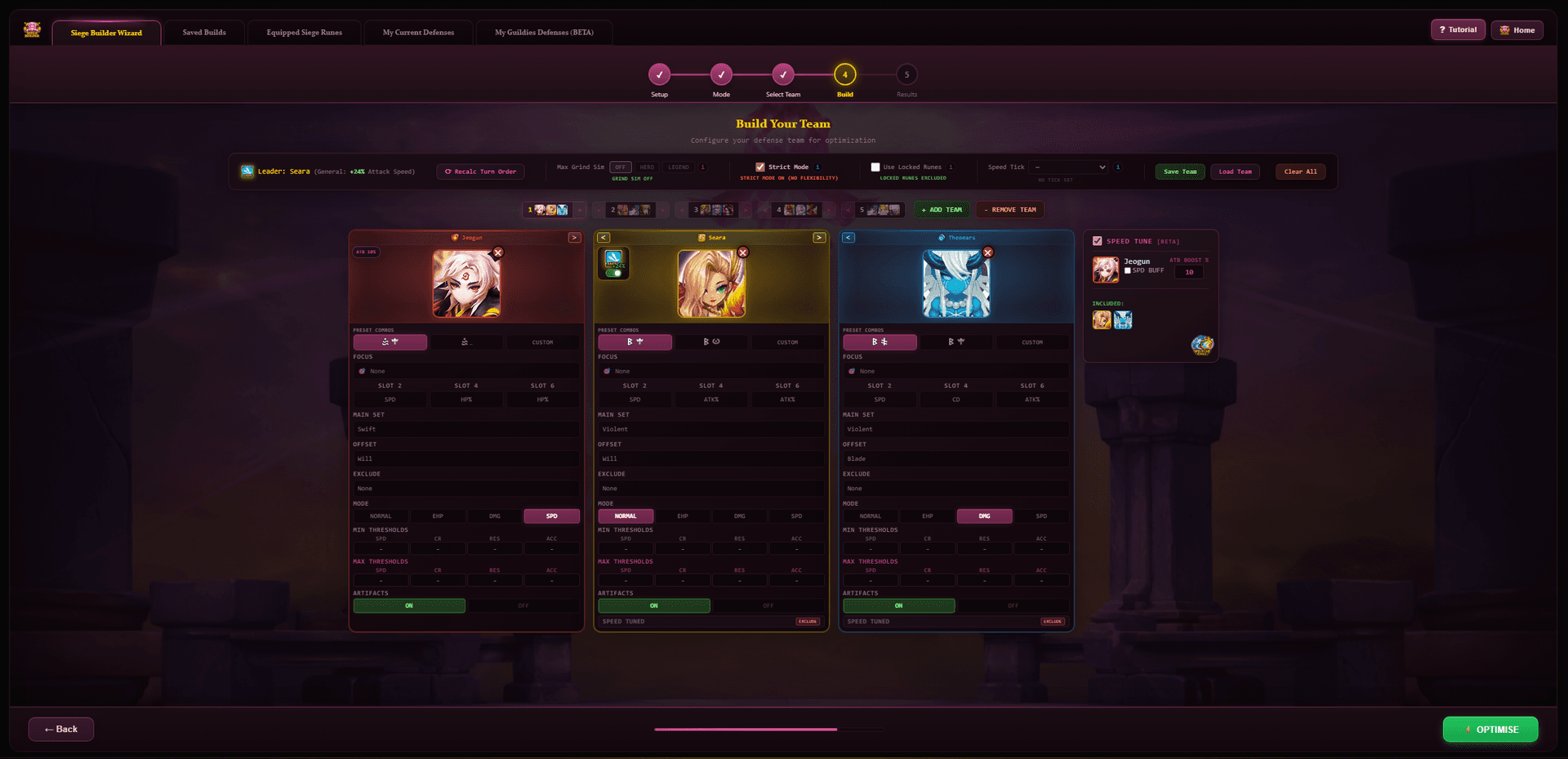
This is where the magic happens. The SWLens optimizer evaluates billions of rune permutations for each monster, testing every valid combination of rune sets, main stats, and sub-stats to find the absolute best configuration based on your parameters. Unlike traditional optimizers that run on your own PC and consume your CPU resources, SWLens runs the entire computation on our dedicated GPU-accelerated servers — delivering results in seconds rather than the minutes or hours a local optimizer would take. This also means you can optimize from any device including tablets and mobile phones, since the heavy processing happens server-side, not on your hardware (though the UI is best experienced on desktop). Configure every aspect of your rune optimization for each monster across all your teams. The card order from left to right defines turn order — the leftmost monster moves first. You can reorder monsters using the arrow buttons on each card to swap positions left or right, changing the turn order. Need to change a monster? Click the monster portrait to swap it for a different unit from your collection, or use the red X to remove it entirely.
Leader Skills
If a monster has a leader skill, you can toggle it on or off with the leader skill button on their card. When enabled, the leader skill bonus (e.g., +33% Speed, +44% HP in Guild content) is factored into the optimization — affecting both stat calculations and speed tuning. Only one monster per team can have their leader skill active, and the optimizer automatically accounts for the bonus across all teammates.
Rune Set Selection
Choose your preferred main set (4-piece: Violent, Swift, Despair, Rage, Fatal, Vampire, etc.) and offset sets (2-piece: Will, Nemesis, Focus, Blade, Guard, Energy, etc.). You can select multiple sets per slot — the optimizer will try all valid combinations and pick the best. Choose “Broken” if you want any 2-piece combination.
Each monster card also shows the top 2 community preset builds automatically. Click a preset to instantly apply those rune set selections — great for quickly configuring popular builds like Violent/Will or Swift/Will.
Don't want a specific set? Use the Exclude Sets toggle to block unwanted rune sets entirely. If a rune belongs to an excluded set, the optimizer won't consider it.
Slot 2 / 4 / 6 Main Stats
Configure the primary stat for rune slots 2, 4, and 6. For each slot you can select multiple allowed main stats — the optimizer tests all valid combinations:
- Slot 2: SPD, HP%, ATK%, DEF%
- Slot 4: CR%, CD%, HP%, ATK%, DEF%
- Slot 6: HP%, ATK%, DEF%, ACC%, RES%
Build Modes
Choose how the optimizer scores and ranks builds for each monster:
Balanced — considers all stats equally
Maximizes survivability
HP × (1140 + DEF × 3.5) / 1000Maximizes damage output
ATK × (1 + CD) × CR + ATK × (1 - CR)Prioritizes pure speed above all else
Focus Stats
For advanced users: select specific stats to prioritize during optimization. For example, set Focus to CR + CD for a damage dealer to ensure the optimizer weights those stats higher. This is optional — the build mode handles most cases automatically.
Minimum & Maximum Thresholds
Set minimum stat requirements (e.g., minimum 200 SPD, minimum 85% CR) — the optimizer will discard any build that doesn't meet ALL minimums. Set maximum caps (e.g., max 100% CR, max 250 SPD) to prevent over-investment in stats that have diminishing returns.
Artifacts Toggle
Toggle artifacts on or off. When enabled, the optimizer will also find and assign the best artifacts for each monster from your inventory — not just runes. Artifact stats are factored into the final build calculation, and the system selects optimal artifact pairings based on each monster's role and scaling. When disabled, only runes are optimized and artifact stats are excluded entirely from the build calculation.
Strict Mode
The Strict Mode toggle controls how strictly the optimizer follows your configuration:
The optimizer must follow your exact rune set selections, main stats, and threshold requirements. If no valid build exists that meets ALL criteria, it reports a detailed failure showing exactly which thresholds couldn't be achieved — so you know what to adjust.
The optimizer is flexible and may try alternative rune sets or stat distributions if they produce a significantly stronger build. Ideal when you're exploring options or unsure which sets work best — the system will find the mathematically optimal build even if it deviates from your initial configuration.
Use Locked Runes Toggle
The “Use Locked Runes” toggle controls whether runes currently assigned to monsters in your saved builds are available for the optimizer to reassign:
- OFF (default): Runes belonging to locked/saved-build monsters are excluded from the optimization pool. This protects your existing builds — the optimizer will only use unassigned runes or runes from non-locked monsters.
- ON: All runes in your inventory are available, including those currently equipped on other monsters. This gives the optimizer maximum flexibility but may result in runes being moved from monsters you've already built.
Search Depth
The Search Depth slider (5–15) controls how many runes per focus stat per slot the optimizer considers when building each monster. A higher depth means the optimizer evaluates more rune combinations, which can find better builds but takes longer.
Fastest optimization. Only the top 5 runes per focus stat per slot are considered. Good for quick iterations or when you have a small rune pool. May miss optimal builds if your best runes aren't in the top 5 for the focused stat.
The recommended setting for most users. Considers 10 runes per focus stat per slot, providing a good balance between build quality and optimization speed.
Deepest search. Evaluates 15 runes per focus stat per slot for the most thorough optimization. Use this when you want the absolute best builds and don't mind waiting a bit longer.
Save & Load Team Configurations
Before optimizing, you can save your entire team configuration — including all monster selections, rune set choices, stat thresholds, speed tune settings, and build modes. Load a saved configuration anytime to pick up exactly where you left off. This is separate from saving optimized builds (which saves the actual rune results) — configuration saves preserve your build settings so you can re-optimize with the same parameters after importing a new JSON file with updated runes.
Advanced Optimizer
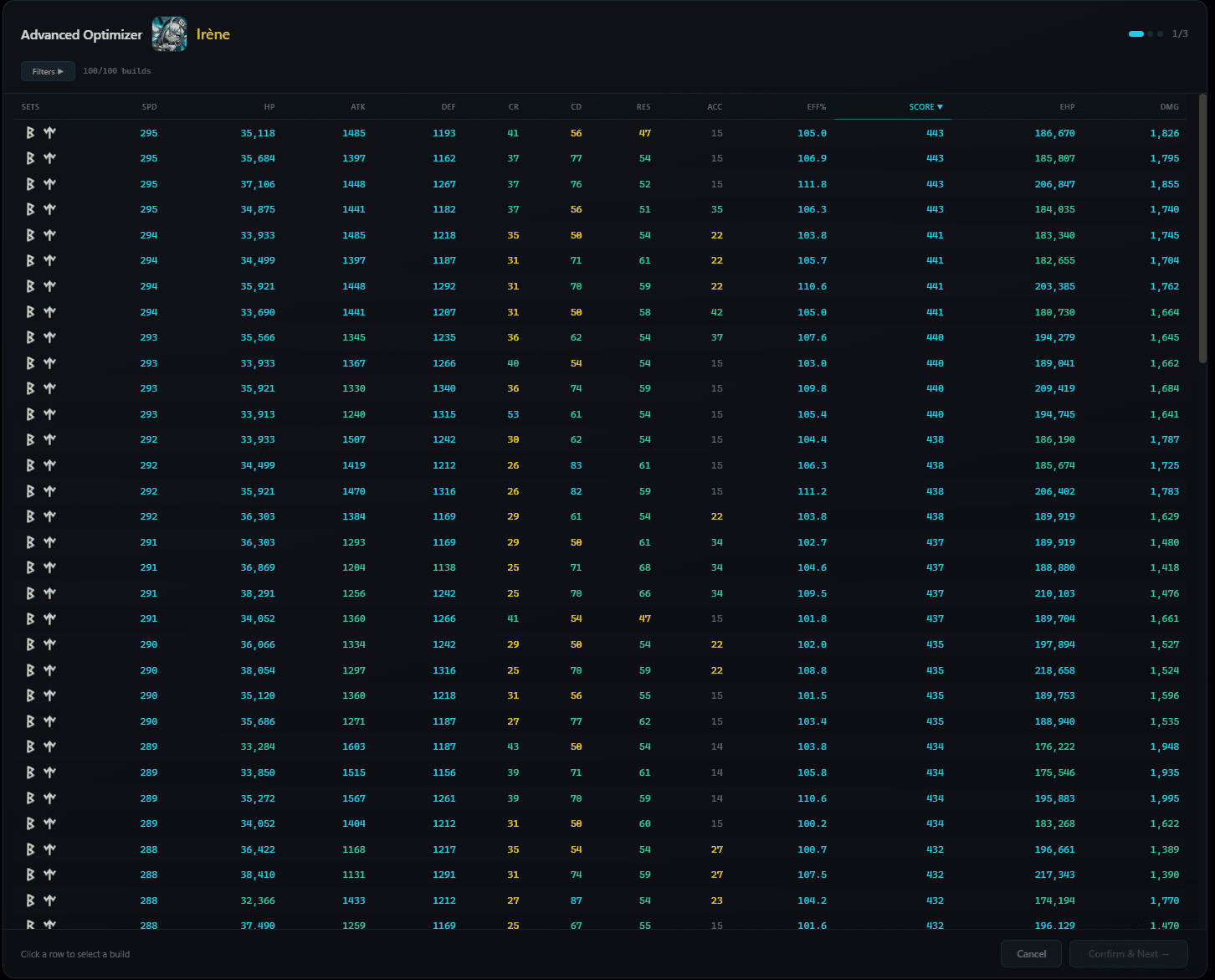
The Advanced Optimize button (next to the standard Optimize button) runs the optimizer in a special mode that returns the top builds per monster instead of just the single best result. This opens a Build Table where you can compare and hand-pick builds for each monster in your team.
How it works
- Compare multiple builds side by side — see how each build distributes stats differently (e.g., one might prioritize HP while another maximizes damage)
- Pick the build you prefer — the optimizer presents options and you choose which stat distribution fits your playstyle or team strategy
- Walk through each monster one by one — the build table steps through each monster in the team, letting you confirm or change builds individually before moving to the next
- Go back to previous monsters — if you change your mind, you can revisit and re-pick a build for any monster you've already confirmed
When to use it
This is ideal when you want more control over the final result rather than blindly accepting the optimizer's top pick. For example, you might prefer a slightly tankier build over the highest-damage option, or you might want to see if a different rune set gives you the stats you need. The Build Table shows all key stats — SPD, HP, ATK, DEF, CR, CD, RES, ACC, efficiency, EHP, and estimated damage — so you can make an informed choice.
Speed Tuning & Tick Brackets
Speed tuning is critical in siege — your booster must move first, followed by your damage dealers in the correct order. SWLens offers two advanced speed control systems:
Speed Tune Calculator
Enable Speed Tuning for any team to ensure precise turn order. Configure:
- Booster selection — which monster gives the ATB boost
- ATB boost percentage (0-100%) — how much attack bar the booster fills
- Speed buff toggle — alternative to ATB if the booster uses a speed buff
- Per-monster max speed caps — prevent followers from outspeeding the booster
- Artifact speed contributions — factor in artifact speed bonuses
- Monster exclusions — exclude specific monsters from speed tune constraints
The calculator automatically computes the minimum follower speeds needed to move immediately after the booster, and sets appropriate SPD caps to prevent over-investment.
Tick Bracket Mode
For players who understand the game's internal speed tick system: select a specific tick bracket (Tick 4 through Tick 10) to target an exact combat speed range. The optimizer ensures all monsters in the team fall within the selected bracket's speed window. This is mutually exclusive with Speed Tune — use one or the other.
How Speed Tuning Works in Practice
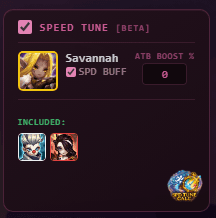
In the screenshot above you can see the Speed Tune panel in action. The booster ( Savannah in this example) is selected with her ATB Boost % configured and SPD Buff toggled on. The “Included” section shows which monsters are part of the speed tune calculation — only included monsters will have their speed constrained to move after the booster in the correct order.
The system calculates the exact minimum speed each follower needs to take their turn immediately after the booster fills their attack bar. It then automatically sets appropriate SPD caps on each follower to prevent the optimizer from over-investing in speed (which would waste stat potential on unnecessary speed rolls).
For teams that rely on a speed buff instead of an ATB boost (e.g., a monster that buffs team speed rather than filling the attack bar), toggle the “SPD Buff” checkbox instead. The calculator adjusts its formulas accordingly — the minimum follower speeds will be different because a speed buff multiplies combat speed rather than directly filling the attack bar. If you want to play around with speed calculations without running the full optimizer, SWLens also has a free standalone Speed Tune Calculator that works without importing a JSON file.
Understanding Speed Ticks
Summoners War uses an internal tick-based speed system to determine turn order. Every monster's combat speed maps to a specific tick bracket (Tick 4 through Tick 10), which determines how many game ticks pass before that monster takes its turn. A monster in Tick 4 moves much faster than one in Tick 10.
The Tick Bracket mode lets you target a specific bracket for your entire team. Instead of setting individual speed targets, you select a tick number and the optimizer ensures every monster in the team reaches the minimum combat speed for that bracket. This is particularly useful for cleave teams where all monsters need to move within the same tick window.
Note: Speed Tune and Tick Bracket modes are mutually exclusive — you can use one or the other per team, not both. Speed Tune is better for teams with a dedicated booster, while Tick Bracket is better for teams where all monsters should be in the same speed tier.
Grind Simulation
Before you optimize, you can simulate what your runes would look like with max grinds applied. Choose between:
- Hero Grinds: Simulates hero-grade max grinds on all +12 or higher runes
- Legend Grinds: Simulates legend-grade max grinds for maximum potential
This lets you see what your builds could become with proper grinding — without actually spending your grindstones. Simulated grinds are marked with an asterisk (*) in the results so you know which stats need grinding.
Smart Error Handling
The optimizer doesn't just fail silently — it gives you detailed, actionable feedback when something goes wrong. Here are the types of errors you might encounter and what they mean:
Build Failed
If the optimizer can't find a valid rune build for one or more monsters, it shows a Build Failed screen listing exactly which monsters failed and what rune sets were requested. This typically means your rune pool doesn't have enough quality runes matching the requested sets and stat thresholds. The fix: lower your minimum thresholds, add more allowed rune sets, or turn off Strict Mode.
Strict Mode Threshold Failures
When Strict Mode is ON and the optimizer can't meet your stat requirements, it shows a detailed breakdown of which specific thresholds failed — for example, “minimum 200 SPD not achievable with available Swift runes” or “85% CR requirement exceeds what your rune pool can provide with the selected sets.” This lets you know exactly which threshold to relax.
Speed Tune Failures
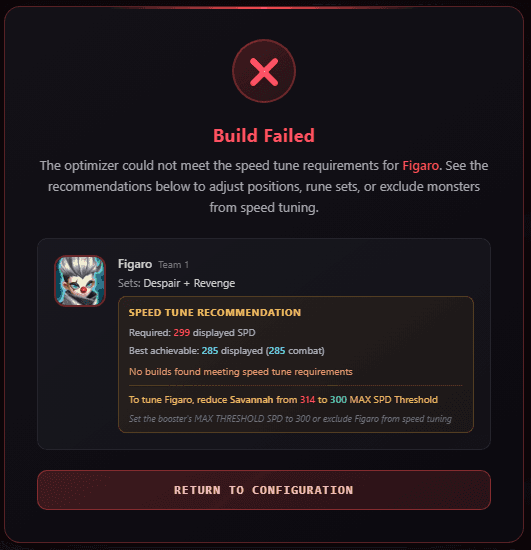
If the speed tuner determines that a follower cannot reach the minimum speed required to move after the booster with the available runes, it will alert you before optimization. This can happen when the ATB boost percentage is low and the follower needs very high speed to compensate — or when too many speed runes are locked to other monsters. The error will tell you which followers are affected so you can adjust the ATB boost %, change the booster, or free up speed runes.
Turn Order Violations
When loading a saved build that was locked, the optimizer checks if the intended turn order is still achievable. If a locked monster's speed conflicts with the current team configuration — for example, a locked monster would outspeed the booster — you'll see a Turn Order Violation warning with options to proceed, re-lock, or cancel.
Rune Pool Shortage
In multi-team mode, if the optimizer determines there aren't enough quality runes to equip all monsters across all teams, it warns you about the rune pool shortage. This is most common when building 5 defense teams that all want Violent/Will runes — you might not have 15 Violent sets available. Consider mixing in other rune sets or reducing the number of teams.
Optimization Results
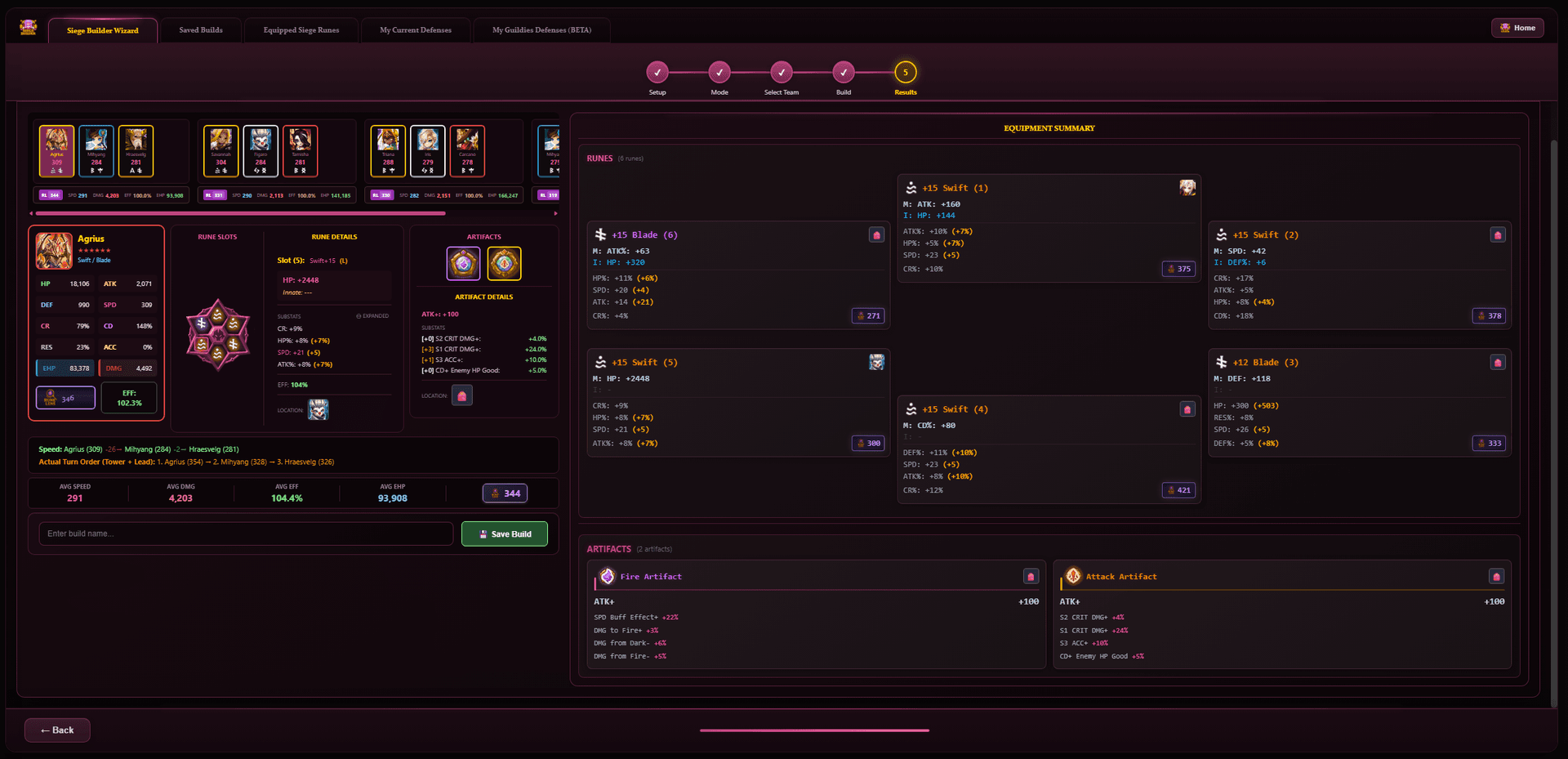
After optimization, the builder displays the best rune assignment for every monster across all your teams. For each monster you'll see:
- Final Stats: HP, ATK, DEF, SPD, CR, CD, RES, ACC
- Efficiency %: How well the runes are rolled
- EHP Score: Effective HP (survivability metric)
- DMG Score: Damage potential metric
- Actual Speed: Combat speed with leader skill factored in
- Rune Assignments: All 6 rune slots + artifacts with set bonuses
- Threshold Indicators: Green checks or red warnings for each stat target
- Simulated Grinds: Asterisk (*) marks on stats that exceed current grind values
Rune Location Tracking
Each assigned rune shows its current location — which monster currently has it equipped and in which rune box. Runes are displayed using the correct siege equipment boxes (separate from Arena/WGB), so you know exactly which runes to move in-game. If a rune is currently on another monster, you'll see the previous owner's name, making the rune swapping process straightforward.
Artifact Optimization
The optimizer doesn't just handle runes — it also selects the best artifacts for each monster. When artifacts are enabled, the system evaluates your entire artifact inventory and assigns the optimal artifact combination per unit based on the monster's role, scaling, and the artifact sub-properties that benefit them most. This includes element-specific artifacts, type-specific bonuses, and sub-properties like additional damage by HP/ATK/DEF, skill-specific CRIT DMG bonuses, and more.
After Optimization — What You Can Do
Once the results are displayed, you have several options:
- Save your build — save the entire multi-team build to local storage and cloud for future reference
- Lock specific units — lock individual monsters to preserve their assigned runes, so future optimizations won't touch them
- Lock entire teams — lock a full 3-monster team so the optimizer treats all their runes as reserved
- Re-optimize specific teams — unhappy with one team's results? Go back and re-optimize just that team while keeping other teams locked
- “Try to Improve” — re-run the optimizer with the same configuration but respecting locked builds, letting it find better options with the remaining rune pool
- Return to configuration — go back to Step 4 to adjust thresholds, change rune sets, or tweak speed tuning, then re-optimize
Saved Builds & Cloud Sync
Save your optimized builds locally or to the cloud. The Saved Builds tab lets you:
- Save multi-team or single-team builds with custom names
- Load previous builds from local storage or cloud
- Lock monsters to their saved rune assignments — the optimizer will preserve locked builds
- “Try to Improve” — re-optimize while respecting locked rune specs
- Track rune origins — see where each rune came from (which monster had it previously)
- Cloud sync — access your builds from any device via your SWLens account
Re-Optimizing Saved Builds
When you re-optimize a saved build, the system remembers your exact configuration — every rune set selection, main stat choice, stat threshold, build mode, speed tune setting, and artifact toggle is preserved exactly as it was when you originally built it. You don't have to re-input anything. Simply load the saved build, click optimize, and the system re-runs with your original settings but against your current rune inventory. This is particularly useful after importing a new JSON file with upgraded or newly acquired runes — your saved configurations instantly benefit from your improved rune pool without any manual reconfiguration.
Locking Units
When you lock a unit, its runes become reserved. The optimizer won't reassign locked runes to other monsters. This is essential for maintaining your best builds while optimizing remaining teams. You'll see a warning if locked runes would need to be moved.
Guild Features
My Current Defenses
View your currently set siege defenses directly in the builder. See all your defense teams with their current rune assignments, then optimize individual teams or all defenses at once. You can sync your defenses to make them visible to your guildmates who also use SWLens, or hide them at any time to protect your privacy.
Guildmates' Defenses
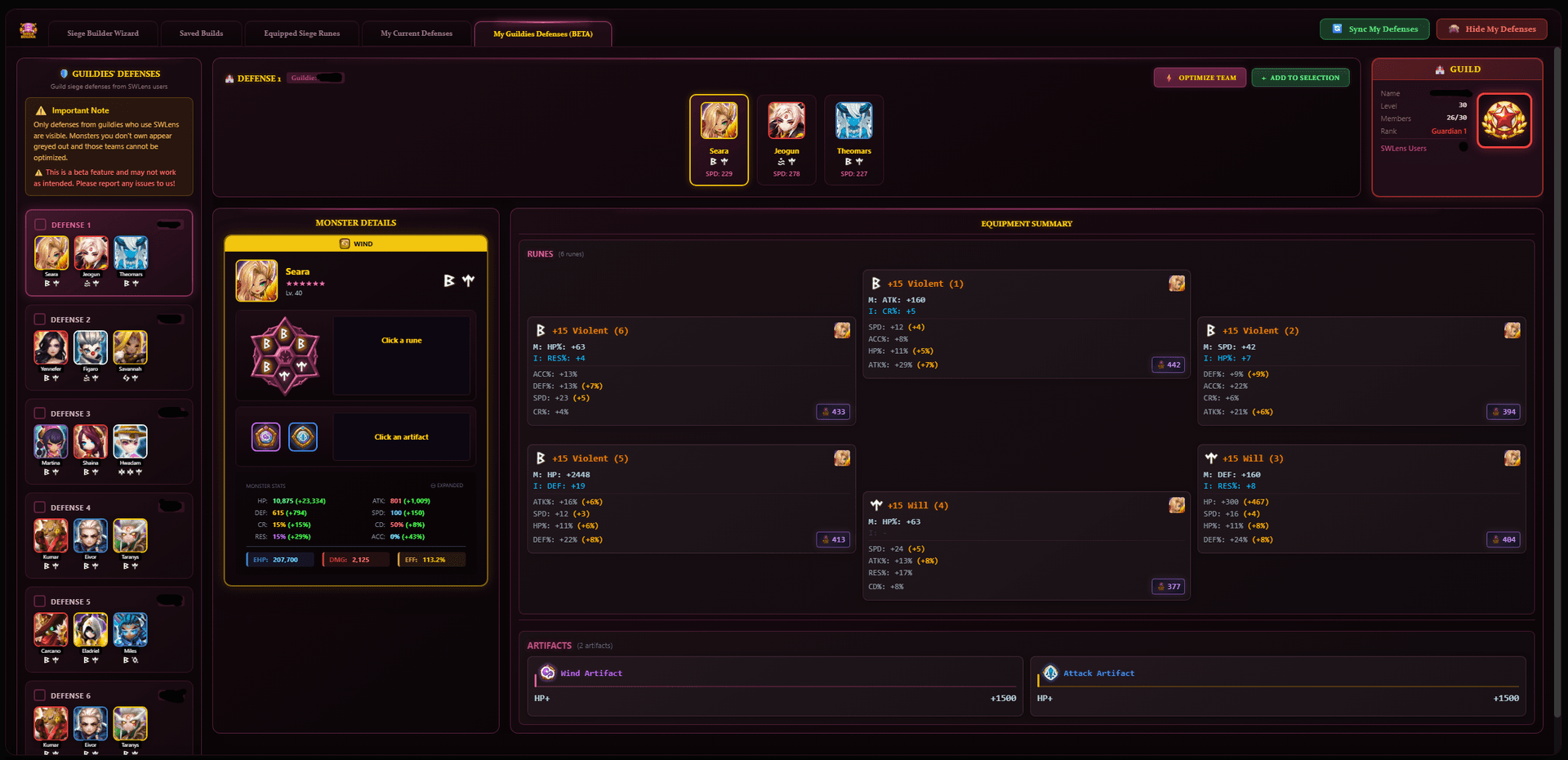
This is one of the most powerful guild coordination features in SWLens. When guildmates opt in by syncing their defenses, you can browse every guildmate's current siege defenses — see their exact monster compositions, the runes they have equipped, their stat builds, set bonuses, and efficiency ratings. You can even copy their builds directly into your own optimizer to analyze or replicate them.
Key details about how this works:
- Zero setup required — SWLens automatically detects your guild from your SWEX JSON file. There's no guild registration, no invite codes, no manual configuration. If you're in a guild, it just works.
- Off by default — defense sharing is disabled by default to protect privacy. Each player must explicitly choose to sync their defenses before guildmates can see them.
- Unsync anytime — you can hide your defenses at any time with a single click. Your data is immediately removed from your guildmates' view.
- View runes & artifacts — not just the monster compositions, but the actual rune builds, sub-stats, efficiency scores, and artifacts your guildmates are running.
- Guild leader insights — invaluable for siege planning. See what your guild is running, identify gaps in coverage, spot under-runed defenses, and coordinate defense placement across towers.
Equipped Units & Rune Pool
The Equipped Units tab gives you a complete overview of your entire siege rune inventory. See every monster with siege-assigned runes, their full stats, set bonuses, and efficiency ratings. Sort by name, speed, HP, ATK, DEF, or efficiency to quickly identify your strongest and weakest siege builds.
From this tab you can:
- View all siege-equipped runes and artifacts — expand any monster to see every rune slot, artifact, sub-stats, and grind values
- Lock and unlock units — lock specific monsters to protect their rune assignments during optimization, or unlock them to free their runes back into the pool
- Assess rune quality — efficiency percentages and set bonuses at a glance help you spot which monsters need rune upgrades
- Track rune ownership — see which runes belong to your siege pool vs other content pools
The siege rune pool is separate from Arena and WGB pools. The builder automatically parses your game data to identify which runes belong to your siege equipment pool, ensuring accurate optimization. This means your Arena runes won't be accidentally reassigned to siege monsters and vice versa.
Built-in Interactive Tutorial
New to the Siege Builder? Click the “?” button in the top bar to launch the 25-step interactive guided tour. The tutorial highlights each UI element with detailed tooltips explaining what it does, walking you through the entire build process from team navigation to speed tuning to saving your builds.
Frequently Asked Questions
How many siege teams can I optimize at once?
Up to 5 attack or 5 defense teams simultaneously. The optimizer distributes your entire rune and artifact pool across all teams, ensuring no rune or artifact is assigned to two different monsters.
Do I need to select a trending team or can I use my own composition?
Both! You can browse trending teams from the community database, use Auto Select to let the system pick the best 5 teams based on your monster box and rune quality, filter by Nat4-only for restricted towers, or skip team selection entirely and manually pick any 3 monsters.
What is speed tuning and why does it matter in siege?
Speed tuning does more than just ensure correct turn order — it prevents your optimizer from over-investing in speed. The speed tuner calculates the exact minimum speed each follower needs to move after the booster (factoring in ATB boosts, speed buffs, and leader skills), then sets SPD caps so the optimizer maximizes damage, HP, and other stats instead of wasting rolls on unnecessary speed.
What’s the difference between Speed Tune and Tick Brackets?
Speed Tune calculates follower speeds based on a booster’s ATB boost percentage — ideal for teams with a dedicated booster. Tick Brackets target a specific internal game speed range (Tick 4-10) for all monsters — ideal for cleave teams that need to move in the same speed tier. They’re mutually exclusive.
What does Strict Mode do?
Strict Mode ON (default) forces the optimizer to meet ALL your rune set, main stat, and threshold requirements exactly. If no valid build exists, it shows which specific thresholds failed so you know what to adjust. Strict Mode OFF lets the optimizer be flexible and try alternative rune sets or stat distributions if they produce a stronger build.
What is Grind Simulation?
Grind Simulation shows what your builds would look like with max Hero or Legend grinds applied to all +12 or higher runes. Simulated grinds are marked with an asterisk (*) in the results so you know exactly which stats need grinding. This helps you plan upgrades without spending grindstones.
Does the optimizer handle artifacts too?
Yes. When artifacts are enabled, the optimizer selects the best artifact pairings for each monster based on their role, element, and scaling. Artifact sub-properties like additional damage, CRIT DMG bonuses, and conditional effects are all factored into the build scoring.
Can I lock specific monsters or teams?
Yes. You can lock individual monsters to preserve their rune assignments, or lock entire teams. Locked runes are excluded from the optimization pool so they won’t be reassigned. You can also use "Try to Improve" to re-optimize while respecting all locked builds.
Can I swap monsters or change turn order after selecting a team?
Yes. In the build configuration step, you can click any monster portrait to swap it for a different unit, use arrow buttons to reorder cards (which changes turn order), remove monsters with the X button, or toggle leader skills on/off. You have full control over the composition.
How does the siege rune pool work?
Siege has its own dedicated equipment pool, completely separate from Arena, WGB, and your regular monster inventory. The optimizer only uses runes from your siege pool, so your Arena and WGB builds are never affected. The builder automatically reads which runes belong to the siege pool from your JSON file.
How does the guildmates defense sharing work?
SWLens automatically detects your guild from your SWEX JSON — no setup needed. Defense sharing is off by default. When you sync your defenses, guildmates who also use SWLens can see your compositions, runes, and stats. You can unsync at any time to hide your data instantly.
What happens if the optimizer fails to find a build?
The optimizer gives detailed feedback: Build Failed shows which monsters couldn’t be equipped, Strict Mode failures show which thresholds weren’t achievable, Speed Tune failures identify followers that can’t reach minimum speeds, and rune pool shortages warn when there aren’t enough runes across all teams. Each error tells you exactly what to adjust.
What does Search Depth do?
Search Depth (5–15) controls how many runes per focus stat per slot the optimizer considers. Higher depth means more rune combinations are evaluated, producing better builds but taking longer. The default of 10 balances quality and speed. Use 15 for the most thorough search, or 5–7 for faster iterations when optimizing many teams.
What is Advanced Optimize?
Advanced Optimize returns the top builds per monster in a Build Table instead of just the single best result. You can compare multiple builds side by side, pick your preferred stat distribution for each monster, and walk through each team member one by one. Use it when you want fine-grained control over builds — especially for defense teams.
About the SWLens Siege Builder
The SWLens Siege Builder Wizard is a comprehensive Summoners War rune optimizer and siege team builder designed for Guild Siege content. Whether you need to build siege attack teams to break through enemy defenses or craft the perfect siege defense compositions for your towers, SWLens handles it all. The tool supports Summoners War siege offense and defense modes, Nat4 siege tower team filtering, trending siege team compositions from top guilds, speed tuning with tick bracket calculations, multi-team rune optimization, artifact optimization, and grind simulation. As a complete Summoners War tool and SW optimizer, it also includes saved builds with cloud sync, guild defense sharing, and an interactive tutorial. Looking for the best siege defense or the best siege teams in Summoners War? Browse our trending compositions powered by data from thousands of optimizations by competitive players.
Ready to Dominate Siege?
Import your SWEX JSON file and start building optimized siege teams in minutes. Free to try — no credit card required.
 Try for Free
 Download