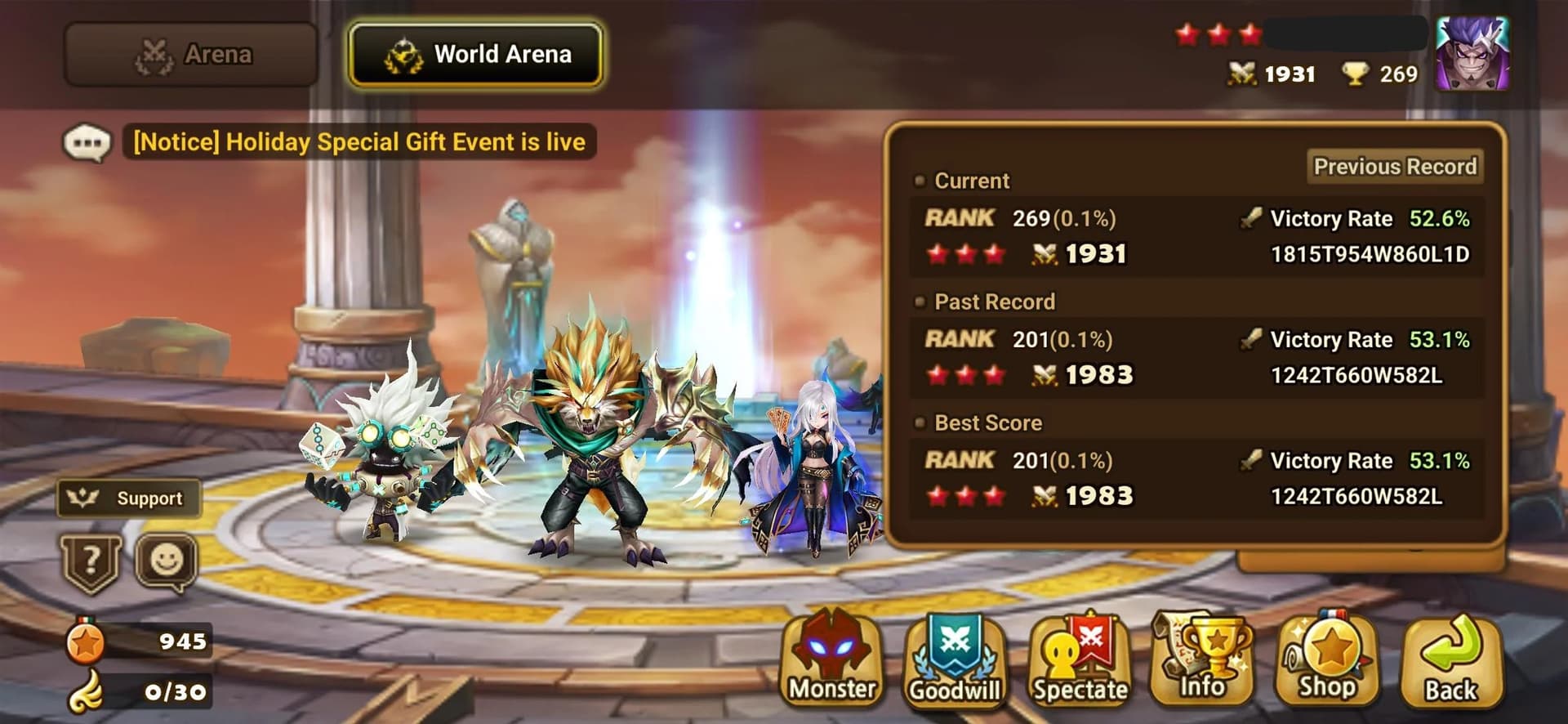
What is Real-Time Arena (RTA)?
Real-Time Arena (RTA) is Summoners War's competitive PvP mode where two players face off in real time with a strategic pick-and-ban draft. Each player alternates picking monsters from their collection, then bans one of the opponent's picks before the battle begins. This creates a dynamic meta where flexibility and roster depth matter as much as individual rune quality.
Unlike other PvP modes, RTA uses a dedicated equipment pool separate from Arena, Siege, and World Guild Battle. This means you can rune your RTA monsters independently without affecting your builds in other content. RTA has its own ranking system with tiers from Challenger through Fighter, Conqueror, Punisher, Guardian, and Legend — each with increasingly competitive metas. The higher you climb, the more important team synergy, speed tuning, and roster depth become.
Because of the pick-and-ban format, you can't rely on a single team comp. You need a roster of 5+ well-runed monsters that can adapt to whatever your opponent picks. The SWLens RTA Builder Wizard helps you build and optimize that roster — whether you want the system to do everything automatically, or you prefer full manual control.
Why SWLens RTA Builder?
Three Build Modes
Full Automatic builds your roster for you. Semi Automatic lets you browse meta teams and pick. Full Manual gives you complete control. Choose the level of automation that suits your playstyle.
Live Meta Data
Team recommendations powered by real RTA battle data — win rates, ban rates, ban resilience scores, and team synergy metrics. Filtered by rank bracket and balance patch date so you see what works NOW.
Speed Tuning & Tick Brackets
Advanced speed tuning ensures your booster moves first and followers act in the correct order. Tick bracket mode targets specific combat speed ranges for precise turn control.
Tiered Roster Builder
Full Auto builds a tiered roster with Core, Support, and Flex picks. Drag-and-drop monsters between tiers, swap units, and track synergy scores — all powered by meta analysis of your rune quality.
Grind Simulation
Simulate Hero or Legend max grinds on your runes before optimizing. See what your builds could look like with fully grinded runes — without spending a single grindstone.
Cloud Saves & Configs
Save your optimized builds to the cloud and load them anytime. Save and restore team configurations — every rune set choice, threshold, and speed tune setting is preserved.
Step-by-Step Walkthrough
Import Your Account
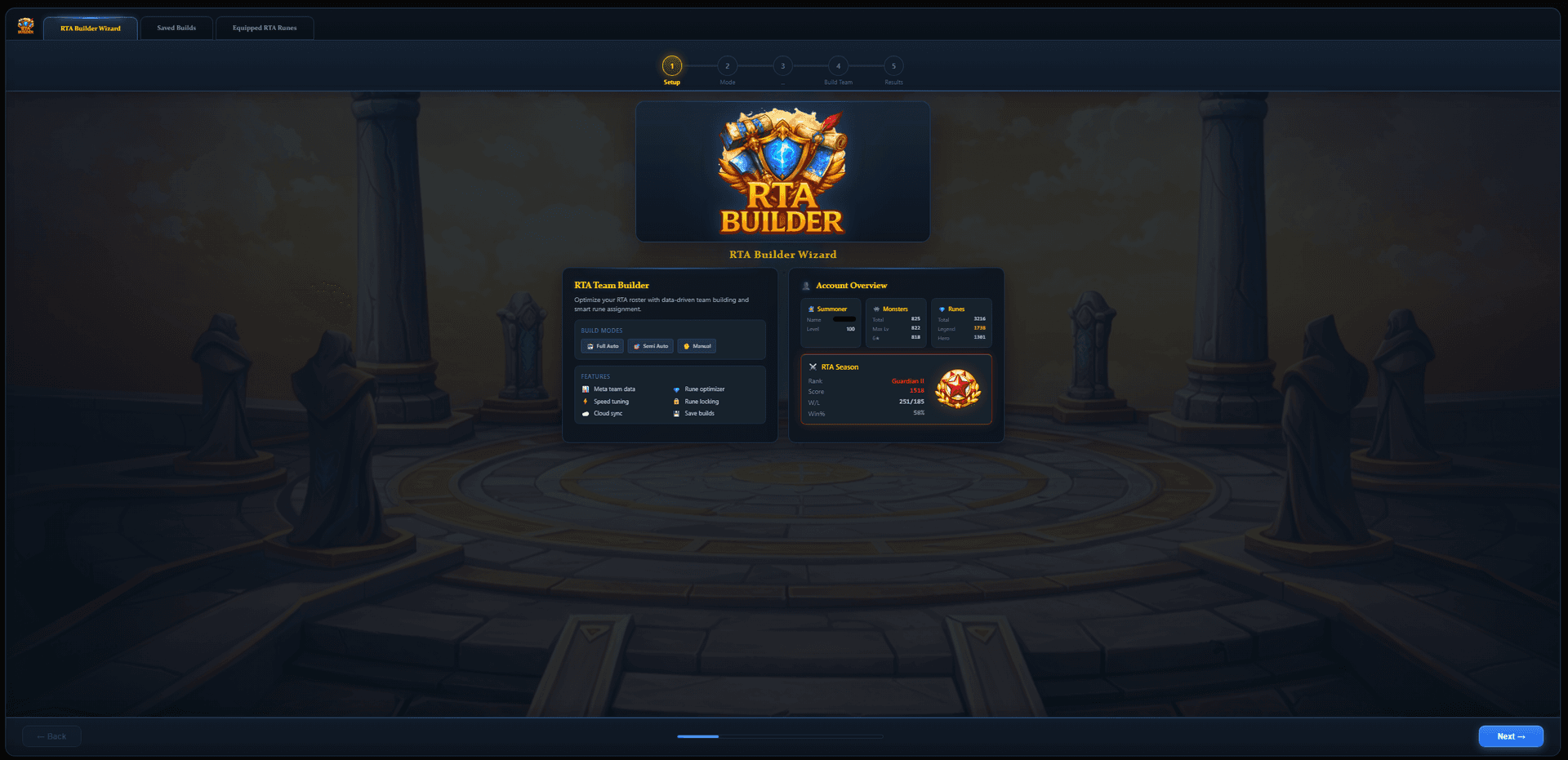
Upload your SWEX JSON file to load your full monster collection, runes, and artifacts. If you don't have a JSON file yet, follow our SWEX JSON setup guide to export your game data in minutes. The builder instantly displays your wizard name, level, RTA rank, monster count, and rune inventory. Your account data stays private and is never shared.
The RTA wizard automatically detects your current RTA rank from the JSON data and uses it to tailor team recommendations to your bracket. It also identifies which runes belong to your RTA equipment pool (separate from Arena, Siege, and WGB), ensuring accurate optimization.
Choose Your Build Mode
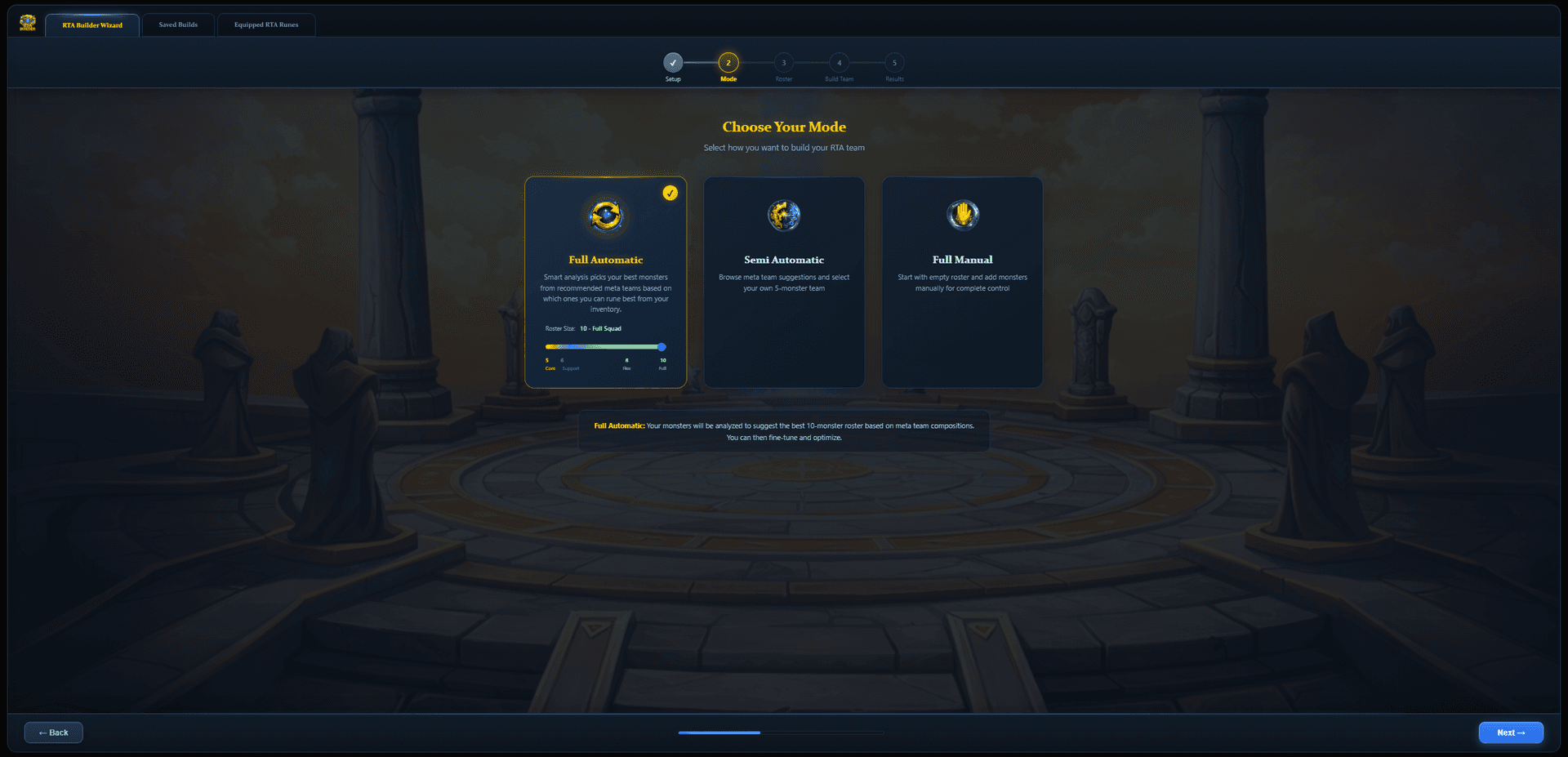
The RTA Builder offers three distinct build modes, each designed for a different level of automation and player expertise. Select the mode that matches how you want to approach team building.

Full Automatic
The system does everything for you. It analyzes your entire monster box and rune inventory, cross-references it against the meta team database, and automatically builds an optimized tiered roster of your best RTA monsters. The roster is split into three tiers:
- Core Units — your absolute best-runed meta picks that form the foundation of your team
- Support Units — complementary monsters that synergize with your core picks
- Flex Picks — versatile counters and situational picks to round out the roster
You can adjust the roster size from 5 to 10 monsters using a slider that appears when you select this mode. A smaller roster (5) focuses only on your absolute best core units, while a larger roster (10) gives you the full squad with maximum flexibility for the pick-and-ban phase.

Semi Automatic
Browse meta team recommendations powered by real RTA battle data, then select your own 5-monster team. The system shows you which compositions are winning at your rank bracket, complete with win rates, ban resilience scores, and team synergy metrics.
Teams are displayed as cards showing core monsters and flex options. You pick the team you want, optionally choose flex monsters from the available pool, and the builder loads those 5 monsters into the optimizer. This mode is perfect for players who want data-driven suggestions but still want to make the final call on which team to run.
Includes dual search bars, rank/tier filtering, and a post-patch toggle — more on these features below.

Full Manual
Start with an empty roster and add monsters manually. Click each empty slot to search and select any monster from your collection. This gives you complete control over every pick — no suggestions, no algorithms, just you and your game knowledge.
Full Manual skips the Team Finder step entirely and goes straight to the Build Team configuration page. From there you manually fill each of the 5 monster slots, configure rune sets, stat thresholds, and speed tuning for each unit.
Best for advanced players who already know exactly what team they want to build, or who want to experiment with unconventional compositions that aren't in the meta database.
Team Finder (Semi Auto Mode)
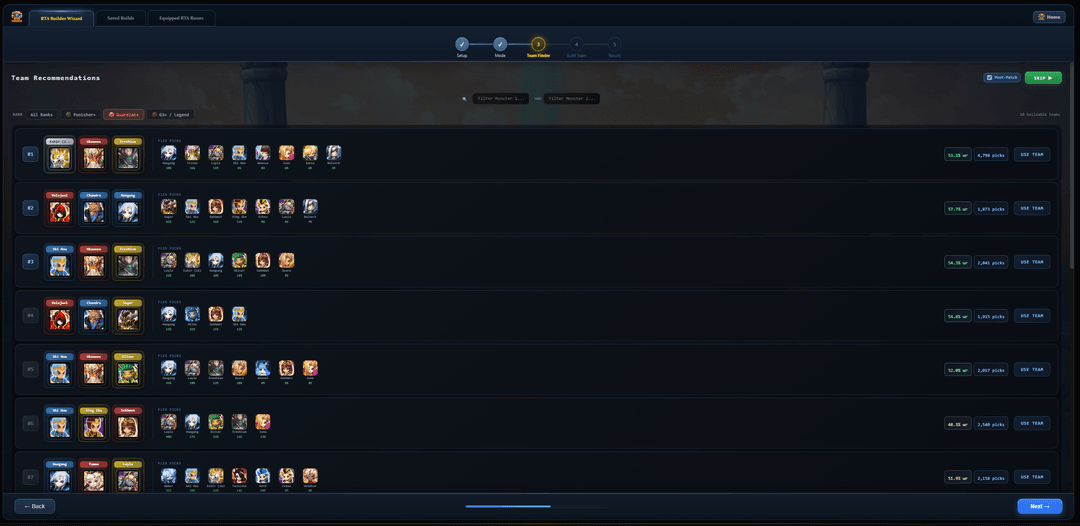
In Semi Automatic mode, the Team Finder presents a paginated list of meta team compositions sourced from real RTA battle data. Each team card shows the monsters in the composition, a team score combining win rate, ban resilience, and usage data, and an approximate rune score showing how well you can rune that specific team from your current inventory.
Rank / Tier Filter
The rank filter auto-detects your RTA rank from your JSON data and shows team compositions relevant to your bracket. The available brackets are:
- ★All — teams from all ranks (Punisher 1 and below default to this)
 Punisher — teams effective at Punisher 2/Punisher 3 rank
 Guardian — teams effective at Guardian 1/Guardian 2 rank
- G3+ — teams effective at Guardian 3 and Legend rank
This ensures you see teams that actually work at your level of play. A Legend-tier team composition might not work at Conqueror rank because the speed requirements and rune quality assumptions are vastly different. The filter adjusts automatically, but you can manually change it to explore teams from other brackets.
Post-Patch Toggle
The Post-Patch toggle (enabled by default) filters team recommendations to only use battle data collected after the most recent balance patch. Balance patches can dramatically shift the meta — a monster that was dominant before a nerf may no longer be viable. With Post-Patch ON, you see only teams that are performing well in the current meta.
Toggle it OFF to see all-time historical data instead. This can be useful for discovering timeless compositions that perform consistently regardless of patches, or for seeing the broader picture of which teams have historically been strong.
Dual Search Bars
Two search bars let you filter team recommendations by specific monsters. Type a monster name in either search bar to find teams containing that unit. Use both search bars together (joined by AND logic) to find teams containing two specific monsters. For example, searching “Oliver” in the first bar and “Moore” in the second will show only compositions featuring both  Oliver and
  Moore. Each search bar shows a live preview icon of the matched monster as you type.
Clustered Teams & Flex Picker
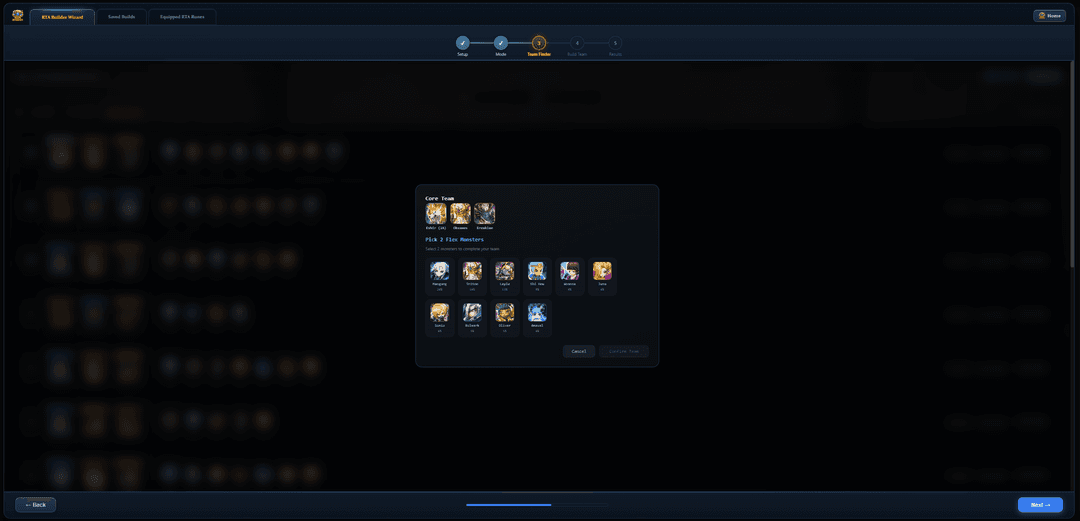
Many team recommendations are clustered compositions — they show a core of 3 monsters that frequently appear together, plus a pool of flex picks that pair well with that core. When you click “Use Team” on a clustered team, a flex picker popup opens where you select 2 additional monsters from the flex pool to complete your 5-monster roster. Each flex pick shows its pick rate and win rate to help you make an informed choice.
Skip Button
Don't want to use a meta team? Click the “SKIP” button in the top-right corner to bypass team selection entirely and go straight to the Build Team configuration. From there you can manually pick any 5 monsters from your collection. The optimizer works identically with custom compositions — full control over every monster slot, rune set, and stat threshold.
Monster Ownership Indicators
Each team card shows which monsters you actually own. Greyed-out or dimmed monster portraits indicate units missing from your collection, letting you quickly identify which compositions you can actually build. The approximate rune score also factors in your actual rune quality, so higher-scored teams are ones your rune inventory can better support.
Roster Builder (Full Auto Mode)
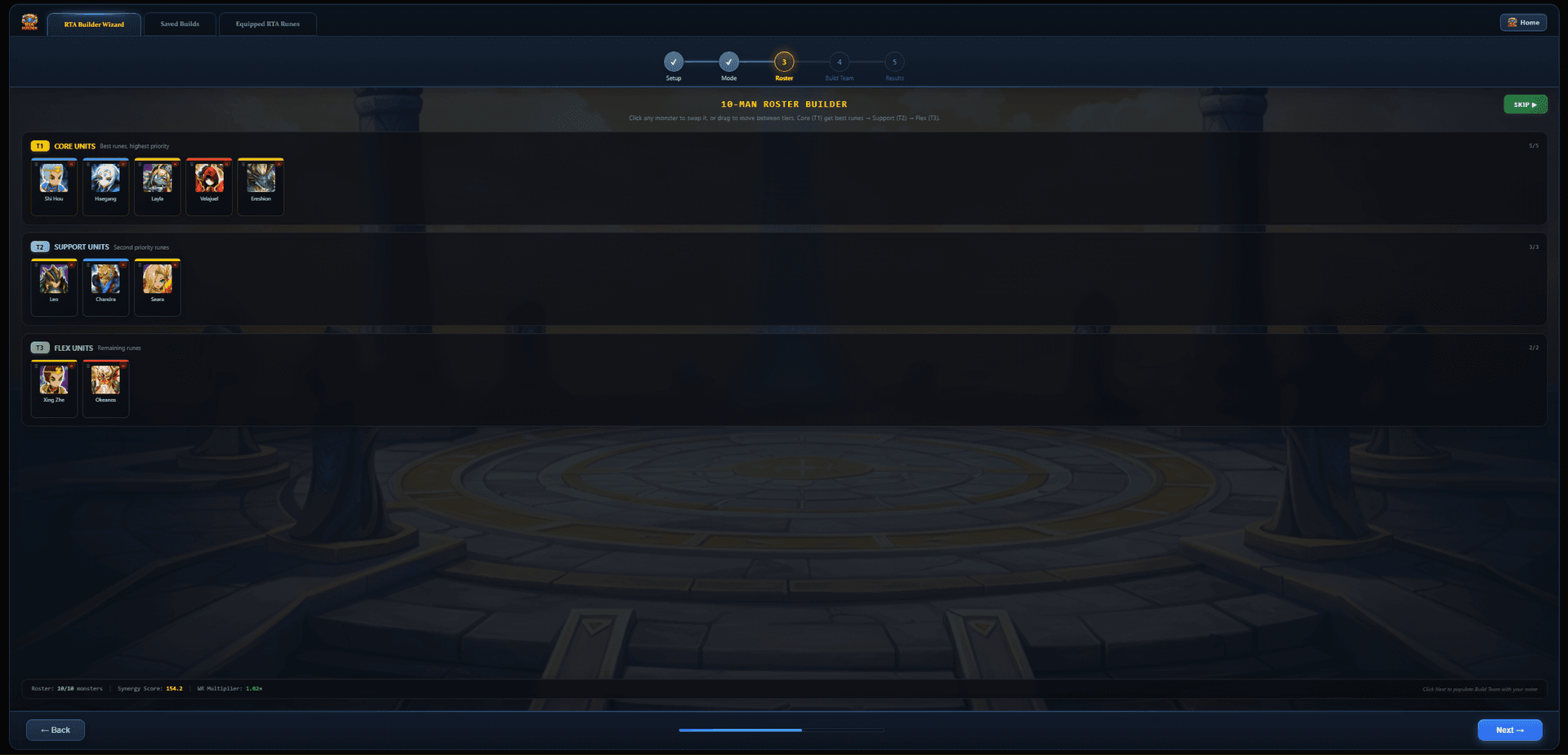
In Full Automatic mode, the system builds your roster automatically. After analyzing your monster box and rune quality against the meta team database, it presents a tiered roster where each monster is assigned to a tier based on how well you can rune them and their role in the current meta.
Core Units (Tier 1)
Your absolute best RTA monsters. These are the units where your rune quality meets or exceeds the meta requirements. Core units form the foundation of your draft — they're the monsters you'll pick in almost every match. The system selects these based on which meta team compositions you can build at the highest level with your current rune inventory.
Support Units (Tier 2)
Complementary monsters that synergize with your core picks. These units may not have your absolute best runes, but they fill critical roles — immunity buffers, cleansers, secondary strippers, or defensive pivots — that make your core team function. Support units give you flexibility in the draft when your opponent bans one of your core picks.
Flex Picks (Tier 3)
Versatile counters and situational picks that round out your roster. These are monsters you can swap in to counter specific opponent strategies — a surprise last pick, a niche counter, or a monster that fills a gap when your preferred picks are banned. With a roster size of 8-10, the flex tier gives you maximum adaptability in the pick-and-ban phase.
Roster Customization
The auto-generated roster isn't locked. You have full control to customize it:
- Drag and drop — move monsters between tiers to reclassify them (e.g., promote a flex pick to core)
- Swap monsters — click a monster to replace it with a different unit from your collection
- Remove monsters — remove a unit from the roster entirely to free up a slot
- Synergy score — the roster displays a total synergy score and average win rate multiplier that updates in real time as you make changes, so you can see how your edits affect overall team quality
- Search bar — search for specific monsters when swapping or adding units to any roster slot
Configure Your Builds
This is the heart of the optimizer. Configure every aspect of rune optimization for each monster in your roster. The SWLens optimizer evaluates billions of rune permutations for each monster on our dedicated GPU-accelerated servers, delivering results in seconds rather than the minutes or hours a local optimizer would take. You can optimize from any device including tablets and mobile phones.
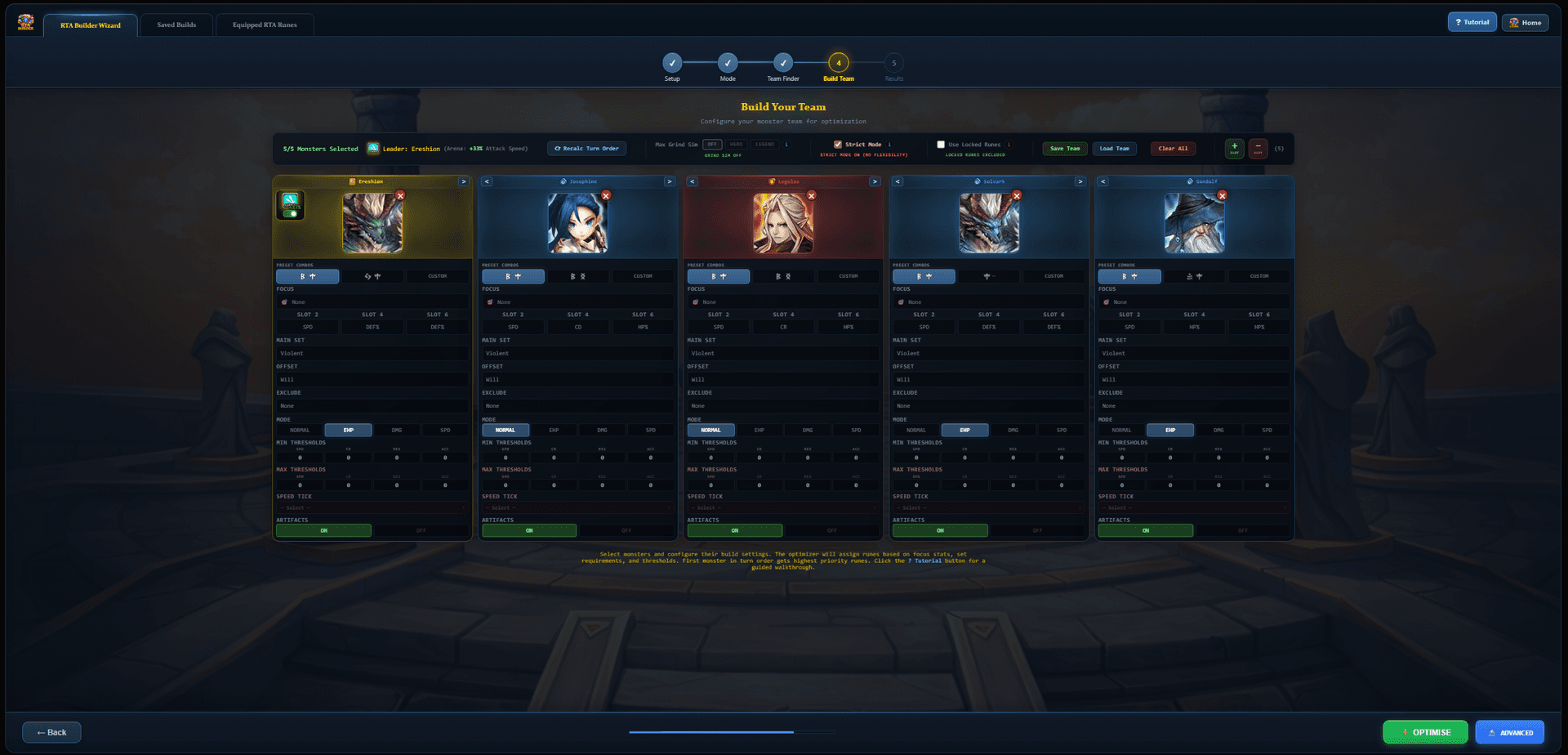
Each monster is displayed as a card. The card order from left to right defines turn order — the leftmost monster moves first. You can reorder monsters using the arrow buttons on each card, click the monster portrait to swap it, or use the red X to remove it.
Leader Skills
If a monster has a leader skill, you can toggle it on or off with the leader skill button on their card. When enabled, the leader skill bonus (e.g., +33% Speed, +24% HP in Arena/RTA) is factored into the optimization — affecting both stat calculations and speed tuning. Only one monster per team can have their leader skill active.
Rune Set Selection
Choose your preferred main set (4-piece: Violent, Swift, Despair, Rage, Fatal, Vampire, Intangible, etc.) and offset sets (2-piece: Will, Nemesis, Focus, Blade, Guard, Energy, etc.). You can select multiple sets per slot — the optimizer will try all valid combinations and pick the best.
Each monster card shows the top 2 community preset builds automatically, sourced from the SWLens Bestiary data. Click a preset to instantly apply those rune set selections — great for quickly configuring popular builds like Violent/Will or Swift/Will.
Don't want a specific set? Use the Exclude Sets toggle to block unwanted rune sets entirely. If a rune belongs to an excluded set, the optimizer won't consider it.
Slot 2 / 4 / 6 Main Stats
Configure the primary stat for rune slots 2, 4, and 6. For each slot you can select multiple allowed main stats — the optimizer tests all valid combinations:
- Slot 2: SPD, HP%, ATK%, DEF%
- Slot 4: CR%, CD%, HP%, ATK%, DEF%
- Slot 6: HP%, ATK%, DEF%, ACC%, RES%
Build Modes
Choose how the optimizer scores and ranks builds for each monster:
Smart auto-detection — the system picks the best mode based on the monster's role (stripper, booster, damage dealer, support, etc.)
Maximizes survivability (effective HP)
HP * (1140 + DEF * 3.5) / 1000Maximizes damage output
ATK * (1 + CD) * CR + ATK * (1 - CR)Prioritizes pure speed above all else
The AUTO mode is unique to the RTA builder. It uses the monster's role data (from the SWLens Bestiary) to intelligently select the appropriate build mode. For example, an AOE ATB booster on Swift will be set to SPD mode, a damage dealer to DMG mode, and a tanky support to EHP mode — all automatically. This is the recommended default for most monsters.
Focus Stats
Select specific stats to prioritize during optimization. For example, set Focus to CR + CD for a damage dealer to ensure the optimizer weights those stats higher. Focus stats determine which runes the optimizer considers “top candidates” for each slot — a critical factor when Search Depth is limited.
Minimum & Maximum Thresholds
Set minimum stat requirements (SPD, CR, RES, ACC) — the optimizer will discard any build that doesn't meet ALL minimums. Set maximum caps to prevent over-investment in stats with diminishing returns (e.g., max 100% CR to avoid wasting rolls on crit rate above cap).
Minimum and maximum thresholds appear as separate rows on each monster card. Min thresholds are displayed in the top row, max thresholds in the row below. Both accept values for SPD, CR, RES, and ACC.
Artifacts Toggle
Toggle artifacts on or off per monster. When enabled, the optimizer selects the best artifacts from your RTA artifact inventory — not just runes. Artifact stats are factored into the final build calculation, including element-specific artifacts, type-specific bonuses, and sub-properties like additional damage by HP/ATK/DEF. When disabled, only runes are optimized.
Strict Mode
The Strict Mode toggle controls how strictly the optimizer follows your configuration:
The optimizer must follow your exact rune set selections, main stats, and threshold requirements. If no valid build exists, it reports a detailed failure showing exactly which thresholds couldn't be achieved.
The optimizer is flexible and may try alternative rune sets or stat distributions if they produce a significantly stronger build. Ideal when you're exploring options or unsure which sets work best.
Use Locked Runes Toggle
Controls whether runes assigned to monsters in your saved builds or locked in the Equipped RTA Runes tab are available for reassignment:
- OFF (default): Runes belonging to locked/saved-build monsters are excluded from the pool. This protects your existing builds.
- ON: All runes in your RTA inventory are available, including those on locked monsters. Maximum flexibility but may move runes from existing builds.
Search Depth
The Search Depth slider (5-15) controls how many runes per focus stat per slot the optimizer considers. Higher depth evaluates more combinations for better builds but takes longer.
Fastest optimization. Good for quick iterations or small rune pools. May miss optimal builds.
Recommended for most users. Good balance between build quality and speed.
Most thorough search. Use when you want the absolute best builds and don't mind waiting.
Save & Load Team Configurations
Before optimizing, you can save your entire team configuration — including all monster selections, rune set choices, stat thresholds, speed tune settings, build modes, and artifact toggles. Load a saved configuration anytime to pick up exactly where you left off. This is separate from saving optimized build results — configuration saves preserve your build settings so you can re-optimize after importing a new JSON with updated runes.
Advanced Optimizer
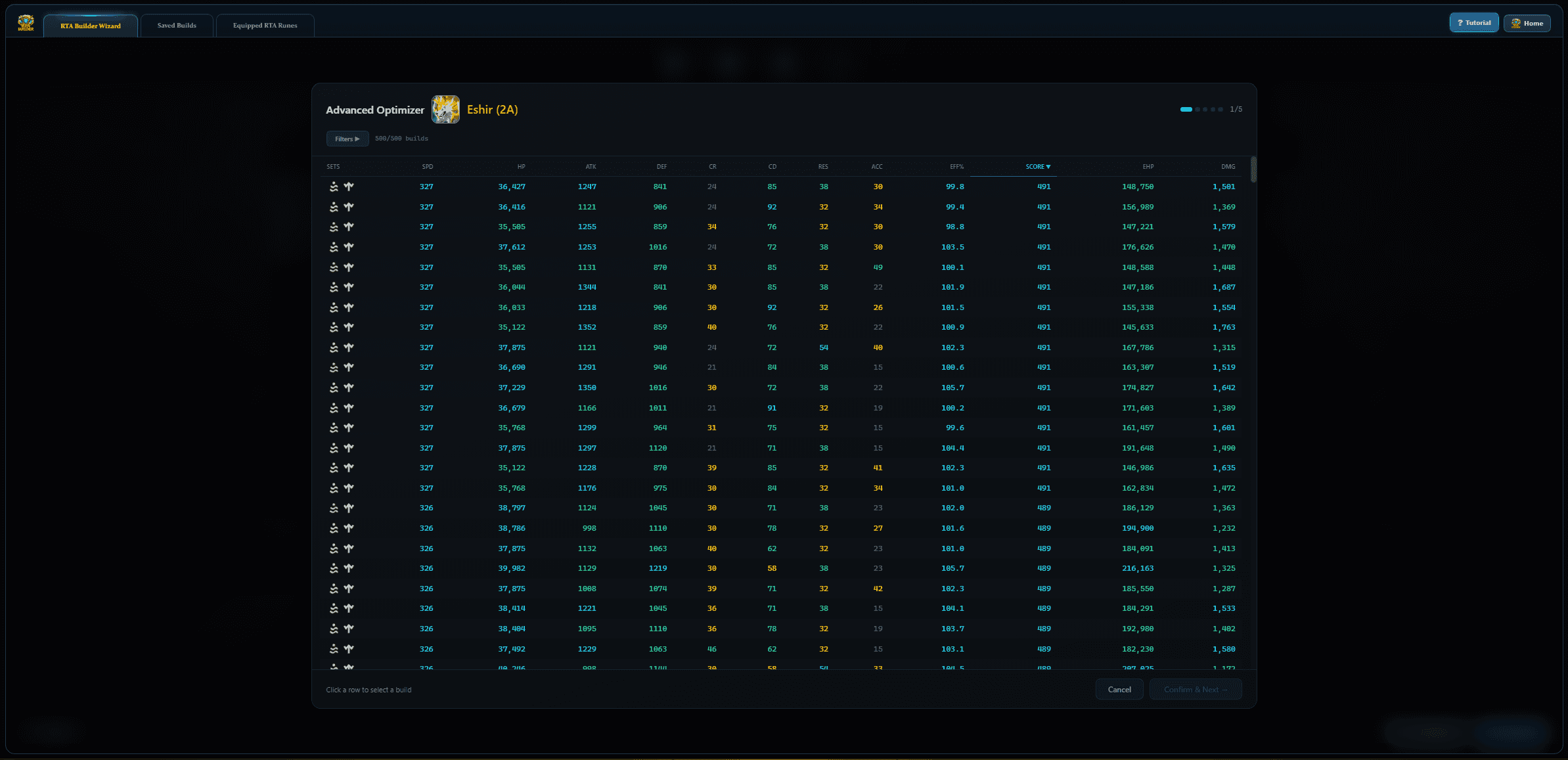
The Advanced Optimize button (next to the standard Optimize button) runs the optimizer in a special mode that returns the top builds per monster instead of just the single best result. This opens a Build Table where you can compare and hand-pick builds for each monster in your team.
How it works
- Compare multiple builds side by side — see how each build distributes stats differently (e.g., one might prioritize HP while another maximizes damage)
- Pick the build you prefer — the optimizer presents options and you choose which stat distribution fits your playstyle
- Walk through each monster one by one — the build table steps through each monster, letting you confirm or change builds individually before moving to the next
- Go back to previous monsters — revisit and re-pick a build for any monster you've already confirmed
When to use it
Use Advanced Optimize when you want fine-grained control over the final result. For example, you might prefer a slightly tankier build over the highest-damage option, or want to see if a different rune set gives better stats. The Build Table shows SPD, HP, ATK, DEF, CR, CD, RES, ACC, efficiency, EHP, and estimated damage — everything you need for an informed choice.
Speed Tuning & Tick Brackets
Speed tuning is essential in RTA — your booster must move first, followed by your stripper, then your damage dealers in the correct order. SWLens offers two advanced speed control systems:
Speed Tune Calculator
Enable Speed Tuning to ensure precise turn order. Configure:
- Booster selection — which monster gives the ATB boost
- ATB boost percentage (0-100%) — how much attack bar the booster fills
- Speed buff toggle — for monsters that buff team speed rather than ATB
- Per-monster max speed caps — prevent followers from outspeeding the booster
- Artifact speed contributions — factor in artifact speed bonuses
- Monster exclusions — exclude specific monsters from speed tune constraints
The calculator computes the exact minimum follower speeds needed to move immediately after the booster, and sets appropriate SPD caps to prevent over-investment. The speed tune panel is collapsible — expand it when configuring, collapse it when you're done to save screen space.
Tick Bracket Mode
For players who understand the game's internal speed tick system: select a specific tick bracket (Tick 4 through Tick 10) to target an exact combat speed range. Each monster card has a tick bracket dropdown — when selected, the optimizer automatically sets the correct min/max SPD thresholds for that bracket. This is ideal for cleave teams where all monsters should move within the same speed tier.
Understanding Speed Ticks
Summoners War uses an internal tick-based speed system to determine turn order. Every monster's combat speed maps to a specific tick bracket (Tick 4 through Tick 10), which determines how many game ticks pass before that monster takes its turn. A monster in Tick 4 moves much faster than one in Tick 10.
Speed Tune and Tick Bracket modes are mutually exclusive — you can use one or the other per monster. Speed Tune is better for teams with a dedicated booster, while Tick Bracket is better for cleave teams where all monsters should be in the same speed tier. If you want to experiment with speed calculations without running the optimizer, SWLens also has a free standalone Speed Tune Calculator.
Grind Simulation
Before you optimize, you can simulate what your runes would look like with max grinds applied. Choose between:
- Hero Grinds: Simulates hero-grade max grinds on all +12 or higher runes
- Legend Grinds: Simulates legend-grade max grinds for maximum potential
This lets you see what your builds could become with proper grinding — without spending a single grindstone. Simulated grinds are marked with an asterisk (*) in the results so you know which stats need actual grinding.
Smart Error Handling
The optimizer doesn't just fail silently — it gives you detailed, actionable feedback when something goes wrong:
Build Failed
If the optimizer can't find a valid rune build for one or more monsters, it shows a Build Failed dialog listing exactly which monsters failed and what rune sets were requested. This typically means your rune pool doesn't have enough quality runes matching the requested sets and thresholds. The fix: lower your minimum thresholds, add more allowed rune sets, or turn off Strict Mode.
Strict Mode Threshold Failures
When Strict Mode is ON and the optimizer can't meet your stat requirements, it shows a detailed breakdown of which specific thresholds failed — for example, “SPD(281<300)” means the best achievable speed was 281 but you required 300. This tells you exactly which threshold to relax.
Speed Tune Failures
If the speed tuner determines that a follower cannot reach the minimum speedrequired to move after the booster, it alerts you before optimization. The error identifies which followers are affected so you can adjust the ATB boost %, change the booster, or free up speed runes.
Turn Order Violations
When loading a saved build with locked monsters, the optimizer checks if the intended turn order is still achievable. If a locked monster's speed conflicts with the current team configuration, you'll see a Turn Order Violation warning with options to proceed, re-lock, or cancel.
Empty Slot Warnings
If you try to optimize with empty monster slots, the optimizer warns you about the unfilled positions. You can proceed with fewer than 5 monsters, but the warning ensures you didn't accidentally skip a slot.
Optimization Results
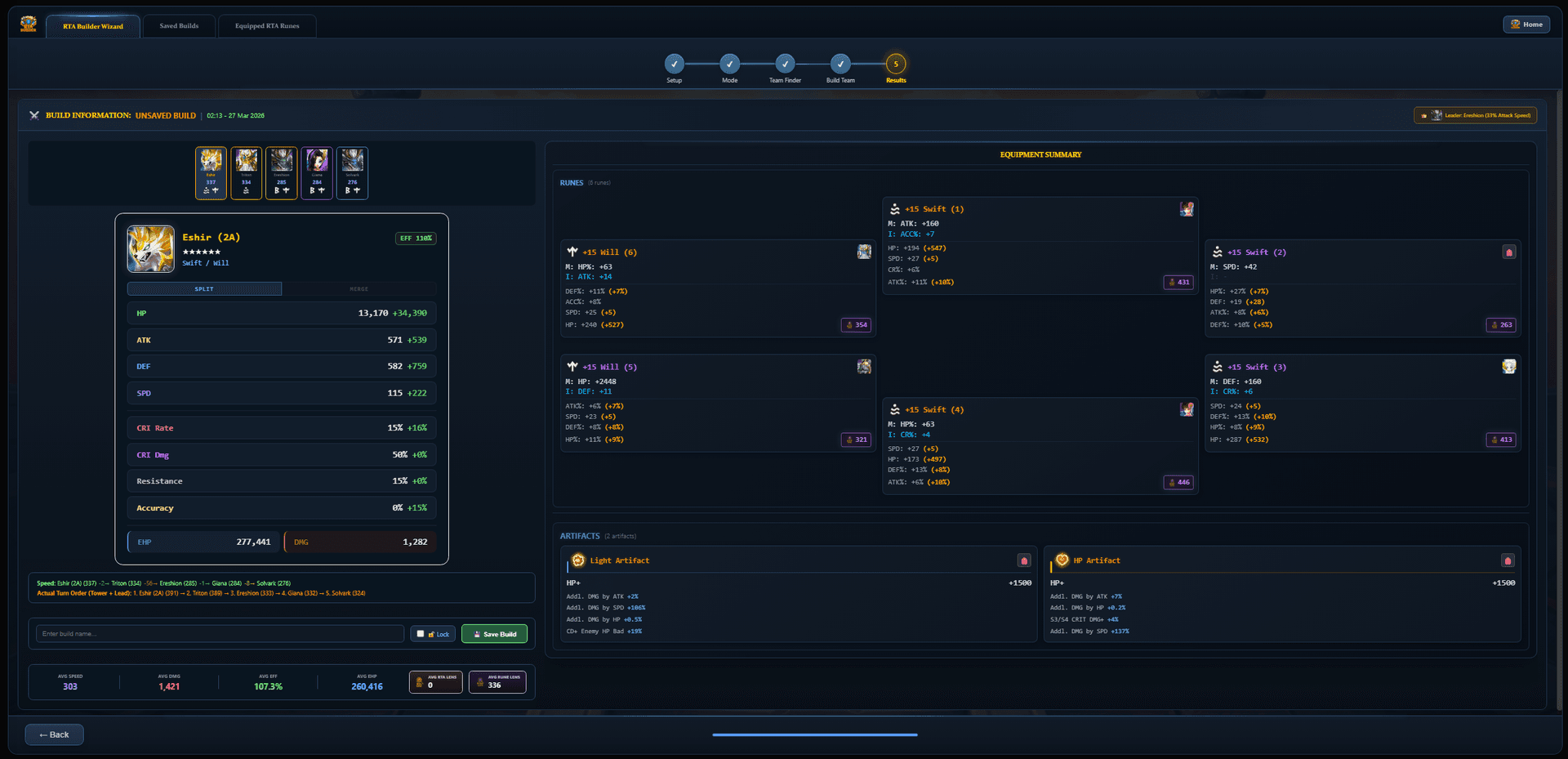
After optimization, the builder displays the best rune assignment for every monster in your roster. For each monster you'll see:
- Final Stats: HP, ATK, DEF, SPD, CR, CD, RES, ACC
- Efficiency %: How well the runes are rolled
- EHP Score: Effective HP (survivability metric)
- DMG Score: Damage potential metric
- Actual Speed: Combat speed with leader skill factored in
- Rune Assignments: All 6 rune slots + artifacts with set bonuses
- Threshold Indicators: Green checks or red warnings for each stat target
- Simulated Grinds: Asterisk (*) marks on stats that exceed current grind values
Rune Location Tracking
Each assigned rune shows its current location — which monster currently has it equipped and in which rune box. Runes are displayed using the correct RTA equipment box (separate from Siege/Arena/WGB), so you know exactly which runes to move in-game. If a rune is on another monster, you'll see the previous owner's name.
Artifact Optimization
When artifacts are enabled, the optimizer selects the best artifacts for each monster from your RTA artifact inventory — element-specific artifacts, type-specific bonuses, and sub-properties like additional damage, CRIT DMG bonuses, and conditional effects are all factored in.
After Optimization
Once results are displayed, you have several options:
- Save your build — save to local storage and cloud for future reference
- Lock specific units — lock individual monsters to preserve their assigned runes
- Return to configuration — go back to adjust thresholds, rune sets, or speed tuning and re-optimize
- Re-optimize — run the optimizer again with the same or modified settings
Saved Builds & Equipped RTA Runes
Saved Builds Tab
Save your optimized builds locally or to the cloud. The Saved Builds tab lets you:
- Save builds with custom names
- Load previous builds from local storage or cloud
- Lock monsters to preserve their rune assignments — locked runes are excluded from future optimizations
- Re-optimize — the system remembers your exact configuration (rune sets, thresholds, speed tune, build modes) and re-runs with your current rune inventory
- Cloud sync — access your builds from any device via your SWLens account
Equipped RTA Runes Tab
The Equipped RTA Runes tab gives you a complete overview of your RTA rune inventory. See every monster with RTA-assigned runes, their full stats, set bonuses, and efficiency ratings. From this tab you can:
- View all RTA-equipped runes and artifacts — expand any monster to see every rune slot, sub-stats, and grind values
- Lock and unlock units — lock monsters to protect their rune assignments during optimization
- Assess rune quality — efficiency percentages and set bonuses at a glance
The RTA rune pool is completely separate from Arena, Siege, and WGB pools. The builder automatically parses your game data to identify which runes belong to your RTA equipment pool, ensuring your other content builds are never affected.
Locking Units
When you lock a unit (from either Saved Builds or Equipped RTA Runes), its runes become reserved. The optimizer won't reassign locked runes to other monsters. This is essential for maintaining your best builds while optimizing remaining roster slots. Both tabs contribute to the locked rune pool — a monster locked in the Equipped tab is treated identically to one locked in Saved Builds.
Tokens & Subscription
The RTA Builder Wizard uses a token system for optimization runs. Free-tier users receive a limited number of optimization tokens. Subscribed users get unlimited optimizations. Each optimization run (clicking the Optimize button) consumes one token.
If you're on the free tier and have used your token, you can still browse teams, configure builds, and use all the planning features — but running the actual optimization requires either a subscription or an available token. Saving builds after optimization is also gated to ensure you save your results before the session ends.
Frequently Asked Questions
What are the three RTA build modes?
Full Automatic analyzes your monster box and rune quality to build an optimal tiered roster. Semi Automatic lets you browse meta team recommendations and pick your own 5-monster team. Full Manual gives you an empty slate to add any monsters manually for complete control.
How does the Full Auto roster builder work?
Full Auto cross-references every meta team composition against your monster box and rune inventory, then builds a tiered roster: Core units (best-runed meta picks), Support units (complementary monsters), and Flex picks (versatile counters). You can adjust roster size from 5-10 and drag monsters between tiers.
What is the Post-Patch toggle?
Post-Patch filters team recommendations to only use battle data collected after the most recent balance patch. This ensures recommendations reflect the current meta. Toggle it off to see all-time historical data.
How does the rank/tier filter work?
The rank filter auto-detects your RTA rank from your JSON and shows compositions relevant to your bracket: All (P1 and below), Punisher (P2/P3), Guardian (G1/G2), and G3+ (G3 and Legend). You can manually change it to explore other brackets.
What is speed tuning and why does it matter in RTA?
Speed tuning calculates the exact minimum speed each follower needs to move after the booster, factoring in ATB boosts, speed buffs, and leader skills. It sets SPD caps to prevent over-investment in speed, so the optimizer maximizes damage, HP, and other stats instead of wasting rolls on unnecessary speed.
What’s the difference between Speed Tune and Tick Brackets?
Speed Tune calculates follower speeds based on a booster’s ATB boost percentage — ideal for teams with a dedicated booster. Tick Brackets target a specific internal game speed range (Tick 4-10) — ideal for cleave teams. They’re mutually exclusive.
What does Strict Mode do?
Strict Mode ON (default) forces the optimizer to meet ALL your requirements exactly. If no valid build exists, it shows which specific thresholds failed. Strict Mode OFF lets the optimizer try alternative rune sets or stat distributions for stronger builds.
What is Grind Simulation?
Grind Simulation shows what your builds would look like with max Hero or Legend grinds applied. Simulated grinds are marked with an asterisk (*) so you know which stats need grinding.
Does the optimizer handle artifacts?
Yes. When artifacts are enabled, the optimizer selects the best artifact pairings based on role, element, and scaling. All artifact sub-properties are factored into build scoring.
What is Advanced Optimize?
Advanced Optimize returns the top builds per monster in a Build Table instead of the single best result. Compare builds side by side, pick your preferred stat distribution, and walk through each monster one by one.
What does Search Depth do?
Search Depth (5–15) controls how many runes per focus stat per slot the optimizer considers. Higher depth means more combinations and better builds, but slower. Default 10 balances quality and speed.
What is the AUTO build mode?
AUTO is a smart mode unique to the RTA builder. It uses the monster’s role data (stripper, booster, damage dealer, etc.) to automatically select the appropriate build mode — SPD for boosters, DMG for damage dealers, EHP for tanks.
Can I use the RTA builder on mobile?
Yes. The heavy computation runs on SWLens’ GPU-accelerated servers, not your device. You can optimize from any device including tablets and phones, though the UI is best experienced on desktop.
How does the RTA rune pool work?
RTA has its own dedicated equipment pool, completely separate from Arena, Siege, and WGB. The optimizer only uses runes from your RTA pool, so your other content builds are never affected.
About the SWLens RTA Builder
The SWLens RTA Builder Wizard is a comprehensive Summoners War rune optimizer and RTA team builder designed for competitive Real-Time Arena play. Whether you need the system to automatically build your best roster with Full Automatic mode, want to browse meta team recommendations with Semi Automatic mode, or prefer complete control with Full Manual mode, SWLens handles it all. The tool supports rank-filtered team data from real RTA battles, post-patch meta filtering, tiered roster building with Core/Support/Flex tiers, speed tuning with tick bracket calculations, multi-monster rune optimization, artifact optimization, and grind simulation. As a complete Summoners War tool and SW optimizer, it also includes saved builds with cloud sync, an advanced build table for comparing multiple builds, and locked rune management. Looking for the best RTA teams in Summoners War? Browse team recommendations powered by data from thousands of competitive RTA matches.
Ready to Climb RTA?
Import your SWEX JSON file and start building optimized RTA teams in minutes. Free to try — no credit card required.
 Try for Free
 Download