
Caiross Workshop
On this page14
What is the Caiross Workshop?
The Caiross Workshop builds and optimises farming teams for the Cairos dungeons at Abyss Hard (B12). Instead of guessing which runes go where, you start from a team the community already clears with, and the optimiser assigns runes, artifacts and relics from your own box — following each monster’s rune sets, main stats and speed requirements, and the dungeon’s turn order.
B12 team data
Dynamic speed (ticks)
Artifacts & relics
Simulated ticks
Rune locking
Cloud saves
The three tabs
The builder frame has three tabs: Wizard (the five-step flow below), Saved builds and Equipped runes. The boss crest on the left is the Home button: it returns to Setup and asks first if your team or unsaved results would be lost. The wizard’s steps are Setup → Dungeon → Select team → Build → Results, with Back / Next (or Optimise) in the footer.
Step-by-step walkthrough
Setup
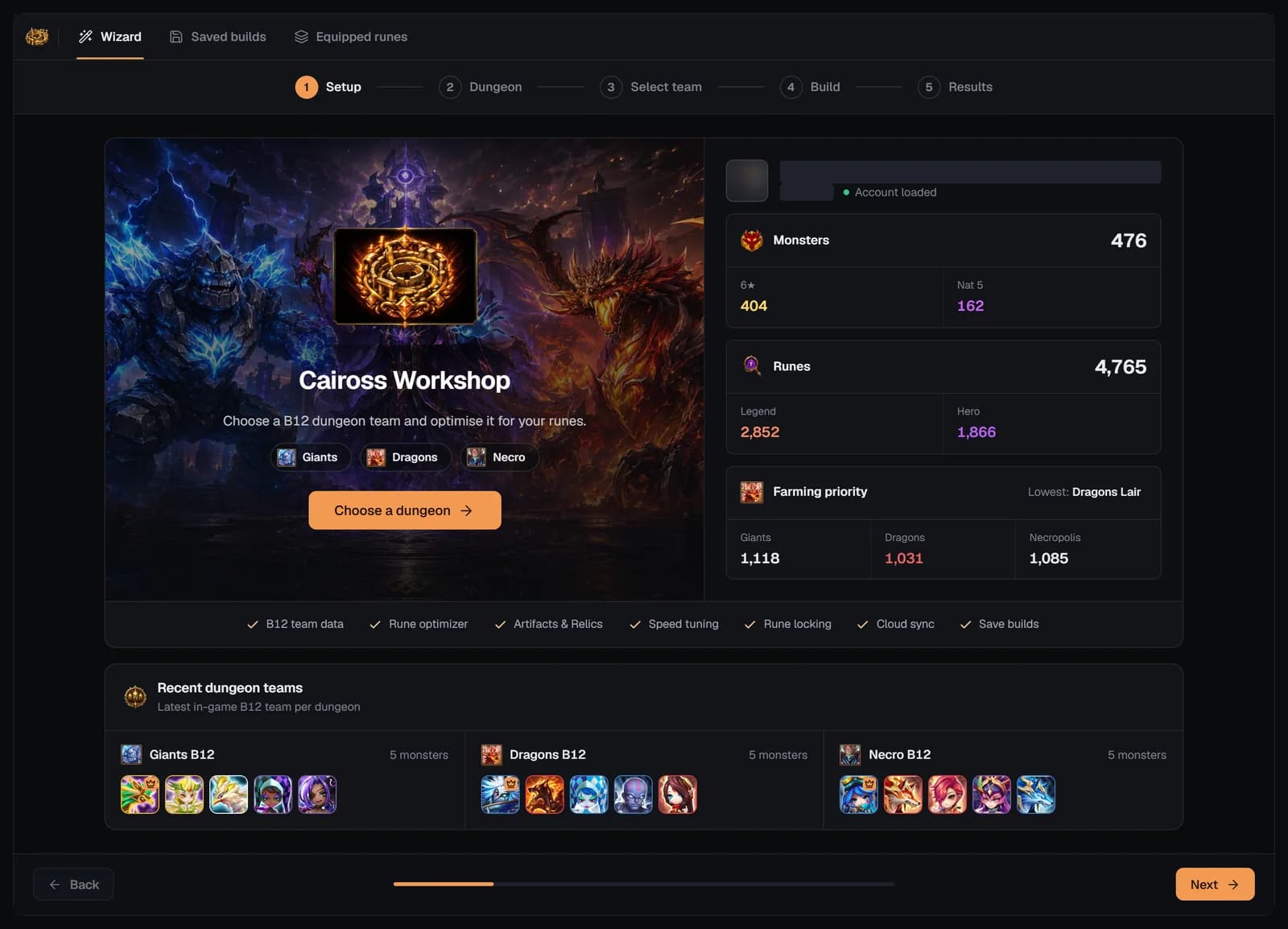
Setup is the launchpad: “Choose a B12 dungeon team and optimise it for your runes.” If no account is loaded, the main button reads Import JSON (“Import your SWEX account file to get started”) — see the SWEX guide. With your JSON loaded it reads Choose a dungeon. The screen also shows:
- Account overview — Monsters (total, 6★, Nat 5) and Runes (total, Legend, Hero).
- Farming priority — a score per dungeon from your rune sets (Giants = the average of your Swift and Despair scores, Dragons = Violent, Necro = Will), with your lowest one in red. It appears once the home dashboard has worked out your rune-set stats.
- Recent dungeon teams — your latest in-game B12 team for each dungeon, read from your JSON, with its leader crowned (“No recent B12 teams” if there are none).
Dungeon
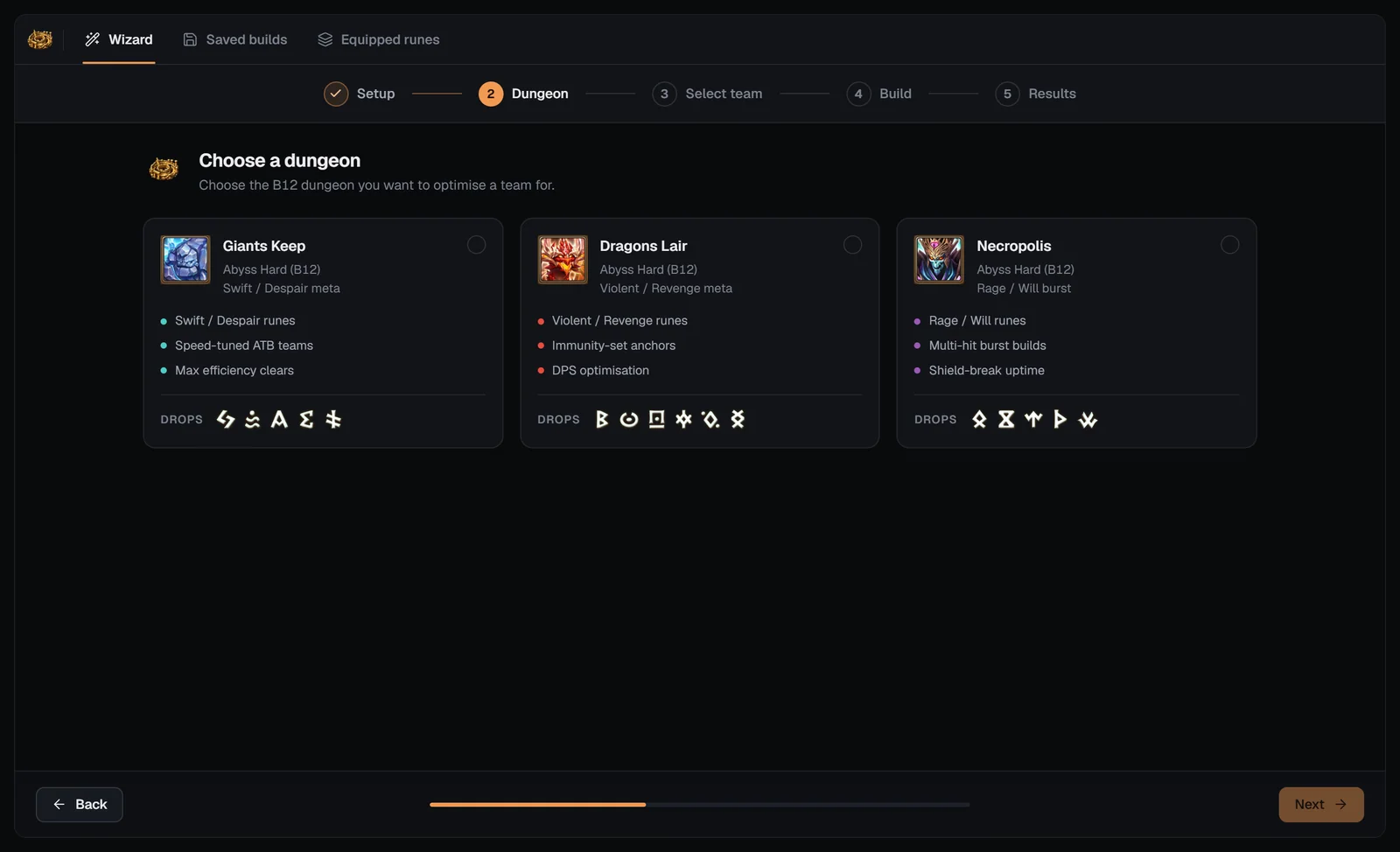
“Choose the B12 dungeon you want to optimise a team for.” Each card is Abyss Hard (B12) and lists the meta and the rune sets the dungeon drops:
- Swift / Despair runes
- Speed-tuned ATB teams
- Max efficiency clears
Drops: Despair, Swift, Fatal, Energy, Blade
Community teams built on 9 known turn-order cores, Dynamic speed and Simulated ticks.
- Violent / Revenge runes
- Immunity-set anchors
- DPS optimisation
Drops: Violent, Focus, Guard, Endure, Shield, Revenge
Early access: the Beginner team only; no Dynamic speed or tick panel yet.

- Rage / Will runes
- Multi-hit burst builds
- Shield-break uptime
Drops: Rage, Vampire, Will, Nemesis, Destroy
Three known full teams with a turn-order template, Dynamic speed and Simulated ticks.
Clicking a card opens the Beta feature notice; I understand, continue takes you straight to Select team and clears any earlier build. The dungeon you choose decides the team lists, the preset rune sets, the speed logic and the elemental and Cairos tower bonuses the optimiser accounts for.
Select team
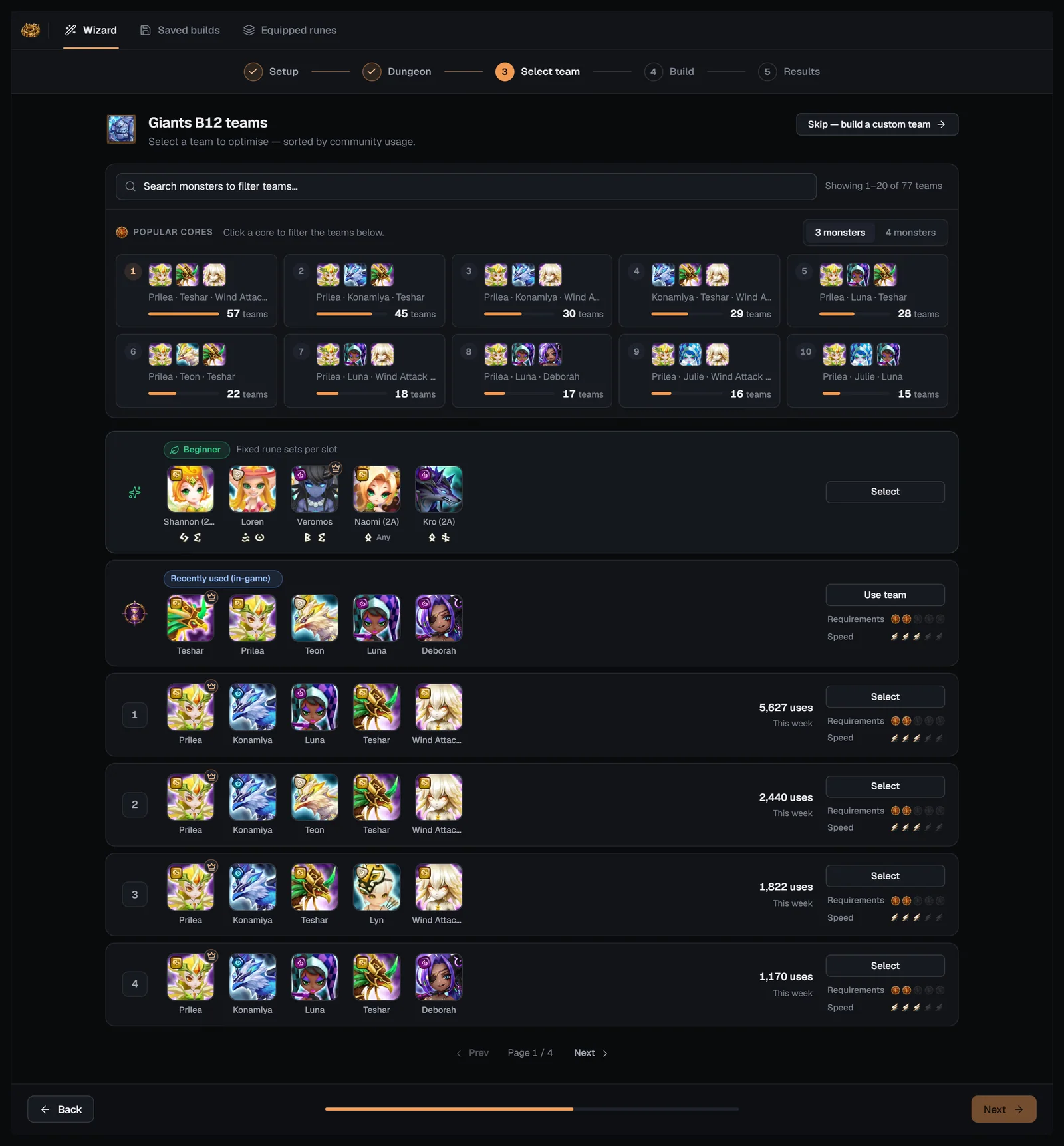
The team list (“Select a team to optimise — sorted by community usage”) shows every team that matches a known turn order for the dungeon. While it loads you’ll see a “Preparing Team” overlay.
Finding a team
- Search — “Search monsters to filter teams…”: add up to 4 monster chips to keep only teams containing all of them; Clear removes them.
- Popular cores — the ten 3-monster combinations used by the most teams, ranked, each with its team count and a usage bar; switch to 4 monsters for the 4-monster cores. Click a core to filter the list, click it again to clear.
- “Showing a–b of N teams” and a pager with 20 teams per page.
The rows, top to bottom
Teams you can’t fully field are greyed out (“You don’t own all monsters in this team”) and sorted last on Giants and Necropolis, and hidden on Dragons. Any awakened or second-awakened form of a monster counts as owning it. On desktop, clicking a row selects it and moves on to Build; to start from scratch, use Skip — build a custom team for five empty slots.
Build
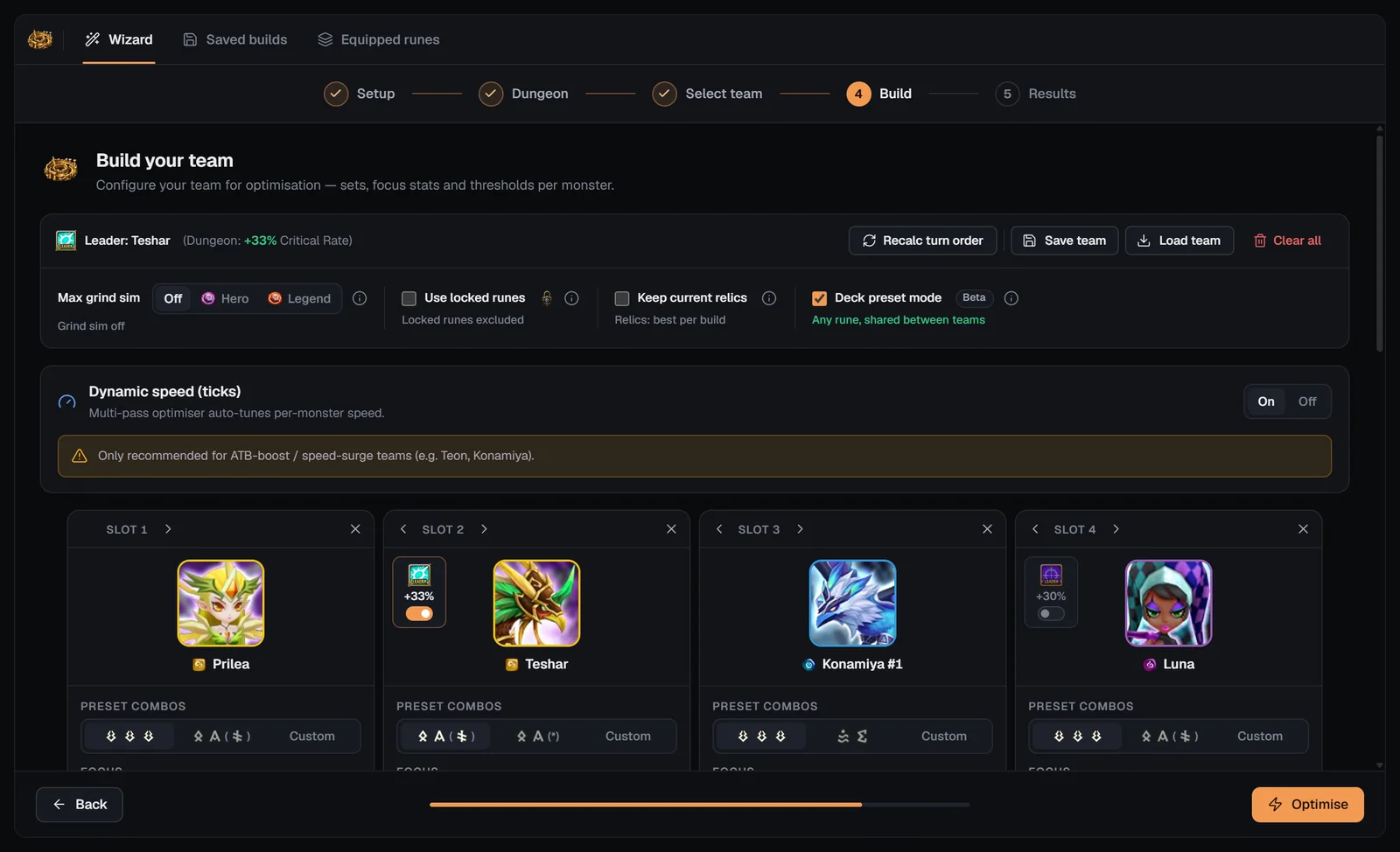
“Configure your team for optimisation — sets, focus stats and thresholds per monster.” The team is five monster cards in turn order; each card is one of your own units (the same monster first, otherwise another awakening form of it, never the same unit twice).
Toolbar and team options
Strict mode is always on in the Caiross Workshop: the optimiser must follow your sets, main stats and minimum thresholds.
Dynamic speed (ticks)
The Dynamic speed (ticks) card appears for Giants and Necropolis. With On, the “multi-pass optimiser auto-tunes per-monster speed”; with Off, you use “fixed thresholds — set manually on each monster card”. It is “only recommended for ATB-boost / speed-surge teams (e.g. Teon, Konamiya)”.
- Default: on for every Necropolis team, and for Giants teams with Konamiya, Teon or Luna; off otherwise.
- While it is on, each card’s SPD fields read Dynamic under an AUTO header — the optimiser owns them.
- The run takes several passes: it first finds the lowest speed your first monster needs (up to 5 attempts), then runs a wide pass and up to 3 tightening passes, keeping every monster inside its tick window for the dungeon’s turn order.
Speeds filled in for you
- Giants (when Dynamic speed is on at team selection): the team is put in the matching turn order, minimum and maximum speeds come from its tick windows (allowing for the dungeon’s 15% tower speed bonus), and Prilea gets Accuracy 35.
- Necropolis: the matching turn-order template, minimum and maximum speeds that keep slot 1 fastest and each monster in order, and Accuracy 35 for Abigail, Raoq (2A) and Seren (2A).
- Dragons: no speed template yet.
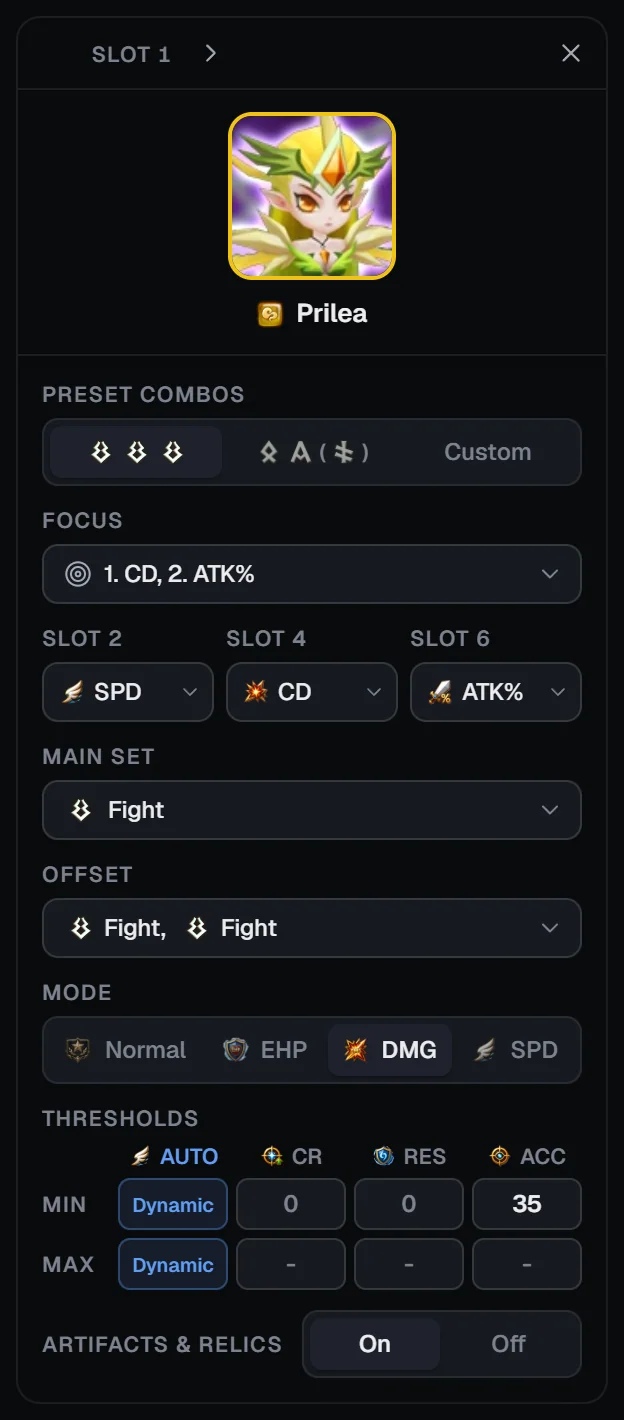
Monster cards
Each card is labelled Slot N — its position in the turn order — with ‹ › to move it and ✕ to remove it (an empty slot shows “Add monster”). Its fields:
Some dungeons adjust the presets: on Giants, Luna starts on Fight ×3; on Necropolis, Astar, Raoq, Seren, Abigail and Icaru get fixed presets; and damage dealers get Rage or Fatal with Blade or Broken. A “Locked build will be replicated” note means the monster has a locked saved build and you own only one copy.
Optimising
Press Optimise in the footer. Before the run starts you may see:
- Max Grind Simulation Active — confirm you want simulated grinds.
- Locked Build in Current Mode — a monster has a locked saved build for this dungeon: choose Try to improve or Keep exact runes.
- Locked Build Detected — a locked build from another dungeon (only with Deck preset mode off).
- Focus Mismatch Detected — your focus differs from the recommended one for your thresholds: Proceed manual or Use recommended.
SWLens then checks that your box can satisfy the team (“Validating rune availability…”). If not, Insufficient Runes for Strict Mode lists the problem per monster — for example “Missing Violent runes - need 4, have 2” or “No slot 2 SPD” — and suggests picking a team whose sets match your rune pool.
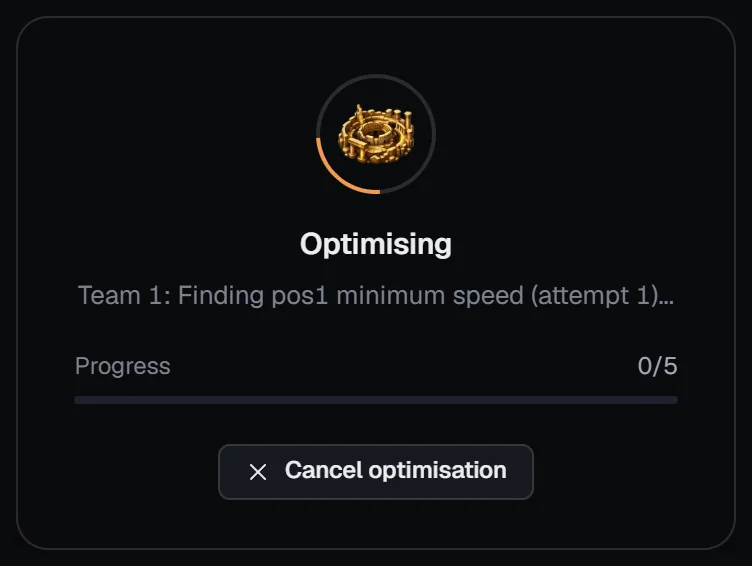
During the run the Optimising overlay shows each step and a progress bar per monster (with Dynamic speed: “Finding pos1 minimum speed…”, the wide pass and the tightening passes). Many focus stats can make a run take longer, and Cancel optimisation stops it.
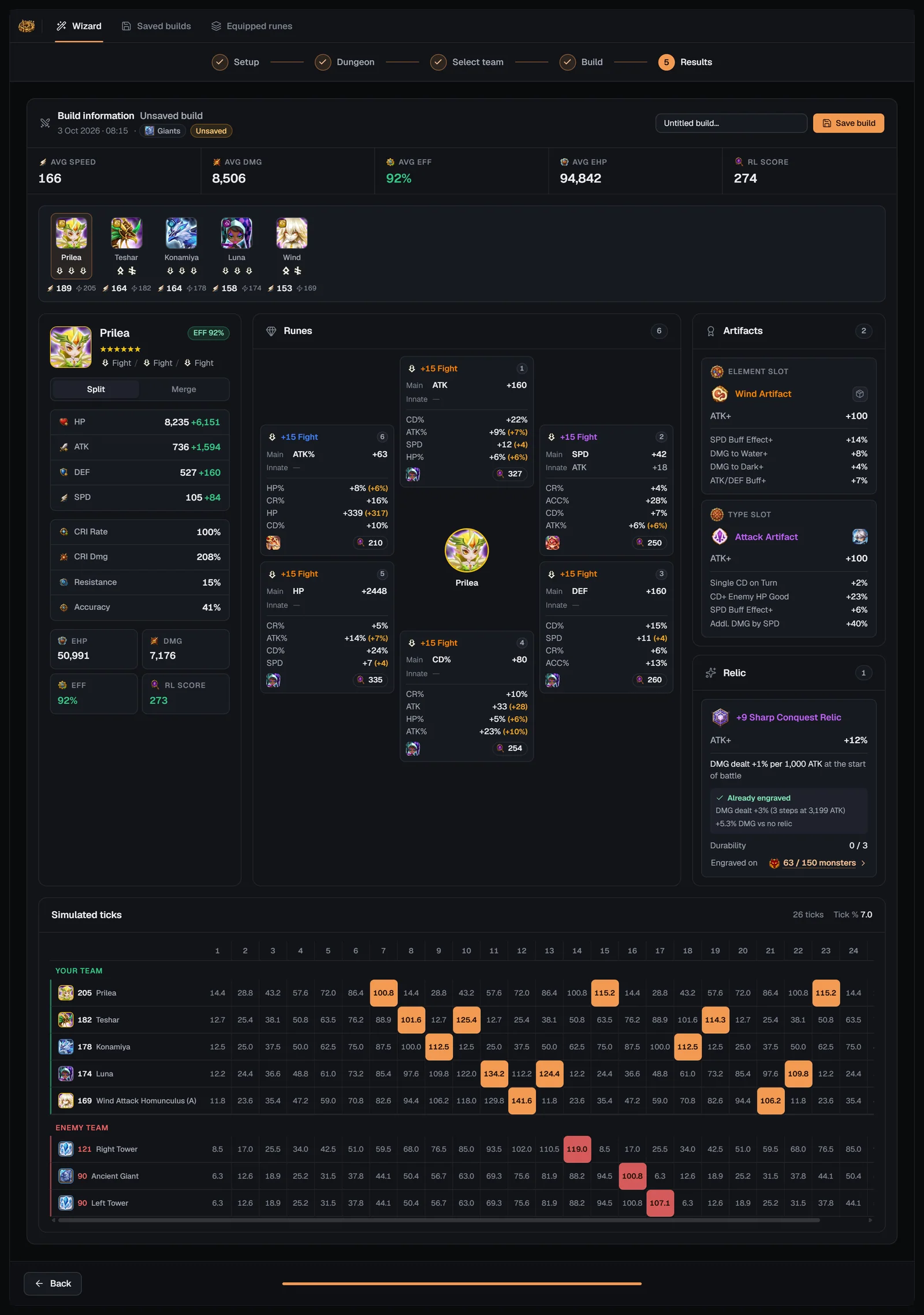
Step 5 · Results
- Header — “Build information · Unsaved build”, the date, the dungeon badge and an Unsaved / Saved badge, a name field (“Untitled build…”) and Save build.
- Banners — “Locked rune violations” if locked runes moved, and “N monster(s) did not meet all thresholds” with each miss, e.g. “SPD(170<175)”.
- Team view — Avg speed, Avg DMG, Avg EFF, Avg EHP and RL score, then the team strip sorted by combat speed (⚡ = with tower bonus and leader skill); missed thresholds show in red.
- Selected monster — sets, efficiency, Split / Merge stats, EHP / DMG / EFF / RL, the rune flower with where each rune comes from (a monster or Inventory), the artifacts, and the relic card (“Re-engrave” or “Already engraved” with the damage gain).
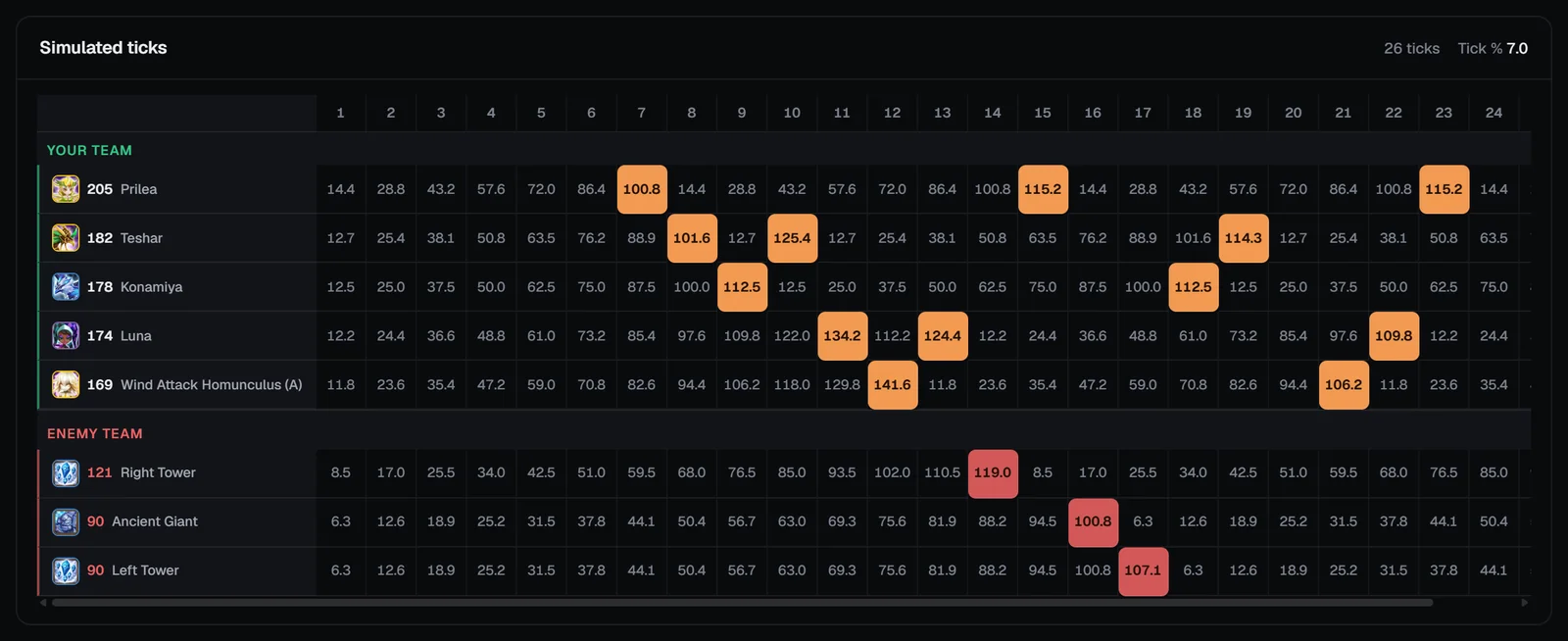
Simulated ticks (Giants and Necropolis)
The Simulated ticks panel plays out 26 ticks at a 7.0% tick: your team (fastest first) and the enemies — the Right Tower, Ancient Giant and Left Tower on Giants, the Ancient Lich King on Necropolis — with each unit’s ATB % after every tick and its turns highlighted. It models the speed surge and Luna’s extra first turn, so you can confirm the order before you farm.
Saving names the build and stores it in your account (or in the browser when logged out or if the cloud save fails). There is no re-optimise button on Results: to try again, go Back to Build — you’ll be warned about unsaved results first.
Saved builds, equipped runes and locks
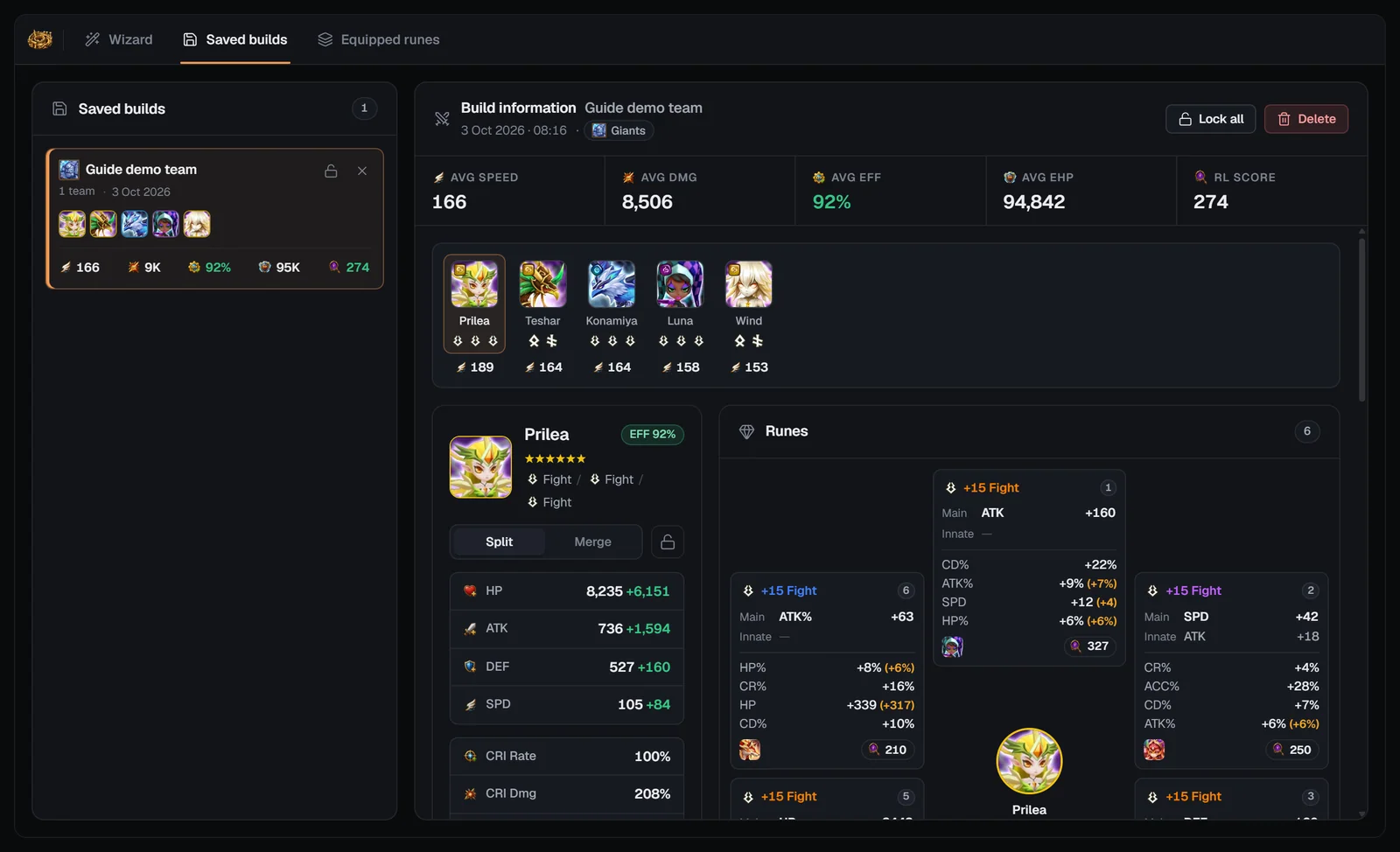
Saved builds
Newest first, each with its dungeon badge, team, averages and date. Open one to review it (with its Simulated ticks), lock or unlock single monsters or the whole build, and delete it (unlock everything first; Delete asks for a second click).
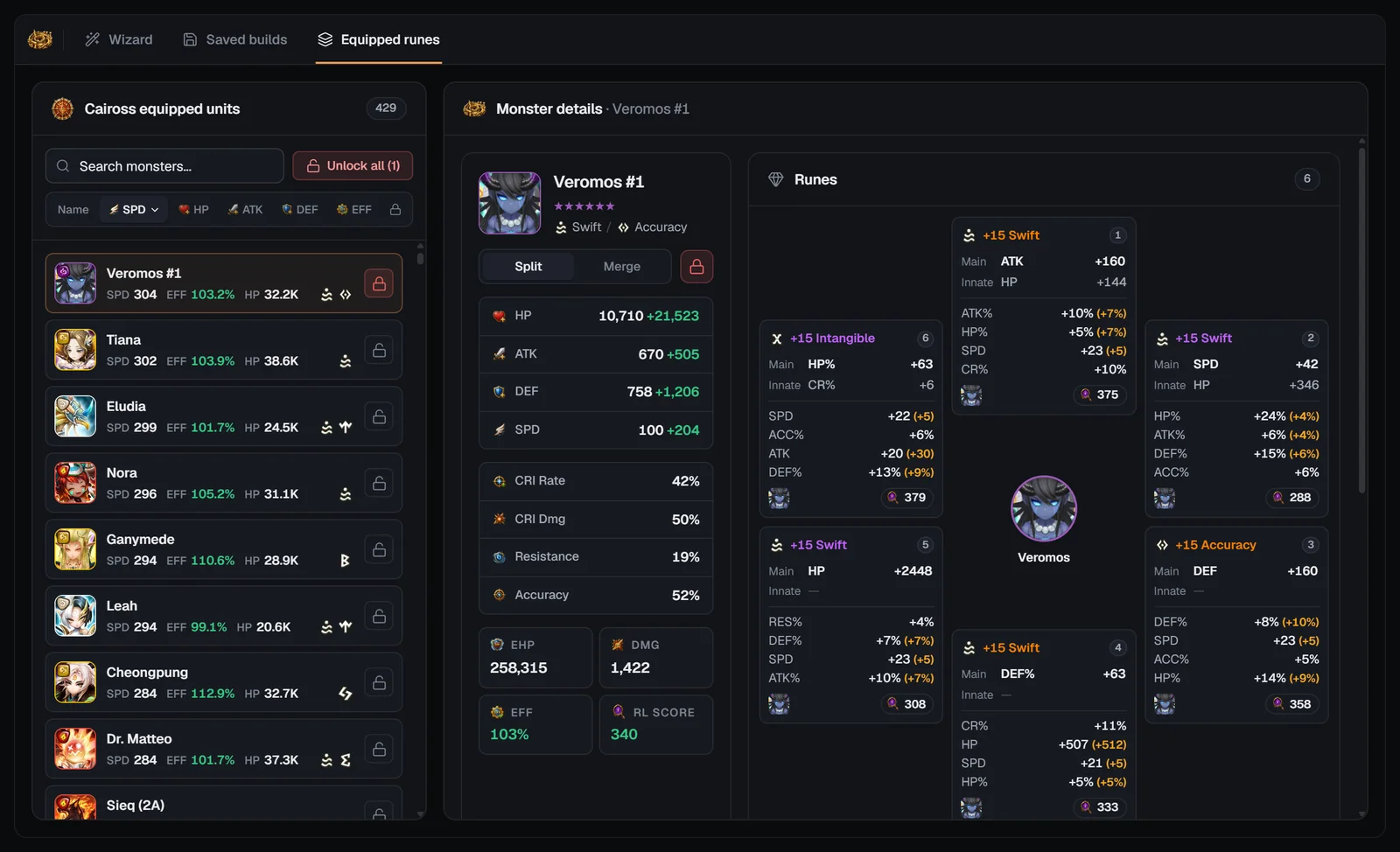
Equipped runes
“Caiross equipped units”: your monsters with the runes they wear in your normal rune box — the pool Arena also uses — with saved builds applied. Search, sort, open a monster, and lock or unlock it; “Unlock all” clears every lock.
Locks are shared. Caiross locks live in the same lock pool as the Arena Builder, WGB attack and the General Optimizer, and their locked saved builds are kept out of a Caiross run too — unless you turn on Use locked runes or keep Deck preset mode on. A locked monster that is part of the run keeps its own runes. You can also lock whole builds from My Monsters.
Starting from the Bestiary
On a Bestiary monster page, open the Teams tab and switch on Show owned only: Giants B12 teams you own (the beginner team or a known turn order) get a Build this team in Caiross Workshop button. It opens the Workshop straight on the Build step with that team loaded (“Loading team from Bestiary…”) — Setup, the dungeon pick and the team list are skipped. Without Premium, the button offers the upgrade instead.
On phones
- The three tabs sit in a switcher under the header, and Back / Next live in a sticky bar.
- On Select team a tap only picks a team; press Next to continue. Reasons for dimmed rows are written out.
- Build shows one monster card at a time — swipe sideways for the next — under a slot bar of portraits in turn order. Option chips (Locked runes, Grind sim, Relics, Deck presets, Dynamic speed) open a Team options sheet, and the ⋯ menu holds Recalc turn order, Save team, Load team and Clear all.
- Simulated ticks are drawn as a rotated table: a row per tick, a column per unit.
Tips
- Start with the Beginner team if you’re new to B12 — its rune sets are fixed per slot and it is the only Dragons option for now.
- Filter by a monster you already built (search chips) to find teams around your best units.
- Check Simulated ticks before rerunning in game: if a monster moves out of order, adjust its thresholds or re-run with Dynamic speed.
- Keep Deck preset mode on for dungeon teams — presets let the same rune sit on monsters in different teams in game.
- Lock the build once you equip it in game, so other optimisers that share the lock pool leave it alone.
Frequently asked questions
Which dungeons does the Caiross Workshop support?
Giants Keep, Dragons Lair and Necropolis, on Abyss Hard (B12). Giants and Necropolis have community teams and the speed-tick simulation; Dragons is in early access and supports the Beginner team only.
Do I need Premium?
Yes. The Caiross Workshop wizard is a Premium feature: free and Basic accounts see the Setup screen, and the next step shows a “Premium only” dialog. It uses no tokens. The Saved builds and Equipped runes tabs open for everyone.
What does Dynamic speed (ticks) do?
It lets the optimiser tune every monster’s speed for the dungeon’s turn order over several passes, instead of using fixed speed thresholds. It is on by default for Necropolis teams and for Giants teams with Konamiya, Teon or Luna, and is recommended only for ATB-boost and speed-surge teams.
What is Deck preset mode?
Dungeon teams are presets in game, so with Deck preset mode on (the default) a Caiross run may use every rune in your box — locks from every builder are ignored. Turn it off to keep locked runes out of the run.
Can I build my own team instead of a community one?
Yes. On the Select team step click “Skip — build a custom team” to start from five empty slots and add any monsters you own.
Why is a team greyed out?
You don’t own all five monsters (any awakened or second-awakened form of a monster counts). On Dragons such teams are hidden. Your recently used in-game team is dimmed if it isn’t one of the known turn orders, because those can’t be optimised yet.
What is the Simulated ticks panel?
For Giants and Necropolis, the results show 26 ticks of the fight: your team and the enemies, each one’s ATB % after every tick and the ticks where each unit takes a turn, so you can check the speed tune before running it in game.
Can I re-optimise a saved build?
Not from the Saved builds tab. Saved builds are for reviewing and locking. To try again, go back to the Build step and press Optimise.
Related guides


About the SWLens Caiross Workshop
The SWLens Caiross Workshop is a Summoners War dungeon optimizer for Giants Keep B12, Dragons Lair B12 and Necropolis B12. It ranks community B12 teams by usage, adds a beginner team and your recent in-game team, then optimises runes, artifacts and relics from your SWEX JSON with strict rune sets, main stats and thresholds. Dynamic speed ticks tune every monster to the dungeon’s turn order, and a simulated tick timeline shows each turn before you farm. Results save to your account, and locks keep finished builds safe from the other optimisers.
Ready to speed up your farming?
Import your SWEX JSON, pick a B12 team and let SWLens fit it with the best runes in your box.
 Get your SWEX JSON