
Connecting your Summoners War account to SWLens
Every SWLens builder, Rune Lens, Arti Lens and your Home dashboard work from your own Summoners War account: your monsters, runes and artifacts. There are two ways to bring it in. SWLens Connect, in the free desktop client, does it for you and keeps it in sync as you play. A SWEX JSON is the manual way: you export your account and import the file.
This guide compares the two, then explains what happens when your account is linked: the welcome tokens, the wizard slots, keeping your data fresh and changing a linked account.
On this page12
What your account unlocks
Once your account is in, these pages use your own box:
- Home: your dashboard, with your scores, collection and PvP statistics.
- The team builders: RTA, Siege, Arena and WGB builders, the Cairos Workshop and the General Optimizer optimise your runes for your monsters.
- Rune Lens and Arti Lens: verdicts and comparisons against your own runes and artifacts.
- My Monsters: every monster you own, with its gear, and what you’re missing.
- The calculators: the Re-App Calculator ranks your runes, the Artifact and Speed Tune calculators pick from your monsters.
- The SWLens Client: saved builds with where each rune is now.
The Bestiary, the monster pages, RTA Lens and the Tier List work without an account.
Two ways: SWLens Connect or a SWEX JSON

SWLens Connect (recommended)
- Part of the free SWLens Client for Windows.
- Reads your account at each login and keeps it in sync as you play.
- Set up once; nothing to do after that.
- Needs the Steam version of Summoners War on Windows.
SWEX JSON
- Summoners War Exporter (SWEX), a free community tool, saves your account as a JSON file.
- You import the file again each time your account changes.
- About 10 minutes to set up SWEX, once.
- Works with the Steam version, and with phones or emulators through SWEX’s Remote Mode.
Both end the same way: your account in SWLens, on every device you sign in on.
The easy way: SWLens Connect
- Create a free SWLens account (or use yours).
- Download the SWLens Client and sign in.
- In the setup guide that opens, keep SWLens Connect on. Windows asks once to trust the SWLens certificate: choose Yes.
- With SWLens open, start Summoners War and log in. Your account is linked and loaded.
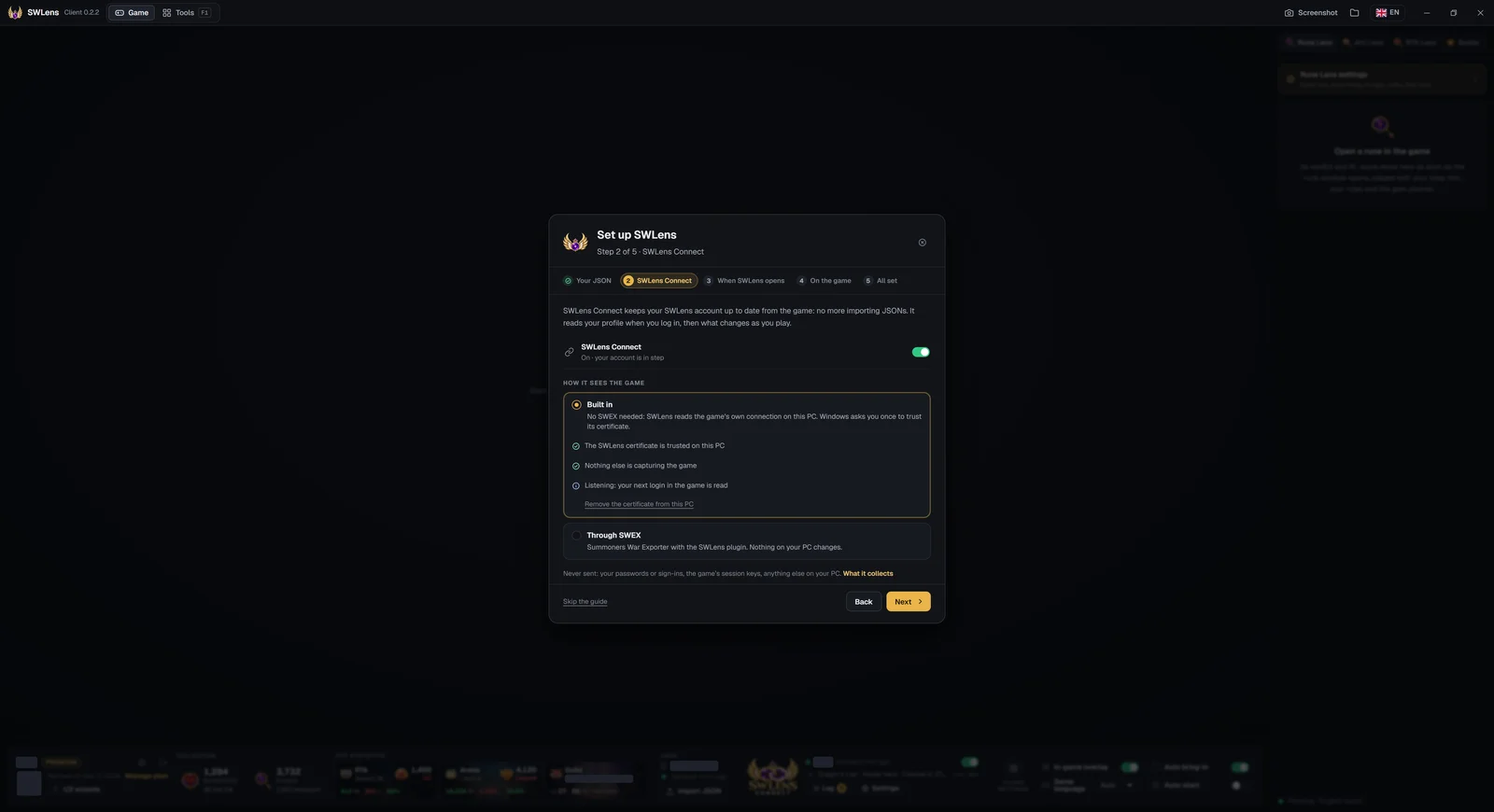
From then on, each login and every change you make in the game reach your SWLens account by themselves. Everything about it is in the SWLens Connect guide.
The manual way: a SWEX JSON
- Install SWEX (Summoners War Exporter) and start its proxy in Steam Mode.
- Log in to Summoners War: SWEX saves your account as
[wizard name]-[wizard id].json. - Sign in to SWLens and click Import JSON, then choose that file.
Each step, with the certificate and the errors people hit, is in the SWEX guide.
Where Import JSON is


Your first import links your Summoners War account
The first JSON you import (or your first login with SWLens Connect on) links that Summoners War account to your SWLens account:
- SWLens checks the file is a SWEX profile export, and whose account it is.
- That game account becomes your account’s first wizard.
- The data is saved to your SWLens account, so every device you sign in on loads it.
- The Import Successful window says Account linked & data imported, with your welcome tokens.
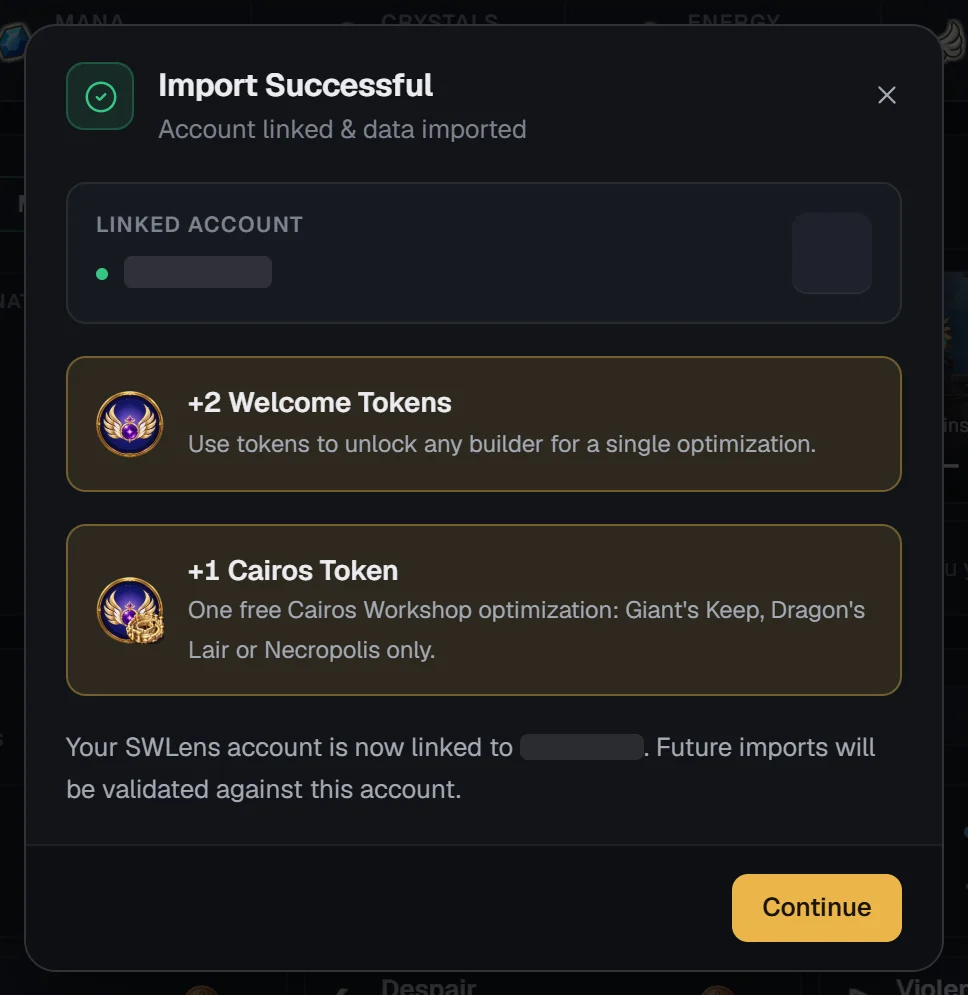
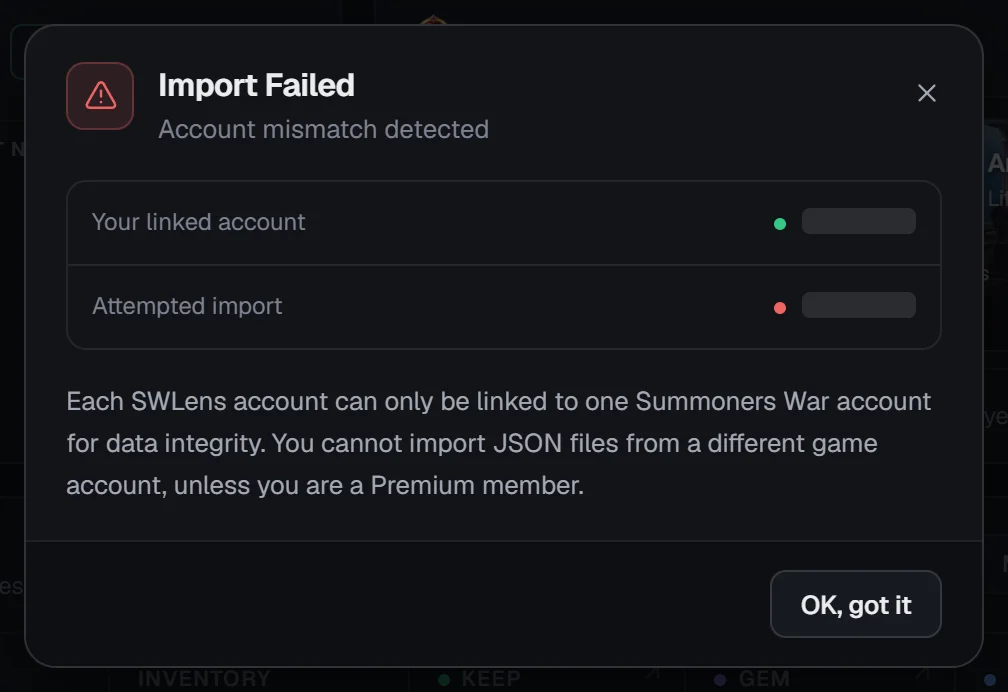
From then on, imports are checked against that account: a file from another game account is refused, unless you link it as a second wizard with Premium.
The welcome pack: 2 optimization tokens and a Cairos token
Linking your first Summoners War account adds a welcome pack to your SWLens account:
 2 optimization tokens
Each one unlocks one optimization in the RTA, Siege, Arena or WGB builder.
 1 Cairos token
One free Cairos Workshop run for Giant’s Keep, Dragon’s Lair or Necropolis.
The pack comes once per Summoners War account, even on a new SWLens account, and once per person. Basic and Premium don’t need tokens for the builders their plan includes.
Wizard slots: one or two Summoners War accounts
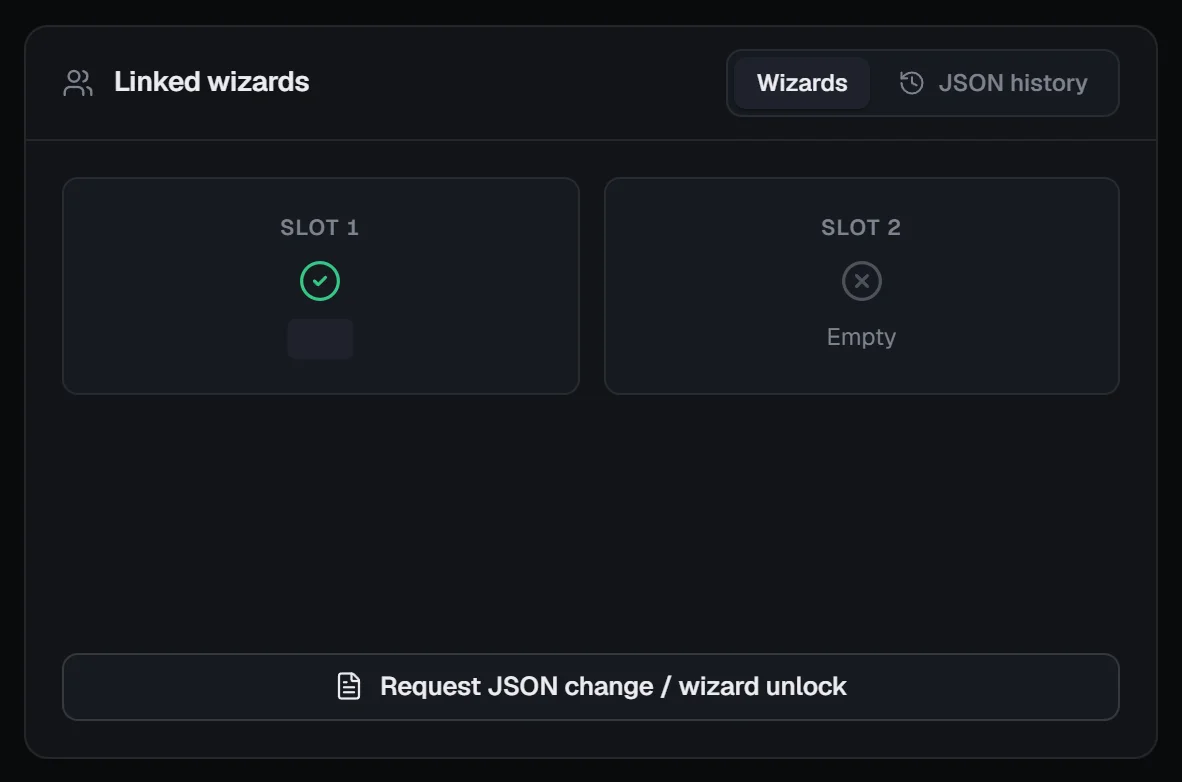
Switching between your two wizards
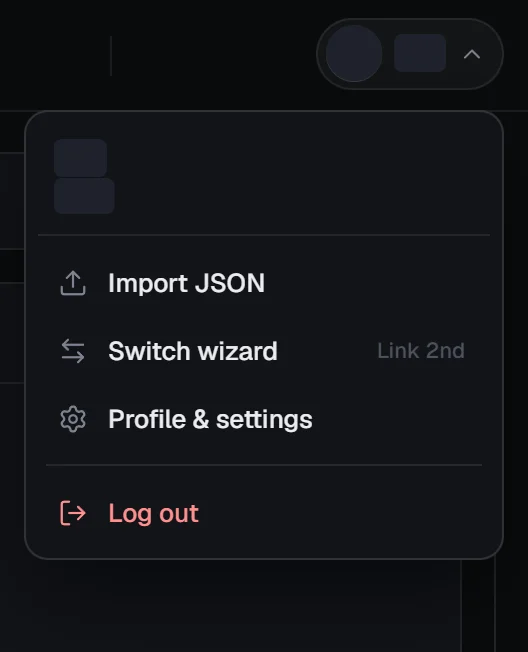
On Premium, Switch wizard in the account menu (or on your profile, or Switch to it in the client’s account panel) loads the other wizard’s newest JSON. Your saved builds and locked runes stay: each wizard shows its own.
Keeping your data up to date
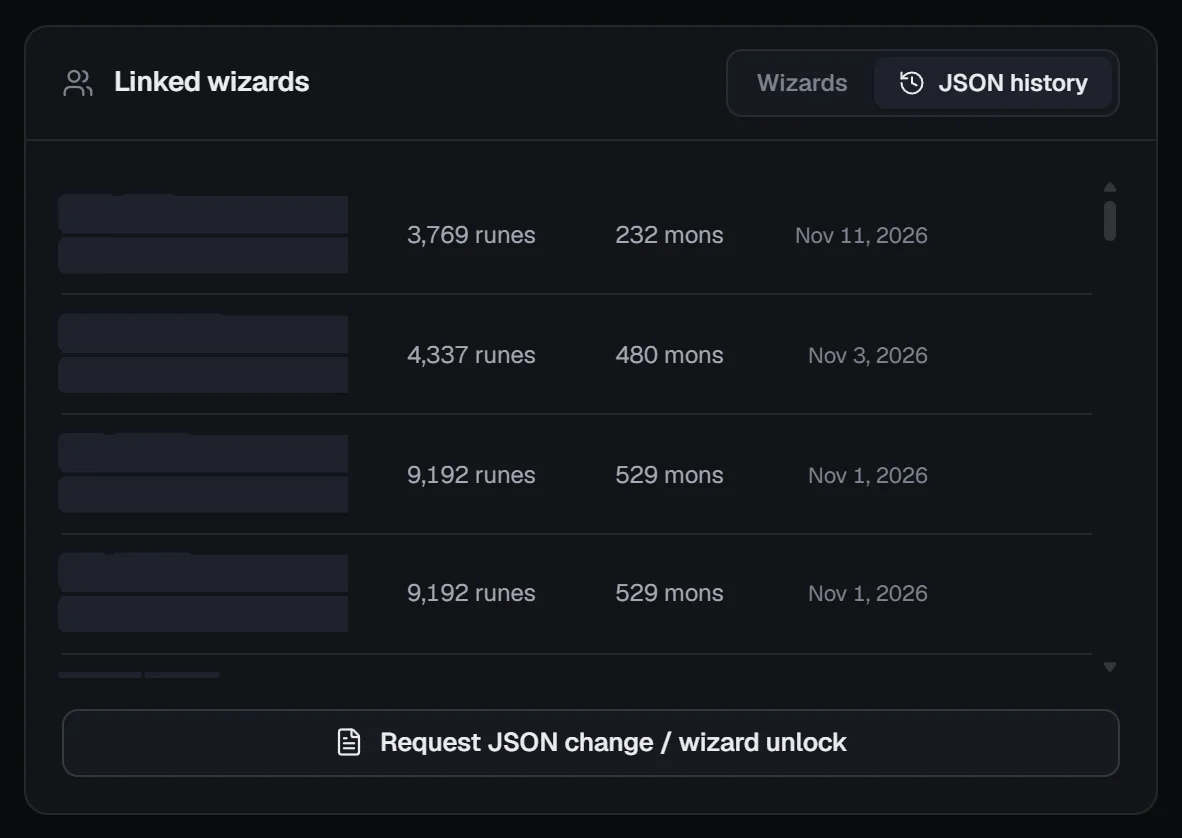
Your newest import always wins, every device loads it, and your profile’s JSON history lists your recent uploads. In the SWLens Client, a dot beside your JSON shows how fresh it is.
Changing a linked Summoners War account
There is no button to unlink a wizard yourself. On your SWLens profile, use Request JSON change / wizard unlock:
- Choose the linked wizard (one slot or both).
- Optionally, name the new wizard.
- Give a clear reason, then Submit request.

The SWLens team reviews each request. When a slot is unlinked you get an email, and your next import (or Connect login) links the new account. The welcome pack isn’t given again for a game account that already had it.
What SWLens never asks for
- SWLens never asks for your Summoners War, Hive or Steam login: it only reads the JSON you import, or what SWLens Connect reads.
- The game’s session values and your device’s details are removed from every export SWLens stores, and SWLens Connect never sends them.
- You choose what SWLens Connect collects, in its settings, and can turn it off at any time.
Troubleshooting
Invalid JSON file. Please upload a valid SWEX export.
The file is JSON but not a SWEX profile export. Choose the [wizard name]-[wizard id].json file from SWEX’s files folder, not a log, a CSV or a plugin file. The client says That isn’t a SWEX JSON.
Nothing happens after choosing the file
The file isn’t valid JSON (a partial download, a renamed file). Export it again with SWEX and import the fresh file.
Import Failed: Account mismatch detected
Your SWLens account is linked to another Summoners War account. Import that account’s file, link this one as a second wizard with Premium, or request a change from your profile. The client says That JSON is another account’s.
Both wizard slots are already filled
Two wizards are linked already, so no other can be added. Request a JSON change from your profile.
There’s no Import JSON button in the top bar
Once a file is in, Import JSON moves into the account menu (click your picture or name). On phones it’s under More.
Please import your JSON data first
A builder or a tool needs your account: import your JSON, or turn on SWLens Connect, then run it again.
The welcome tokens didn’t come
They come once per Summoners War account and once per person: an account or an email that had them already doesn’t get them again. Otherwise, use Claim welcome tokens on your profile.
Frequently asked questions
How do I import my Summoners War account into SWLens?
The easy way is SWLens Connect in the free SWLens desktop client: it loads your account at your next login and keeps it in sync as you play. Or export a JSON with SWEX (Summoners War Exporter) and click Import JSON on SWLens.
Should I use SWLens Connect or SWEX?
SWLens Connect if you play the Steam version on Windows: there is nothing to export or upload again. A SWEX JSON if you play on a phone or an emulator, or don’t want the desktop client.
Do I have to import on every device?
No. Your account is saved to SWLens, so every device you sign in on loads your newest import.
How often should I import a new JSON?
Whenever your runes, artifacts or monsters change, usually before an optimising session. With SWLens Connect there is nothing to import.
Can I use two Summoners War accounts?
Yes, with Premium: it links a second wizard, and you switch between them from the account menu. Each keeps its own saved builds and locked runes.
What are the welcome tokens?
Linking your first Summoners War account adds 2 optimization tokens (one optimization each in the RTA, Siege, Arena or WGB builder) and a Cairos token (one Cairos Workshop run for Giant’s Keep, Dragon’s Lair or Necropolis).
Does SWLens need my Summoners War password?
Never. SWLens only reads the JSON you import or what SWLens Connect reads from the game on your PC.
Related guides



Bring your account in
Download the SWLens Client and let SWLens Connect do it, or import your SWEX JSON on SWLens.