
SWLens Connect: your Summoners War account in sync as you play
SWLens Connect is the part of the SWLens desktop client that keeps your SWLens account up to date from the game itself. It reads your profile each time you log in to Summoners War, then what changes as you play, so every builder, Rune Lens, Arti Lens and your saved builds always use your box as it is now. No SWEX export, no JSON upload.
This guide explains how to turn it on, the two ways it can see the game, what it collects and never sends, its log, and how to fix every problem it can report.
On this page12
What SWLens Connect does
Without Connect, SWLens knows your account from the last JSON you imported: you export it with SWEX, then upload it again each time your runes change. Connect does that for you, all the time:
- At each login it reads your profile (monsters, runes, artifacts, relics and decks) and puts it in your SWLens account.
- As you play it follows what changes (what you equip, sell, power up, reappraise or get from a battle), puts it in your account at once, and saves your JSON on SWLens a couple of minutes after things go quiet.
- Everywhere: the website on any device, the client’s verdicts and saved builds all read the same up-to-date account.
It needs the SWLens Client on Windows and the Steam version of Summoners War. It runs only while the client is open.
Turn SWLens Connect on
- Install the SWLens Client and sign in with your SWLens account.
- The setup guide that opens the first time starts Connect on, built in. Keep it, pick Through SWEX, or turn it off.
- Built in: when Windows asks whether to trust the SWLens certificate, choose Yes (once per PC).
- Open SWLens before the game, then start Summoners War and log in. The bar under the game says your wizard is synced.
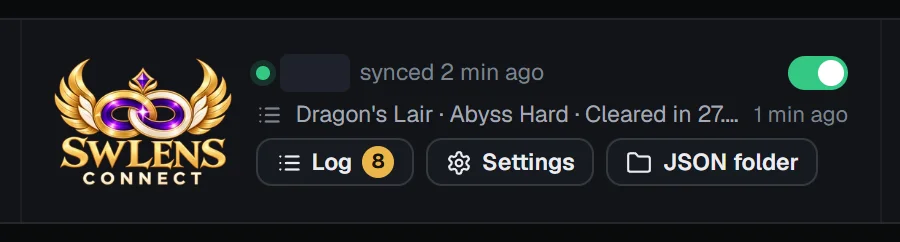
Later, the switch in the SWLens Connect part of the bar turns it on and off. The first time you turn it on there, its settings open first, so you see what it reads before it starts.
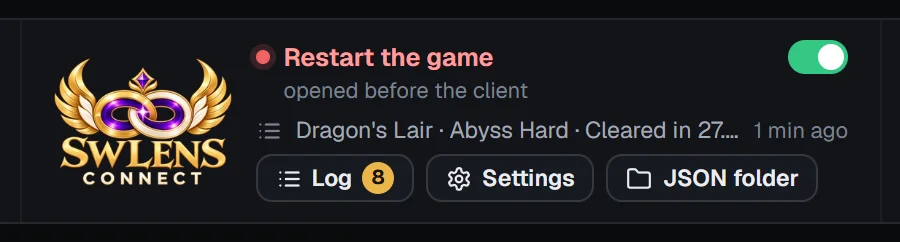
Why SWLens has to open before the game
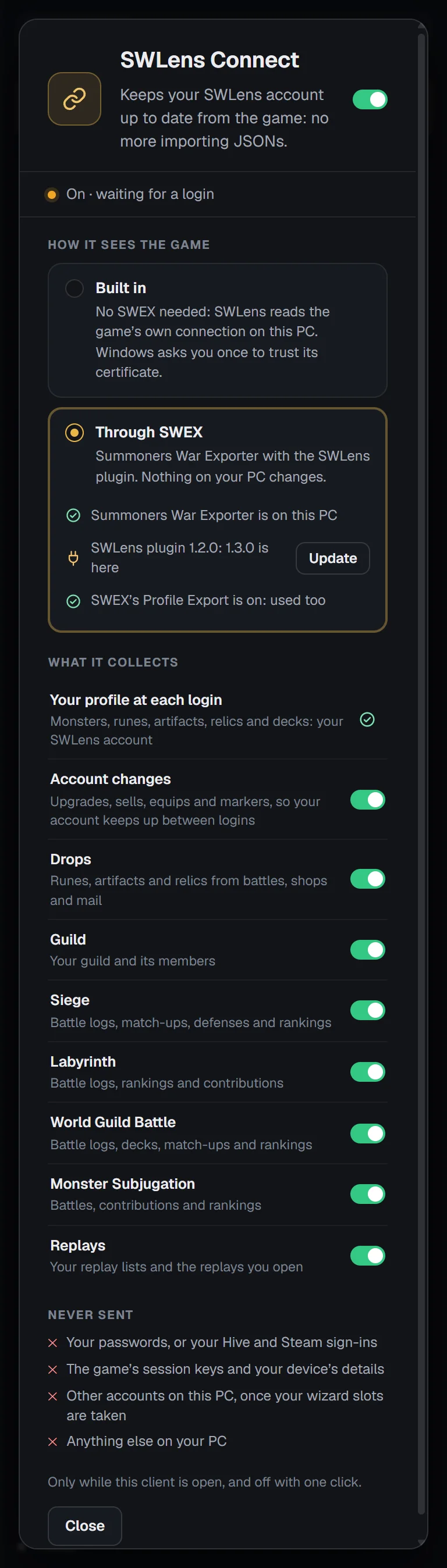
Two ways to see the game: Built in or Through SWEX
Settings in the Connect part of the bar opens Connect’s sheet. Under How it sees the game, pick one of two ways:
Both bring in the same things. Use Built in unless you keep SWEX’s proxy running: SWEX’s proxy and the built-in way can’t run at the same time.
Built in (no SWEX)
With Built in picked, the sheet checks three things:
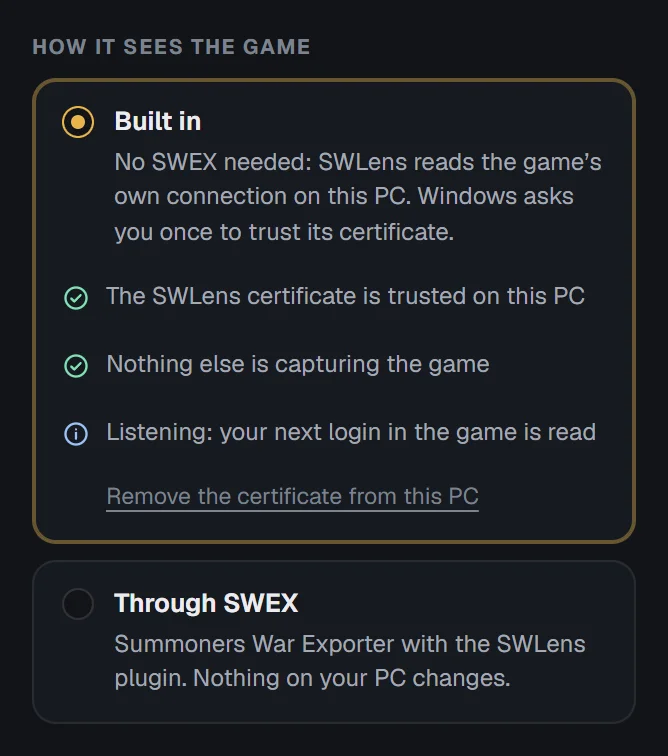
Remove the certificate from this PC takes the SWLens certificate out of Windows again whenever you like.
Through SWEX (Summoners War Exporter)
With Through SWEX picked, SWEX keeps reading the game as it always does, and a small SWLens plugin in SWEX passes what it sees to the client. The sheet checks:
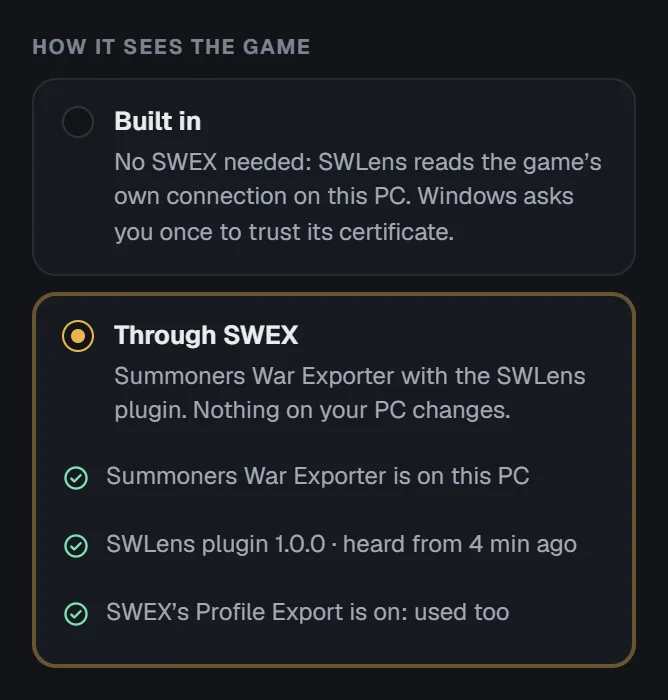
SWEX’s folder often holds other accounts’ files too: Connect only takes your own wizards’ exports, and nothing about the others leaves your PC.
Your first login and your wizard slots
Whose profile a login brings decides where it goes:
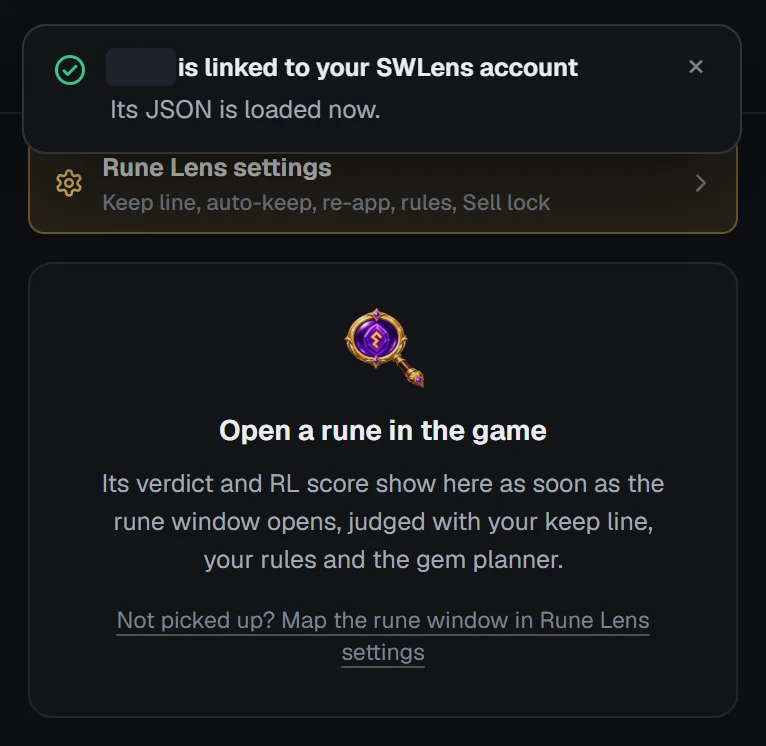
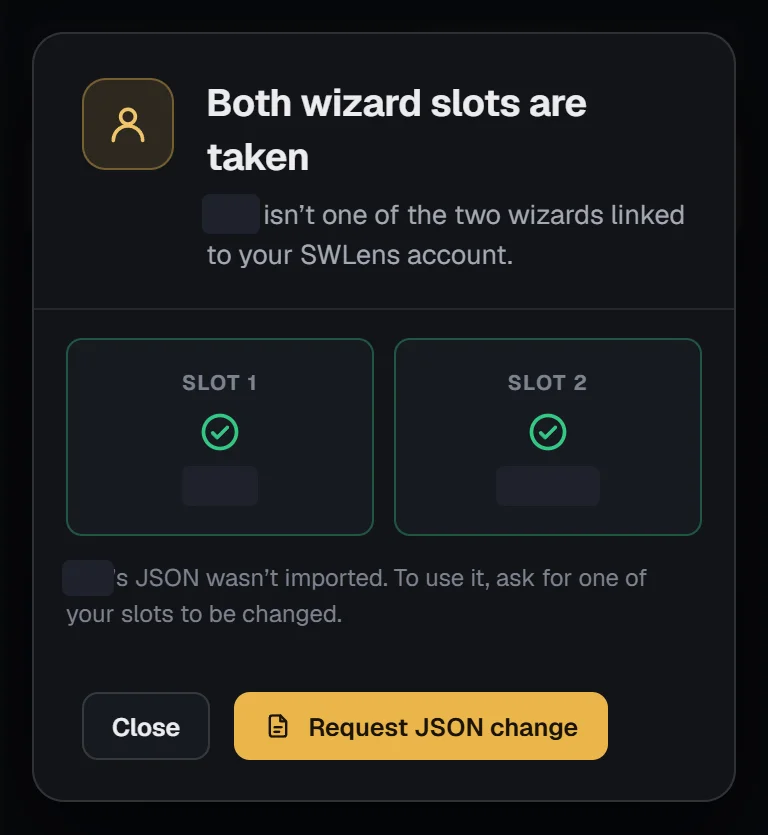
Connect never puts older data over newer: a profile goes in only when it is newer than your last import.
Reading Connect’s status in the bar
The SWLens Connect part of the bar under the game always says how it stands:
Under the status, the last thing Connect saw (click it to open the log), then Log with how many things it saw today, and Settings. The logo opens the settings too.
JSON folder opens Documents\SWLens JSON, where Connect keeps the latest JSON of each wizard it has seen: one file per wizard, replaced at each newer login and written like a SWEX export, so you can import it on SWLens or use it in other tools.
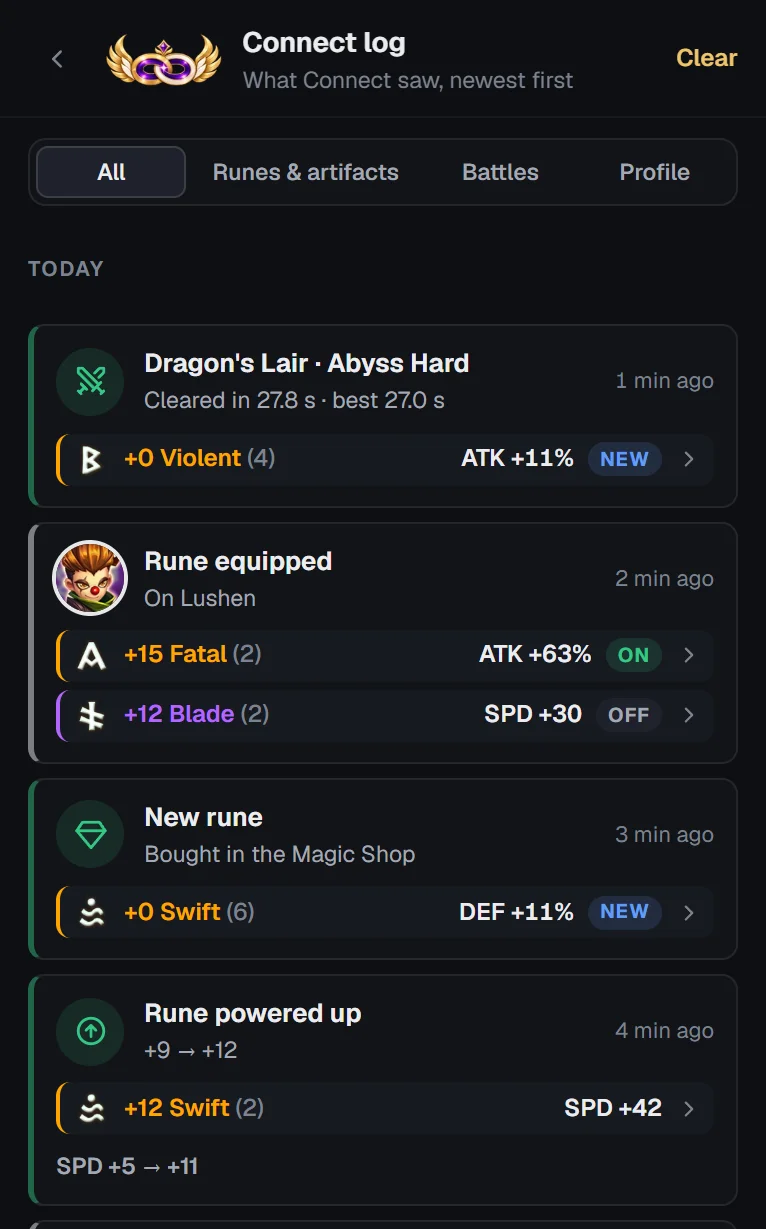
The Connect log
Log opens everything Connect saw in the live panel, newest first and grouped by day (Today, Yesterday …).
What SWLens Connect collects, and what it never sends
Connect’s sheet lists everything it collects, under What it collects:
Your profile at each login (monsters, runes, artifacts, relics and decks) is always collected: that is what keeps your SWLens account up to date.
Every other kind of data the sheet lists has its own switch, such as Account changes (upgrades, sales, equips and markers, so your account keeps up between logins) and Drops (runes, artifacts and relics from battles, shops and mail). Switch off anything you don’t want collected.
Never sent
- Your passwords, or your Hive and Steam sign-ins
- The game’s session keys and your device’s details
- Other accounts on this PC, once your wizard slots are taken
- Anything else on your PC
Something that can’t reach SWLens yet (signed out, no connection) waits on your PC and goes once it can. The privacy policy describes Connect too.
Is SWLens Connect safe?
- It only reads: it can’t play for you, and it changes nothing in the game or your account.
- It reads the game’s own data, the same data SWEX reads.
- It runs only while the client is open, and the switch in the bar turns it off at once.
- You choose what it collects, and it never sends your passwords or sign-ins.
Fixing SWLens Connect problems
When Connect needs you, the bar says Needs a look and a slim strip at the bottom of the live panel offers the fix as buttons (× hides it until the problem changes). Connect’s sheet shows the same under its status.
Restart the game
Summoners War was open before Connect started, so it missed your login. Close the game and open it again while SWLens is open.
SWEX is reading the game too
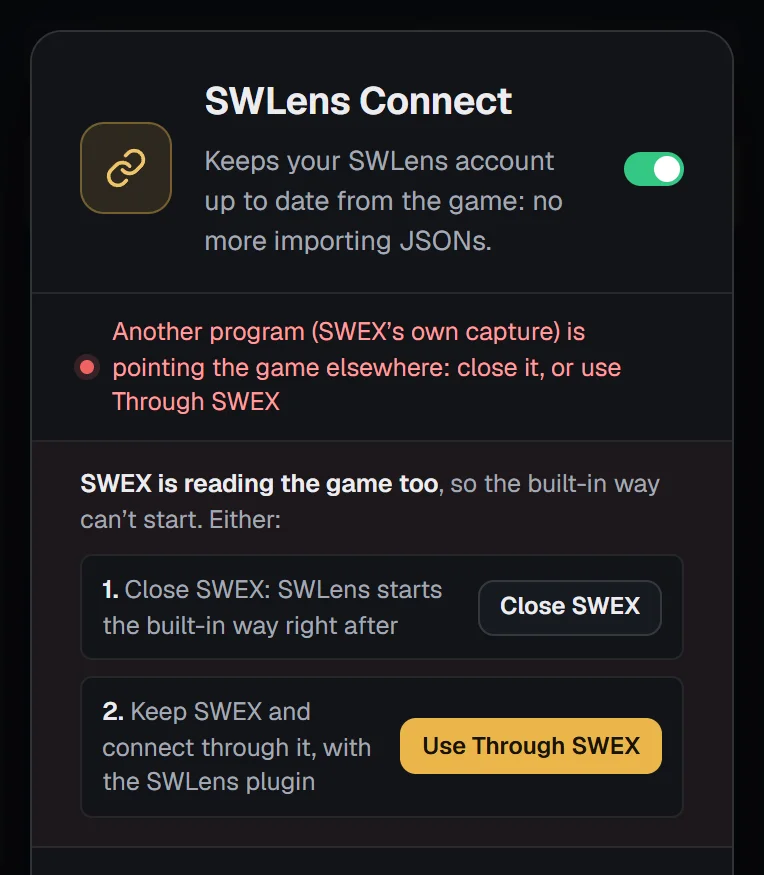
SWEX’s own capture is running, so the built-in way can’t start. Either press Close SWEX (SWLens starts the built-in way right after), or keep SWEX and press Use Through SWEX. If SWEX doesn’t close (it may be asking something), close it from its own window and press Close SWEX again.
Connect is waiting for you: the certificate
The built-in way needs Windows to trust the SWLens certificate. Press Trust it, then Yes in Windows’ warning. If you closed that warning, press Trust it again, or Use Through SWEX instead.
Windows or an antivirus blocked the built-in way
Something kept the built-in way from starting. Connecting through SWEX doesn’t need it: press Use Through SWEX instead.
Connect is waiting for SWEX
The SWLens plugin is in SWEX but SWEX hasn’t loaded it yet: press Restart SWEX, start its capture if it doesn’t start on its own, then log in to the game.
Summoners War Exporter isn’t installed on this PC
Install SWEX (see the SWEX guide), or pick Built in, which doesn’t need it.
Turn on Profile Export in Summoners War Exporter
Through SWEX without the plugin follows SWEX’s profile files: switch on SWEX’s Profile Export, or install the SWLens plugin.
Another program is using SWLens Connect’s ports
Close the other program, or restart the PC, then turn Connect off and on again.
Waiting to upload
Sign in, or check your connection: what Connect read is kept on this PC until SWLens takes it.
Your wizard slots are taken
The login was another account’s and your slots are full, so nothing was sent. Use Request JSON change in that window to ask for a slot to be changed, or link the account as a second wizard with Premium.
Frequently asked questions
What is SWLens Connect?
A free part of the SWLens desktop client that keeps your SWLens account up to date from Summoners War as you play, so you never have to export and upload a JSON again.
Do I still need SWEX?
No. The built-in way reads the game without SWEX. If you already use SWEX, Connect can work through it instead, with the SWLens plugin.
Does it work on mobile or an emulator?
Connect is part of the Windows client and works with the Steam version of Summoners War. On other devices, keep your account up to date with a SWEX JSON.
Is SWLens Connect safe for my account?
Connect only reads the game’s own data, the same data SWEX reads: it never changes anything in the game or plays for you, and it never sends your passwords or sign-ins. It is optional, and off with one click.
How do I turn it off?
Click its switch in the bar under the game, or in its settings. Your SWLens account keeps the last data it synced.
I play two Summoners War accounts. What happens?
With Premium, the second account’s login is linked as your second wizard when that slot is free. Without it, nothing of the other account is sent, and the client shows your wizard slots.
Does the website update too?
Yes. Connect puts the data in your SWLens account, so the website on any device loads it: reload a page you had open to see the newest.
Built in or Through SWEX: which should I pick?
Built in, unless you keep SWEX’s proxy running for other things: then Through SWEX, so the two don’t get in each other’s way.
Does Connect save a JSON of my account?
Yes: the latest JSON of each wizard it has seen, in Documents\SWLens JSON, named and written like a SWEX export. Open the folder with JSON folder in the Connect part of the bar under the game.
Related guides


Let your account keep itself up to date
Download the SWLens Client, sign in, and log in to Summoners War with Connect on.